If you have ever been to a stand-up comedy show, you know timing is one of the most important factors in determining how loud and frequent your laughs are. The same can be said about animated GIFs.
Whether the GIFs are used as memes, display ads or to illustrate a process, the speed of the GIF can influence its overall effectiveness.
If the playback speed of the GIF file is too fast, viewers may miss some of the essential elements of the animation. Likewise, if the speed is too slow, viewers may lose interest and stop watching. Either way, the main message of the GIF isn’t conveyed properly to the intended audience, which is a problem.
How to increase GIF speed
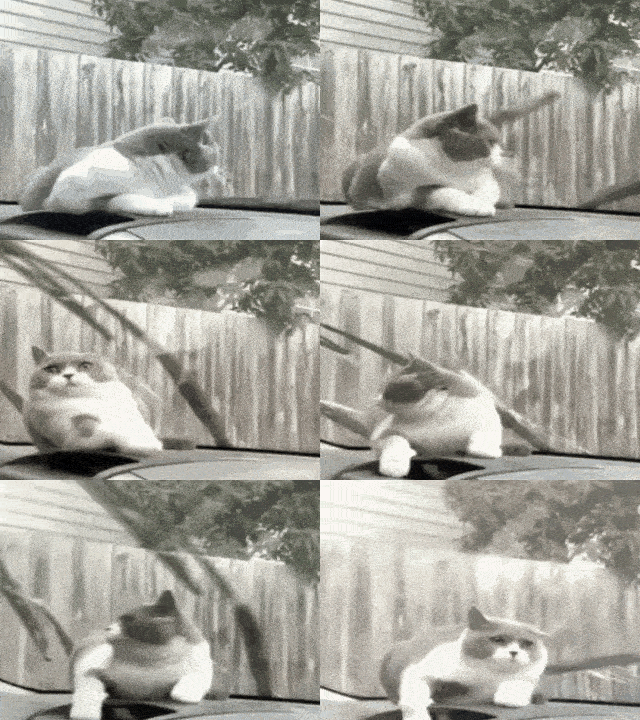
Take this GIF of a cat getting startled by a car’s windshield wipers. It is a bit too slow and might be more effective if the playback speed was faster to enhance the dramatic effect.
Upload GIF to Express Animate software
Open Express Animate and under the File tab, select Load Media Files, and choose your GIF file.
Open the Speed Change tool
Select the GIF under the Composition panel on the left or at the bottom. Right-click on the selection and click on Adjust Speed.
Increase GIF speed
You can now adjust the speed of the GIF by increasing the percentage value. By default, the speed of the GIF is set at 100%. To increase the speed of the GIF, choose a value over 100% and hit Set. Test different speed levels and preview your GIF.
Save and export GIF
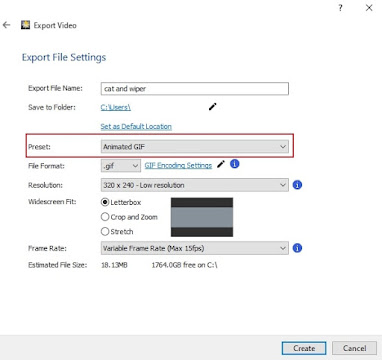
Once you’re happy with the result. Under File, choose Save Video and select Animated GIF under the Preset option to export your video as a GIF using the default settings. You can also manually adjust the GIF resolution and frame rate accordingly.
 |
Updated GIF with increased speed
|
How to decrease GIF speed
Sticking with the theme of funny animal GIFs, let’s use this GIF of this French bulldog having a moment and falling off a chair in a peculiar fashion. To decrease the speed of the GIF so that we can properly capture the bulldog’s spectacle in all its glory, you guessed it, the process is the exact same.
Upload and edit GIF speed
Follow the same steps from the above section to upload your GIF and open the Speed Change tool.
Decrease GIF speed
As the default speed is set at 100%, to decrease the GIF speed, choose a value under 100%. Test different speed levels and preview your GIF.
Save and export GIF
Similarly, follow the exact same steps to export your video as a GIF.
 |
Updated GIF with decreased speed
|
|
You’re all set. You have successfully changed the speed of your GIF and is now ready to be shared with the world. Available for PC and Mac, Express Animate is a comprehensive GIF software and can be used to create character animations, make animated GIFs from scratch, or edit GIFs with features such as rotate, resize, annotate, digital effects and more.


