Showing posts with label audio converter. Show all posts

Friday, May 24, 2019

How to Change WMA to MP3 with Switch Audio Converter

How to Change WMA to MP3 with Switch Audio Converter


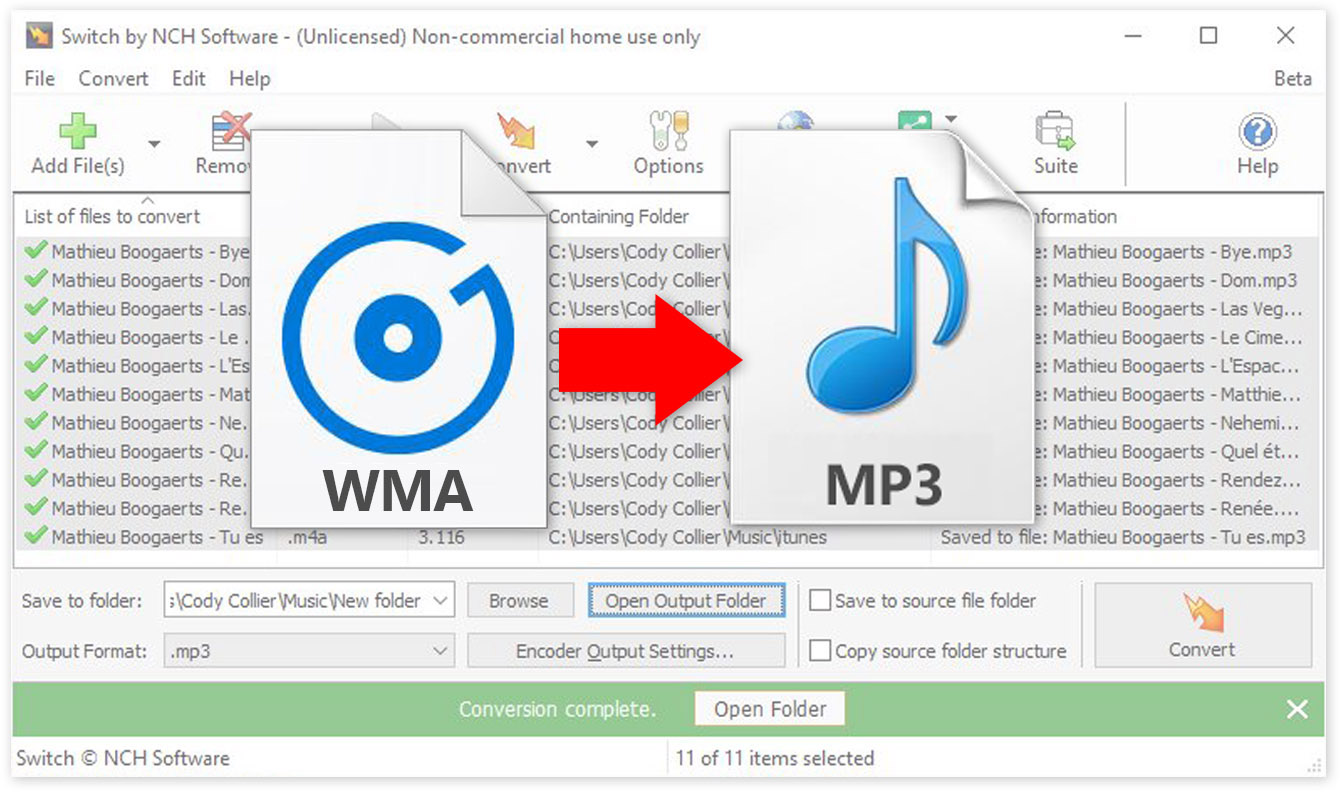
Windows Media Audio files, or WMA files, are a common audio file format, primarily meant to be opened and played on Windows Media Player and other Microsoft audio players. You can play WMA files with some other third-party software, but many audio players and devices (iPhone) will not support them. That is why it is useful to know how to change WMA to MP3. MP3 files are a much more commonly supported file type and are arguably a superior format anyways. You can easily change WMA files to MP3 format with an audio file conversion program such as Switch WMA File Converter Software.


Download Switch

Download Switch Audio File Converter software. Follow the installation instructions and launch the program on your computer.
Download Switch Audio File Conversion Software

Import WMA Files

Click on the green Add File(s) button located in the main toolbar to open the file finder window. Find and select the WMA files on your computer and click Open to bring them into Switch to convert them to MP3 format. You can also drag and drop WMA files directly into the program to change.
Import WMA files to Change them to MP3

Options Menu

Click on the Options icon in the main toolbar to open the Options window. This is where you can add and make adjustments that will be performed on your WMA files during the conversion. You can add metadata to your converted MP3 audio files as well as change settings to handle duplicate files and formats. Once you are finished adjusting these options, click OK.
Audio File Converter Options

Select Output Destination

Set the output destination where you would like your converted files to go after you have converted them from WMA to MP3 format. Click on the Save to folder drop-down menu to select a folder from this list, or click on the Browse button to open the file finder window and select a folder on your computer.
Set Output Destination for MP3 Files

Set Output Format to MP3

With your output folder set, you can now set the output format to MP3. Click on the drop-down menu on the left side of the program next to the words "Output Format" to view the list of available audio file formats. To change your WMA files to MP3 files, simply select the option from this list that says, "MP3." All conversions performed will now be in the MP3 audio file format.
Set Output Format Type to MP3

Encoder Options

Click on the Encoder Output Settings... button to launch the window for WMA Output Settings. Here you can make adjustments and change audio encoder settings such as metadata, sample rate, bitrate, and amplify/normalizing audio. These settings will be applied during the conversion process while your WMA files are being changed to MP3 files.
WMA Encoder Options


Change WMA to MP3

Once everything is set up, you are ready to change your WMA files to MP3. Simply click on one of the Convert buttons, located in the bottom right-hand corner of the program and in the main toolbar. This will start the conversion process. You can select only one file to convert them one at a time or you can select all of them to perform easy batch MP3 conversions.


Finished

After the WMA to MP3 conversion is complete, you will see a green banner at the bottom of the program that says "Conversion Complete." You can click the button on the banner to open the output folder and view your newly converted MP3 files. You have now successfully learned how to changed WMA to MP3 using Switch Audio File Converter Software.


To read more about Switch and other audio topics, check out these similar posts:

Thursday, January 3, 2019

The Best Editing Software of 2019

The Best Editing Software of 2019


The new year has begun and so has the search for the best editing software of 2019. We all strive to find the latest and greatest when it comes to editing software and with each new year comes new updates, new features, and new players in the game. With so many great editing software options out there, we decided to put together a selection of the best editing software of 2019. The world of editing software grows more competitive each year and so in order to stand out a program needs to be feature packed, user-friendly, and affordable. The following programs we feel meet and exceed that criteria, making them the best editing software packages of 2019.


Best Audio Editing Software of 2019


WavePad Top Features

  • Easy to use interface with non-destructive audio editing
  • Supports almost all audio & music file formats (mp3, wav, vox, gsm, wma, au, aif, flac, real audio, ogg, aac, m4a, mid, amr, & many more)
  • Edit the audio from video files
  • Batch processing allows you to apply effects and/or convert thousands of files as a single function
  • Audio restoration features including noise reduction & click/pop removal
  • DirectX & VST plugin support gives producers access to thousands of additional tools & effects

WavePad Audio Editing Software

WavePad Audio Editing Software has been a major player in the audio editing software industry for many years. With each new release comes game-changing new features and abilities. WavePad's simple yet professional interface allows for quick learning for beginners with easy access to advanced features for pros. WavePad includes just about every effect and function you could ask for in an audio editor. It is for these reasons that we think that WavePad Audio Editor is the best audio editing software of 2019.

Best Video Editing Software of 2019


VideoPad Top Features

  • Supports all popular video formats seamlessly
  • One of the fastest video stream processors on the market
  • Over 50+ visual effects and transitions to add a professional touch to your movies
  • 3D video editing and 2D to 3D stereoscopic conversion
  • Upload to Facebook, YouTube & Flickr directly from the program
  • Edit 360 videos for YouTube & VR headsets
  • Create visual effects templates to use on any project
  • Create title text animations in seconds with templates

VideoPad Video Editing Software

Last year VideoPad was named the Best Value Video Editing Software of 2018 by TopTenRevews. However, it is not the affordable price alone that will make it the best video editing software of 2019. Some of the most recent updates have brought the program on par with the top video editors in the industry. These include 360 video editing, direct sharing from the program, and the support of almost every major file format. VideoPad's sleek and simple design allows for easy editing and application of transitions and effects while maintaining professional quality and standards. This is why VideoPad is the best video editing software of 2019.

Best Music Mixing Software of 2019


MixPad Top Features

  • Mix an unlimited number of audio, music, sounds, & voice tracks
  • Record single or multiple tracks simultaneously
  • More supported formats than any other mixer
  • Includes a royalty-free sound effect & music library
  • Use sample beats or craft your own using the beat designer
  • VST plugin support for added studio effects and instruments
  • Very low latency, ASIO support for sample accurate recording
  • Export at all popular bit depths up to 32 bits floating point audio
  • Upload directly to SoundCloud, Dropbox, or Google Drive

MixPad Multitrack Recording Software

MixPad Audio Mixer will minimize the time it takes to mix your next project while optimizing audio quality. MixPad provides you access to all of the power of professional recording and mixing equipment through a single platform that streamlines the process and makes mixing a breeze. This program allows you to record instruments and vocals for music production, create mixes and mashups with existing files, or even use midi controllers and the beat designer to create music in the program from scratch. The versatility of this program is what truly makes it the best music mixing software of 2019.

Best Photo Editing Software of 2019


PhotoPad Top Features

  • Millions of effect combinations available through photo effects and filters
  • Supports editing RAW photos directly from your DSLR Camera
  • Non-destructive editing enables you to easily undo, re-order and edit existing effects on the layers list
  • Merge multiple exposures to create stunning HDR photographs
  • Change the aspect ratio of an image without distorting key features using the liquid resize effect
  • Upload edited pictures directly to Twitter, DropBox, Google Drive & Flickr
  • Insert clipart from the included clipart library

PhotoPad Photo Editing Software

Whether you’re a professional photographer or just want to edit your personal photos, PhotoPad is one of the best photo editors on the market today. It has all of the powerful tools and features you need to easily edit digital photos and other pictures. PhotoPad brings both photo editing and graphic design capabilities together with a fast and simple user interface. With this program, you can have all of the bells and whistles of any professional photo editor at a fraction of the cost. This is why we think that PhotoPad Photo Editing software is the best photo editing software of 2019. 

Best Motion Graphics Editor of 2019


Motion Graphics Top Features

  • Free and easy to use
  • Objects can be moved, resized, rotated & more
  • Digital effects, such as brightness, contrast, negative and more may be applied to objects
  • Keyframes can be applied to each object and parameter
  • Create animated text and text bubbles
  • Add audio tracks or record audio
  • Apply effects to audio tracks
  • Group objects for easy editing
  • Add masks to an object
  • Export as video, flash, html5 or an animated GIF

Express Animate Motion Graphics Editor

Express Animate is a free animation program that gives you the ability to animate shapes, text and imported images. You are also able to enhance your movie projects in post-production using key-frame motion animation, masking, dummy objects and more. The program really is completely free without a catch too, which is a rare find these days. This is why we feel like Express Animate is the best animation editor of 2019. 

Friday, December 14, 2018

Best Audio Converter Software of 2019

Best Audio Converter Software of 2019


We are very happy to announce that Switch Audio Converter has recently been recognized by TopTenReviews.com as the "Best Overall Audio Converter of 2019." We are constantly aiming to improve our software based on the feedback and demand of our customers. After each new release, the goal remains to deliver a product that is efficient and effective for our users. With a product like Switch, that means making sure that a wide variety of export/import formats are supported and that conversion speeds are lightning fast.

Click here to read the whole review: Switch Audio Converter: Best Overall Audio Converter of 2019

"We believe Switch Plus Edition is the best audio converter for most people because it has all the major import and export formats, and it can convert faster than any software we tested. If you need to convert a large number of files quickly, this is the best option." - TopTenReviews

"Switch is the fastest audio converter software we tested. To test the speed of each converter software, we timed how long it took to convert a 625MB WAV file to a 26MB MP3 file." - TopTenReviews


Switch is one of the most stable, easy-to-use, and comprehensive multi-format audio file converters available. The program supports conversion between over 40 different audio file formats as well as allows you to perform batch conversions and edit audio file metadata. If you have not had a chance to try out switch, download your free trial today and see what you are missing. As we are constantly making improvements to our programs, we encourage users new and old to send us questions and leave us feedback so that we can keep providing our customers with the best of the best.


For more on Switch, check out these pages:

Friday, November 16, 2018

How to Change CDA to MP3 with Switch CDA Converter

How to Change CDA to MP3 with Switch CDA Converter


A CDA file is an extension for an audio file on a CD. That means that CDA files do not actually contain sound data, but they reference a file that does. You may load CDA files onto your computer only to find that you cannot play them on your audio player. Learning how to change CDA to MP3 is the best way to get your CDA files into a universally recognized format that can be played anywhere. With a simple audio conversion tool, such as Switch Audio File Converter Software, you can quickly change CDA to MP3 and use the files from your CD in many different applications.


Add CDA Files

Open Switch Audio File Converter Software on your computer and click on the Add File(s) button. Click on the drop-down arrow to view a list of import location options. Clicking directly on the green plus sign will launch the file finder window. From here you can locate and select the CDA files that you wish to convert to MP3. Once your files are selected, click the button that says Open to bring them into Switch.


Listen to CDA Files

You can listen to your CDA files in Switch before converting them to MP3. Simply double click on any file in the program to listen or select a file and click on the Play button at the top of the program. This is a useful way to make sure that you have the correct audio file selected if your files do not have names.


Output Format

To change CDA to MP3 using Switch, use the Output Format drop-down menu to select MP3 from the list of output formats. This will make it so that any CDA files that you convert will be converted to MP3. The MP3 audio file format is the most common and widely accepted audio file type and converting your CDA files to MP3 will make it so that you can listen to them practically anywhere.


Encode Metadata

With Switch Audio File Converter Software, you can easily add meta tags and metadata to your MP3 files. Click on the Encoder Output Settings...button to launch the MP3 Output Options window. From here, you can choose from several audio file encoding options that the program has to offer. Click on the Metadata tab and enter any desired metadata content you would like in your MP3 files.


Encode Volume Settings

You can also adjust the audio settings while you convert using the Encoder Output settings button. Click on the tab that says Volume to make audio adjustments to your files as they are being converted such as Normalize, Amplify, and Noise Reduction.

Change CDA to MP3

With your CDA files imported into the program and your encoder settings set, you are now ready to change your CDA files to MP3. Click on the box that says Save to Folder and choose an output destination from the drop-down menu. This is where your converted CDA files will appear as MP3 files once the conversion has been performed. Select the CDA files you wish to change to MP3 and then click on the large Convert button, located in the bottom right-hand corner of the program.


Write Audio Tags

If your CDA files are coming directly from a CD, they may contain track info that can be included in the converted MP3 files. This can be very useful for keeping your music organized and adding your MP3 files to your music library. If you are prompted with this window, you can click Write Tags to have the audio track tag information from your CDA files included in your converted MP3s.


View Converted MP3 Files

When the conversion is complete you will see that all of your CDA files will have a green checkmark next to them in the program, meaning that they were all converted successfully. You can click on one of the two folder buttons that appear after a conversion to view your MP3 files and you can now play them anywhere you would like.


For more on audio conversion, check out these posts:

Friday, June 1, 2018

Best Tool to Edit MP3 Tags and Metadata with Switch Audio Converter

Edit MP3 Metadata with Switch Audio Converter


Best Tool to Edit Metadata and Tags when Converting to MP3

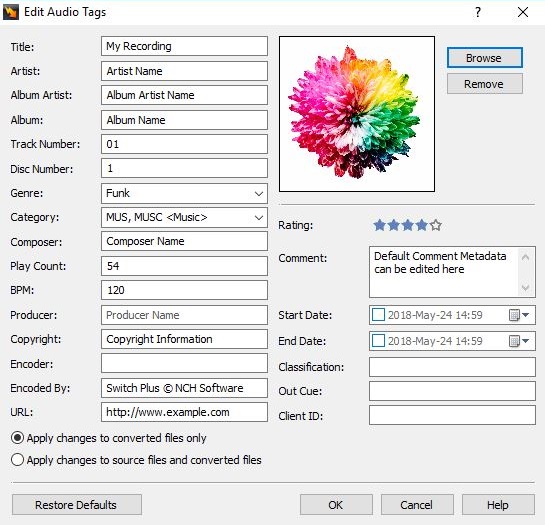
When converting a track to MP3, you can edit the track metadata and tags to include title, artist, track artwork, producer, rating, genre, comments, and more. If you record your own music, you may want to set up metadata and tags for your finished recordings before sharing. Editing your tags and metadata will ensure that your album artwork, artist name, and other tags show up correctly when your track is loaded into a new audio library. You can easily edit the metadata of MP3 and tags for audio files when converting with Switch Audio Converter.


Edit MP3 Tags

To edit the tags of an audio file, begin by loading the file into Switch Audio Converter. To import an audio file, click on the "Add Files" button in the top left-hand corner of the program window.


After you have imported an audio file, you can right-click on the file in Switch and select "Edit Audio Tags" to edit the audio tags.


This will open the Tag Editor for the selected audio file. Here, you can edit the audio track title, artist, album, genre, BPM, producer, rating, artwork, and more. For new recordings, many fields will be blank. If the audio file that you are converting currently has audio tags, the existing tags will be displayed in the Tag Editor.


To edit a tag, click on the field that you would like to edit and type in the new tag information that you would like to save for your mp3 file. You can edit the song Rating by clicking on the star value that you would like to assign to the audio file.


Add Artwork to an MP3 File

To add the artwork to an MP3 file, click on the "Browse" button the right of the artwork image in the Tag Editor. Then, select a file from your computer to use as the artwork for your audio file. 

Apply Changes

You can apply changes to converted files only, or you can apply changes to source files and converted files. To apply tag edits to converted files only, select the option that says "Apply changes to converted files only". This option will leave the file tags for the source file in their original state while applying the tag edits to only converted files.


 To apply tag changes to the original source file as well as converted files, select the option that says "Apply changes to source files and converted files".


Convert to MP3 with New Tags

To convert your file to MP3 with the edited tags, click on the "Convert" button in the bottom right-hand corner of the Switch program window.


Friday, July 8, 2016

How to Change WAV to MP3 files with Switch WAV Converter

How to Change WAV to MP3 Files with Switch WAV Converter


Audio files exist in a wide variety of formats, each with its own benefits and potential drawbacks. When editing or playing audio tracks, you may need to convert from one format to another to suit your distribution needs.

What are WAV Audio Files?

WAVE files are uncompressed, lossless CD-quality music files. Though they are popularly known by their file extension, .wav, WAVE stands for Waveform Audio File Format. WAV files can contain compressed audio, however, they are more often used to take advantage of uncompressed audio. 

 When Should You Use WAV Audio Files?

Due to their uncompressed nature, .wav files are the best choice for radio, TV, DVDs, and other projects that require uncompromised high-quality audio tracks. As a result, it is uncommon to share WAV files on the internet because uncompressed audio files are often very large files and result in slow file transfer. WAV files are favorable for keeping archived versions of original recordings as they will retain original audio quality.

What are MP3 Audio Files?

MP3 is a compressed, lossy format that is widely used for audio tracks on the internet in web pages, web videos, audio sharing, and more. MP3 audio files are extremely popular because they take up very little disk space due to being compressed to roughly one-tenth of their original size. 

When Should You Use MP3 Audio Files? 

MP3 audio files are able to load quickly while retaining high audio quality, which makes them favorable for use on web pages, in embedded videos, in audio sharing, and in multimedia presentations.  However, this popularity is a double-edged sword as compressed MP3 audio tracks retain less information and as a result, can be more difficult to edit.

How To Change WAV to MP3 Files

After editing an original audio recording in WAV format, you may want to compress your file for easy sharing on the internet. Switch Audio Converter is a simple audio converter that can accomplish WAV to MP3 conversion quickly and easily. Switch also has the option to batch convert audio files, which is efficient and effective for audiophiles who need to change hundreds of audio tracks in a short period of time. 

Step 1: Load WAV Files

In order to change WAV to MP3 with Switch, begin by loading the WAV files that you would like to convert. To do this, open Switch Audio Converter and click on the "Add File(s)" button.


Step 2: Select Audio Output Format 

Once you have added the WAV audio files that you would like to convert, select the audio output format that you would like from the "Output Format" selector at the bottom left of the Switch window. 


You can also select a specific folder where the converted file will be saved, or check the box to output to the same folder as the source file. 

Step 3: Change Audio Files

Now that your file has been added to Switch and you have selected MP3 as your desired output format, simply click the "Convert" button to change your files!


Once your file has been converted, a prompt will appear allowing you to be taken directly to the output folder you selected, or to open the file directly. 


Congratulations! Your new MP3 file is now ready to be shared with the world.


Download Switch Audio Converter to Get Started!


More Audio Posts from NCH Software: 


Saturday, August 31, 2013

The Compact Cassette Turns 50

Our more seasoned readers will all remember the days of compact audio cassettes—winding them with a pencil and all. Not to make those readers feel old, but today Philips is celebrating the 50th Birthday of the compact cassette.

"On this day in 1963 the Philips Pocket Recorder EL3300, also known as the compact cassette, was introduced to the world!"
   – Philips

While the heyday of the cassette is past us and it is now seen more as a retro and iconic image of those times, if you still have a collection of cassettes you may want to give them a digital makeover for their birthday. With Golden Records Analog Audio Converter you can not only digitize vinyl records but you can convert audio cassettes too. Guiding you from connecting your cassette deck to your computer through to saving MP3 files so you can bring your old favorites to your new devices and relive those fond memories.

Friday, April 19, 2013

Preview Switch Audio Converting Software

CNET recently started making download preview videos to give you a quick taste of a program before you download. Take a look at the speedy Switch Sound Converter below. It really only takes seconds to convert audio and music files to mp3, aiff, wav, wma, or any one of the other audio formats—over 40 formats in all.


So now that you've had a peek, download Switch Audio Converter for your Mac or PC today for quick and easy audio converting whenever you need it.

Wednesday, June 13, 2012

Amazing Tools for Transcription

Guest post by EQ Trans UK

Amazing Transcription Software ToolsAs a transcription services provider which caters to clients all across the UK, we believe in the importance of using technology that enables our transcriptionists to perform at their optimum, while simultaneously benefiting our clients as well. Using the appropriate software while working on a transcript can help a transcriptionist do a better thorough job of transcribing and, of course, help in meeting deadlines faster, too.

We have been using various NCH software for a while and they are now form basics of what we do. If you are new in the transcription industry, here is what minimum you need to have to get going:

Express Scribe – This audio player which can be used on both PCs and Macs comes loaded with many features, such as support for foot pedals, variable speed playback, as well as speech-to-text integration. This software does a great job of supporting all the popular file formats. It also gives a transcriptionist better control over the audio playback through the use of a foot pedal and even keyboard shortcuts. Express Scribe does not take up too much screen space, unlike other software, and runs quietly in the background while a transcriptionist is at work.

Switch Sound File Converter - Although there are plenty of file converters available, this software wins hands down for its simplicity. Our clients often send us digital audio files in other formats and we use this software to convert them into an mp3 format using 128 bit mono encoding. This makes it easier for uploading files on our secured server so that our transcriptionists can get to work. Switch also gives users an additional option of configuring up to 3 right-click options which make the conversion process faster, too.

Prism Video Converter - This video file converter converts files from any format to the most commonly used formats, either in singles or in batches, and can even convert files directly from DVDs and other multimedia devices. We use this software mainly for converting large video files into mp3 file format so that they can be uploaded on our server easily. Prism also has another option of resizing a video file format and customising it in terms of the frame rate, brightness, and contrast, as well as text and caption addition.

WavePad Editing Software - One factor which can be detrimental to the process of transcribing itself is the presence of background noise in an audio file. The WavePad Audio Editing Software works on both PCs and Macs, allowing the user to cut and paste specific sections of the recording, besides adding features like noise reduction. This software supports a large number of file formats and has a remarkably easy-to-use interface as well.


EQ Trans UK is a transcription agency based in the UK. We have a well-trained and certified team of transcriptionists to address any client requirement.

Wednesday, February 15, 2012

NCH at the Heart of Transcript Divas Transcription Services

Guest post by Transcript Divas Transcription Services

NCH Software is at the heart of our business process at Transcript Divas Transcription Services. We use three of their programs to edit, convert and transcribe audio and video dictation files.
express scribe transcription software
NCH Software is key in solving two problems we often have to deal with, even before our typists get to work. Obscure recording formats can be problematic–although Express Scribe handles most common formats, clients do send us files that are difficult to handle, especially large video files. So to save time at the typist's end, we batch-convert these problem files to the smaller and more compatible MP3 audio file format using NCH's Switch File Converter.

The second key difficulty we often encounter is how to deal with poor-quality recordings. A surprisingly large number of interviews take place in noisy cafes, with hissing coffee machines and clunking cups almost drowning out the speech. We also receive poorly-recorded group sessions, where the participants farthest from the microphone are practically inaudible, while the closest voices are deafening. In these situations Transcript Divas employ WavePad sound editor to process recordings before they go out to typists. Functions we find particularly useful are 'normalize,' 'amplify volume,' and 'remove noise or hiss.'

Almost all of our 30 Divas use NCH Software's Express Scribe, which is free–though there's also a paid version, Express Scribe Pro, which has more functionality. Express Scribe's user-friendliness makes it the preferred choice when compared with other transcription software packages, and this is something it shares with all of NCH's programs. As one Diva put it, "I especially like the fact that you don't need to be a technical whiz-kid to use it!" Key features that Divas mention are its ability to handle most common file types, the essential functions of speed adjustment, rewind and fast-forward, and the 'volume boost' for quiet files–which saves typists having to go into WavePad for a small poorly-recorded Express Scribe Pro also plays video files–an ability our 'Video Divas' put to good use. To maximize typing speed, many of our typists also use a foot-pedal.

Another key feature our typists have highlighted is Express Scribe's ability to insert time-coding. This is seen as a real gem by the typists, and can save countless hours of inserting them by hand! For the uninitiated, go to Options → Display–this allows you to set the required combination of hours, minutes and seconds. Once you have chosen, simply go to 'Notes,' 'Insert' and 'Time' each time you need to put in a time code, or press Ctrl+Shift+T to save even more time.

Transcript Divas Transcription Services is a transcription agency with offices in London, New York, Toronto and Sydney.

Thursday, January 19, 2012

C is for Converting

NCH Software ABCs Series

C is for converting softwareConverting is a great example of what we strive to do with all of our software programs—solve problems quickly. Our file converters have powerful tools built in for batch converting many files at once and command line integration, but what really makes them great and keeps people coming back is that they are easy, they convert more file types than the competitors, and they give you a reliable solution to convert, compress, open and share less common files formats fast.

If you need to convert the format of any type of media, look no further:
<<< Previous: B is for BusinessNext: D is for Dictation >>>

Friday, January 6, 2012

A is for Audio

NCH Software ABCs Series

A is for Audio SoftwareWhat better place to start our A to Z software tour than at the beginning—both the beginning of the alphabet and the beginning of NCH—Audio.

NCH Software was originally named NCH Swift Sound when it was founded in 1993 largely because many of our earliest products were sound and audio software solutions. Even though we have since expanded our range of software tremendously, to this day our WavePad audio editing software remains not only a company favorite, but our top selling program, currently available for Windows, Mac, iPhone and the iPad with millions of users worldwide.

WavePad may be the core of our audio software category but there are several other big players including MixPad multi-track mixer, Switch audio converter and SoundTap streaming audio recorder, just to name a few. You really can do more with audio using our complete range of audio software programs:

Next: B is for Business >>>

Monday, October 3, 2011

Do More with Audio - Blog Carnival October 3, 2011


Here are this edition's entries to Do More with Audio:


HBAJAKE presents Should You Use Compression In Audio Recording? posted at Home Brew Audio

Martha presents Katy Perry Ties Michael Jackson's Record; Will She Break It?, saying, "Katy Perry is no one-hit wonder. This week, her latest single reached number one on Billboard’s Hot 100 chart. The track is her fifth number-one single off her latest album, which ties her for the most all-time off of one record. Michael Jackson was the only other artist to ever reach that number."

Danielle MacInnis presents Podcasting for small business posted at Flying Solo

Kelley Wilson presents 10 Reasons that iTunes is So Popular posted at MacApper.

Ken presents Top Audio Editor Even More Affordable In September posted at Pro PC Audio Recording on a Budget

bristolstudios presents Recording: Home Quality vs. Studio Quality posted at bristol recording and voice studios

Marie Kazalia presents Making Music From Everyday Objects, saying, "Sound artist R. Weis created his new Excitable Audible CD over a period of more than two years using recordings of many commonplace sounds found in his home."


You might also be interested in:That concludes this edition of Do More with Audio. Be sure to Submit your audio articles for the next edition.

Friday, September 16, 2011

Convert and Compress Files

Whether you're on a Mac or a PC, these conversion applications cover nearly every file type you'll run into, making them the most complete and reliable software for converting and compressing files out there.

Switch Audio File Converter

For your music, presentations, or audio projects, Switch Audio Converter lets you put your music anywhere at any time. Convert music for your iPod, PSP or phone. Compress audio to save hard drive space. Create a ringtone on your phone by converting the format, or even extract audio from video files.

Prism Video File Converter

Your computer might only be able to open certain video file types. Use Prism Video Converter to ensure you'll always be able to watch your videos. With Prism you have complete control over video settings such as compression and encoder rates, resolution, frame rate, and size output. You can also batch convert thousands of files at once and preview videos before conversion.

Pixillion Image File Converter

Pixillion isn't just image conversion software, there are many additional settings to make adjustments to your images while converting including adding watermarks, adjust the image quality, size or resolution, or even crop and rotate photos.

Express Zip File Compression Software

Express Zip is currently the only application on this list that is only available for Windows, but it is an extremely valuable compression tool. Use Express Zip archiving software to create, manage, and extract zipped files and folders. Plus extract files from a variety of other archive formats including rar, cab, iso, tar, and 7z or convert those archives into zip files. You can also easily email zipped files from the program or simply compress files to save disk space.