Showing posts with label sound. Show all posts

Friday, July 26, 2013

Why Do High Sample Rates Sound Better?

Guest post by Rupert Pfaff

Human hearing is generally defined as extending from 20Hz to 20kHz, and the Nyquist criteria state that a sampling rate of at least double the highest audio frequency must be used in order to accurately represent the signal. An unwanted side-effect of analog to digital conversion is 'aliasing', where musically unrelated signal noise enters the audio band, so an 'anti-aliasing' filter is used to prevent this, but because it is not possible to implement an infinitely steep filter, a slightly higher sample rate is used than is theoretically necessary. This is how the CD standard of 44.1kHz came about (a little more than double 20kHz), and DAT took this up to 48kHz to allow varispeed recording.

Set audio sample rate in WavePad audio editing software So if we can't hear above 20kHz, why record at very high sample rates such as 96kHz or even 192kHz? Some have suggested that although we don't actually hear 'supersonic' frequencies, we somehow perceive them by another means, but experiments that artificially add and remove these frequencies have shown this not to be the case. But 'golden eared' tests which have made A/B comparisons of the same equipment operating at standard and high sample rates have revealed that 96kHz & 192kHz recordings do sound subjectively better - so what's going on?

The answer lies primarily with the anti-aliasing filters - even the best-designed filters produce a certain amount of 'ripple' that extends downwards from the cut-off point and gradually tails off, and this is perceived as a 'smearing' of high frequencies and the stereo image. But by moving the cutoff point way up (say to 96kHz), the ripple has all but disappeared by the time it gets down to audio frequencies, and hence, substantially improved sound quality. Importantly though, it follows that this improvement is maintained even after the sample rate has been converted down to normal rates, as no new A/D conversion is required, and therefore, no anti-aliasing filter.

Experienced Recording Studio Engineer Guidelines
In the early days of high sample rate recording, there was a preference for using multiples of the 'CD' frequency (44.1kHz), i.e. 88.2kHz or 176.4Hz - this was because sample rate conversion was a very difficult thing to do at the time, and better quality could be achieved when converting down to 44.1kHz by using an integer multiple. However this is no longer the case, and our usual preferred rate for acoustic recording is 96kHz for a variety of reasons:
  • 96kHz is the native frequency of many DVD audio releases
  • Although 192kHz does sound a little better than 96kHz, the improvement is marginal
  • Some plug-ins do not handle 192kHz audio
  • Processing power is reduced to roughly a quarter of that available at 48kHz
That said, if you are working very largely with virtual instruments that have mostly only been sampled at 44.1kHz, and/or you like to use a lot of tracks and processing, it may be more sensible to stick to 44.1kHz. Or if you're making a small classical or jazz recording, you may only need a few tracks and little processing, and want to eke out every last bit of quality you can, then go for 192kHz - let your music make the decision for you.

Rupert Pfaff has worked in the music industry for over 20 years having operated a well known music shop in London before becoming a sound engineer and technical authority for mixing and mastering. Now involved with the day to day running and managing the online bookings for RecordingStudioLondon.

Thursday, July 11, 2013

Royalty-Free Music Library

Royalty-Free SFX and Music Library When you purchase products like MixPad audio mixer, WavePad audio editor or VideoPad video editor from NCH Software, you get more than just high-quality audio and video software. You also get hundreds of dollars worth of royalty-free music and sound effects that you can use in your productions.

Your purchase entitles you to download, at no additional cost, a wide array of music clips in genres such as blues, dance, and rock. You can also download lots of sound effects including animals, alarms, office sounds, sports and many others.

Music and sound effects libraries can cost you hundreds or even thousands of dollars to purchase and use in your audio and video productions. But with products like VideoPad, WavePad and MixPad you won't spend an extra cent for all those music clips and sound effects.

The term royalty-free, if you're not familiar with it, means that you can use this copyrighted material without paying royalties or license fees for each use. The reason you don't have to pay is that NCH Software purchased this library of music and sound effects and negotiated to allow our customers' free use of the library. Even if you are creating a project for which you're getting paid you can use the music and sound effects library for your production.

If you have wondered if the sound effects in the sound library can be used for your projects. The answer is that the library can be used in a wide range of productions:

You have the right to synchronize the audio content with audio and/or visual productions or applications such as:
  • film, video, DVD & TV productions
  • training, marketing and trade show presentations
  • corporate videos & educational applications
  • on hold messages & advertising
  • radio presentations & commercials
  • television presentations & commercials
  • live performances
  • speech & audio book products
  • Web pages & multimedia presentations
  • PowerPoint & Flash productions
  • interactive programs & computer games
  • AV & computer generated displays, podcasts
    (all such applications hereinafter referred to as "the Production")
You may create copies of the Production. If you sell, lease, give away or otherwise distribute copies of the Production, the rights and limitations to synchronized audio content as outlined are in effect for the life of the Production and pass automatically to the End User of the Production. All rights not expressly granted herein are reserved.

So, the next time you create an audio or video project, be sure to take advantage of the bonus royalty-free music and sound effects library included with your editing software.

Thursday, June 13, 2013

How To Generate Audio Tones

audio tone generator If you need a simple audio tone or frequency, Tone Generator is an efficient tool to create the audio wave you are looking for.

Typically a tone generator is used for tasks like creating test tones for calibrating sound equipment, but there are plenty of other applications, like sound therapy or repelling mosquitoes. Whatever you are doing, the NCH Tone Generator can easily generate everything from sine and sawtooth waves to impulses and more.

Tone Generator is very easy to use, but here are some of the basics to help get you started:
  • By default, the Tone Generator opens with a single 440Hz frequency.
  • Add up to 16 total frequencies to be played simultaneously using the Add Tone button below the tone details list.
  • Change the waveform type with the small icons at the top of the interface.
  • Update a tone's frequency by double-clicking it on the tone details list. This lets you input a frequency in Hz, alternatively select a preset with the note selector.
  • Listening to the current settings/frequencies by simply pressing Play.
  • Save as a .tdf tone file to use again or load into a tone list for creating sequences.
  • Save a .wav file for later use, or other audio software (e.g., convert wav to mp3 with Switch for loading those sound therapy tones to your mp3 player).
  • Select Edit to open the waveform as a new file in WavePad.

Friday, May 24, 2013

WavePad Now Available for Android

WavePad Android Audio Editing App The long time NCH favorite, WavePad Sound Editor, is now available for Android phones and tablets. With releases of the popular, easy-to-use audio editor already available for Windows, Mac, iPhone and iPad we are extremely excited to round things off with the Android version.

Like the other versions, the WavePad Audio Editing Android App provides the same easy audio recording and editing tools you want, simply on another platform. So no matter what your preferred operating system is, or if you are at the desk or on the road, audio enthusiasts everywhere can rely on WavePad Audio Editing Software to be there to record and edit music, interviews and other audio.

Thursday, May 2, 2013

A WavePad Audio Editor Pre-Download Preview

Once again thanks to CNET you can take a short "video tour" of some of the wonderful features that make WavePad audio editor such a favorite for editing all kinds of audio. This is just a quick peek at the program, remember that you can also check out our list of audio editing tips and tricks to get started and watch our series of WavePad video tutorials for some more in depth instructions via video.

Friday, April 19, 2013

Preview Switch Audio Converting Software

CNET recently started making download preview videos to give you a quick taste of a program before you download. Take a look at the speedy Switch Sound Converter below. It really only takes seconds to convert audio and music files to mp3, aiff, wav, wma, or any one of the other audio formats—over 40 formats in all.


So now that you've had a peek, download Switch Audio Converter for your Mac or PC today for quick and easy audio converting whenever you need it.

Monday, April 8, 2013

WavePad Audio Editing Tips & Tricks

WavePad Audio Editing Software Tips and Tricks
Below you will find a compilation of some of the audio effects and sound editing basics for the WavePad audio editor that you will want to know and test out for yourself as you delve into the world of audio editing. Another great way for those new to audio editing to get started is by watching the WavePad sound editor intro video tutorials so you can see the audio editor in action.

Split and Cut Audio Files
You can split a file at any point you choose by simply clicking the Split button on the Edit tab. This will create two audio files split at the point you had the cursor. Be careful when you use this function, the action cannot be undone. Additional audio splitting options include splitting at bookmarks, splitting at silences and similar Trim options that delete sections instead of creating new audio files.

Amplify Audio Volume
To make the audio sound louder, instead of simply turning the volume control up you want to amplify the file. You will find Amplify on the Effects tab, which will open a window where you can either adjust the amplification using the slider or by selecting a preset level from the drop-down menu. Selecting 200% will double the volume, 50% will cut the volume in half.

Equalize Audio
Amplifying affects the full spectrum of the audio in a file, but if you want to increase or decrease certain frequencies, for example, boosting all of the lower bass frequencies, then you want to use the Equalizer. The Equalizer is also on the Effects tab and opens a graph of the frequencies going from low to high frequencies as you move left to right. This gives you very finite control of the frequency ranges you want to control. Moving a point up will make the frequency stronger and moving a point down will make it weaker.

Normalize Audio
Normalizing an audio file is similar to amplifying, except that normalizing increases the sound of the loudest peak to the maximum level without causing clipping in digital audio. This is frequently used as the last step before saving a final version of an edited song or recording. To normalize an audio file, you will find Normalize on the Effects tab.

Fade In and Out of Audio
Fading in and out of an audio file will help acclimate the ear to the background noise of a file. To fade in, select a region at the beginning of your file, then select "Fade in" under Fade on the Effects tab. Similarly, you can select "Fade out" with a region at the end of your file selected. A good tip is to fade in quicker than you fade out because the ear expects to hear the initial audio quickly, but abrupt transitions to silence at the end can be jilting.

Remove Background Noise
Since not every audio recording is made in a sound studio environment, you often get unwanted background noise in recordings. To remove background noise you want to take advantage of the Cleanup options on the Effects tab. Specifically, under Noise Reduction try using Audio Spectral Subtraction and then Multi-band noise gating. If the presets don't give the results you want, try using lower levels on these reductions until you find a combination that leaves only audio you want to keep.

Remove Vocals
You will find an option to Reduce Vocals under the Voice button on the Effects tab. This will open a dialog box that allows you to change the pan position and width, the vocal level, and preserve the bass. Generally, the default settings will work the best, but different songs may require different settings to effectively reduce or eliminate the vocal frequencies, so if you don't get the results you want, try adjust these settings until you are satisfied with the result.

Layer Audio & Voiceovers
WavePad won't allow you to record directly over another file; highlighting a file and clicking record will replace the selection. Depending on how much mixing you want to do, you may want to consider moving to MixPad audio mixing software, but for some basic audio mixing within WavePad, you want to use the Paste Mix feature. Copy the audio you want to add to your file to the clipboard, then select all in the file you want to add it to, then select Paste Mix on the Edit tab. This will open a window with options on what to do if your files are not the same length. When you click OK the two pieces of audio will be combined.

Sound Effect Library
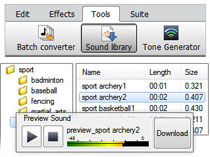
Find audio clips and sound effects to add to your audio projects in the NCH Sound Effect Library. Open the Sound Library from the Tools tab. This opens a new window where you can preview and download sound effects and royalty-free music clips.

Audio Effect Plugins
In the Windows version of WavePad, you can add DirectX and VST plugin effects to further expand your audio editing capabilities. Find the options to add and use VST and DirectX plugins on the Effects Tab. VST Plugins will open their own interface where you can adjust the settings, while you will need to go into the settings when selecting a DirectX plugin for the effect to be applied when you click OK. Get started with this list of free VST plugins you can download and use with WavePad.

FFT Sound Analysis
All of the audio editing features outlined above are all easy to put into action, but don't let that fool you into thinking that WavePad doesn't have a lot of power under the hood. One of the more advanced areas you can explore is the powerful audio analysis tools for examining the spectral content of the audio. Learn about the FFT and TFFT audio analysis graphs and what they represent to start to get your feet wet. These tools can be used in many fields, including linguistics and mathematics, in addition to sound engineering.


If you have any other tips, favorite features, or advice of your own, please comment and share them below.

Tuesday, March 12, 2013

Adding an Audio Voice Over with WavePad

audio mixing If you want to record a your voice over a piece of music you have two choices in the NCH Software audio suite. MixPad recording and mixing software is the more advanced program, that will allow you to record multiple tracks, and fine tune the mixing of the music and vocal tracks, but you can also try the Paste Mix feature in WavePad audio editor for quickly combining to files.

WavePad doesn't allow you to record directly over another file, highlighting a file and clicking record will end up replacing the selection. Instead, use the Paste Mix feature to combine two audio files into a single track.

Copy the recorded voice over to the clipboard, then select all in the audio file you want to add that voice over to and click Paste Mix on the Edit Tab.This will open a window with options on what to do if your files are not the same length. If the Mix Audio—which is your voice recording on the clipboard—is the shorter of the two files, you can ignore the options and click OK. If the Mix Audio is longer, you need to decide what to do when the audio you are mixing into is finished. When you click OK the two pieces of audio will be combined and when you press Play you will hear both files.

Tuesday, February 26, 2013

WavePad FFT Spectrum Audio Analysis Software

WavePad sound editor is more than just an easy audio editing program. Once you scratch the surface there are powerful audio engineering tools available for the more advanced user. These tools include the Fast Fourier Transform (FFT) and the Time-Based Fast Fourier Transform (TFFT) which are both very useful tools to perform sound analysis on the spectral content of the audio. These audio spectrum analyzer tools have applications in a number of areas, including linguistics, mathematics, and sound engineering including reducing noise and vibration testing and analysis.

Audio FFT Graph
fft analyzer software for audio frequency analysis The FFT analyzer graph is designed to illustrate characteristics of audio at only one point in time. It takes a small sample of audio and plots the sound frequency in Hz against the audio intensity in decibels. If the audio is in stereo two lines will be plotted on the graph, otherwise, just one plot will be displayed.

Audio TFFT Graph
Time-based fast fourier transform audio spectrum analyzer software The TFFT graph maps the audio intensity of the frequency spectrum across time for the duration of the audio clip, representing the intensity through color. On this graph the x-axis is time and the y-axis is the frequency with the decibel intensity being mapped to the color intensity scale, with black representing -128 dB and white representing 0 dB.

Both the discrete and temporal fast Fourier transform frequency analysis graphs can be created/opened from the Tools tab and both graphs will update in real-time as you move to different positions in the audio file, or even as you play the audio so you can better see what is happening in the audio. So, download WavePad audio analyzer software to take a closer look at audio and learn how to analyze voice patterns and more.

Monday, February 18, 2013

Quickly Cut Music and Audio Files

WavePad music editing and cutting software provide several easy options for cutting music and mp3 files. Whether you want to trim off silence or cut out a section to use as a ringtone or split long recording into smaller audio files, here is a look at how you can cut, trim and split sections of your mp3, music and audio files.
    Music cutting software to easily Trim and Split Audio MP3 Songs
  1. Trim
    To trim, or cut off, the beginning and end of a file, simply select the region you want to keep, then you can use the shortcut CTRL+T or, choose Trim (delete all but the current selection) from the Trim drop-down menu on the Edit tab. Here you can also see other choices for trimming down an audio file, including Trim start and Trim end that will respectively delete everything from either before or after the current position.
  2. Auto Trim
    If you are deleting silence from the start and end of your audio you can save yourself the step of finding the start and endpoints and selecting a region. Instead use Auto Trim to scan the audio file and remove the beginning and ending regions that are below the Auto Trim threshold.
  3. Split
    To keep the sections on both sides of the current position as individual files, instead of trimming move over to the Split drop-down menu, which is also on the Edit tab.
  4. Auto Split
    Just as WavePad can detect silences at the beginning and end of a song, it can also detect silences in the middle of a file. So, if you recorded a whole set you can select a Split file at silences from the Split drop-down to separate the recording at each silent section so you can edit and save each song individually.

Wednesday, February 6, 2013

Boosting the Bass in Audio Files

Boosting Bass in Songs and Music Files with the WavePad Equalizer Want to boost up the bass in your music? The Equalizer in WavePad music editing software is your answer. Open your song in WavePad and select Equalize on the Effects tab. Equalizing allows you to adjust the level of frequencies in your audio amplifying ranges of sound frequencies. So you can change the volume of just the higher or lower (bass) frequencies in a song, as opposed to simply amplifying a song which will affect all of the frequencies.

Unlike a graphic equalizer you might see in a studio, with a multitude of knobs and dials for certain frequencies, the WavePad equalizer displays a graph of the frequencies going from the low frequencies at the left to the high frequencies on the right giving you very finite control of the frequency ranges you want to control. Move a point up on the graph to make the frequency stronger and lower a point to make it weaker.

To familiarize yourself with the equalizer take advantage of the presets to get started, but don't be afraid to play around with them and to adjust their settings to see how they affect your songs. To boost the bass start with the Low Pass filter presets. If you hit play you will hear the higher frequencies drop down, giving a boosted effect to the bass. Chances are the result won't be exactly what you wanted on the first shot, but this will provide a good starting place to make further adjustments. Changes aren't applied until you actually click Apply, so you can continue to tweak the graph as needed without fear.

Other preset filters include a High Pass Filter which is the opposite of the Low Pass Filter lowering the bass instead of the higher frequencies, a Band Pass Filter to maintain the frequencies in a specified range and lower the regions above and below that section, and several more that you can experiment with on your own, or go to the help for more details on the settings of each of these presets.

Try WavePad sound editor today to boost your bass and pump up the volume of your music.

Monday, December 3, 2012

Do More with Audio - Blog Carnival December 3, 2012

Here are this edition's entries to Do More with Audio:

Lambert Varias presents 3D Printed Records for Fisher Price Toy Player posted at Technabob, saying, "Instructables member Fred27 figured out a way to play pretty much any tune on a Fisher Price toy record player with a little bit of code and a 3D printer."

Mitchell Morris presents Helping Your Child Choose a Musical Instrument posted at Full Time Nanny, saying, "Musical instruction can help your child master more than just how to play an instrument over the course of their education"

Jeff Moore presents 10 Signs Your Child Thinks Your Taste in Music is Lame posted at Babysitting Jobs, saying, "Hating your parents taste in music seems to be a rite of passage these days."

Anisha presents How I Minimized My College Debt as a DJ posted at NerdWallet, saying, "A self-taught DJ tackled college debt by spinning records at college parties. Get creative and get paid."

Neil presents What was the number one song the day you were born? posted at This Day in Music.

Bobby McFerrin plays... the audience! posted on TED: Ideas worth Spreading:


You might also be interested in: That concludes this edition of Do More with Audio. If you have an audio story to share or advice, tips or tricks to share, we hope you will submit your audio posts and articles to the next edition.

Thursday, November 15, 2012

Audiophiles Rejoice


Do you have a significant investment in audio equipment and want to get the most range from your music collection? Do you want the crisp highs and deep bass you’re used to from CD’s? Then stop listening to audio compressed in the outdated MP3 format! Anytime audio is compressed, even with 320kbps quality MP3s, some range is sacrificed to reduce the file size and sound artifacts can occur.

For true studio sound, lossless formats such as an uncompressed WAV (Waveform Audio File Format), or a compressed FLAC (Free Lossless Audio Codec), are the better option, even though they require more storage space. The smaller file size of the lossless FLAC is great for music collections, supports tagging for artist and album information, and is ideal for streaming audio because it is fast seeking. One note of caution if you’re straying away from your computer, while FLAC is a popular lossless audio format, not all devices, like car stereos, will support playback without modification.

Additionally, editing music in lossless formats, like with our WavePad Audio Editor Software, means you can exercise more control, on more sound data than with other formats. Starting with the highest quality possible source will result in the best final product. Use our other audio tools, like Switch Audio File Converter Software, to batch convert audio files between formats, for example if you don’t have room for your FLAC collection on your gym iPod.

Give your equipment and ears the quality they deserve!

Monday, October 1, 2012

Do More with Audio - Blog Carnival October 1, 2012

Here are this edition's entries to Do More with Audio:

Jon Savage presents When Songwriting Your Friends Will Lie To You posted at Songwriting Business.

Perry presents The Priceless Value of Music posted at ithuit.com, saying, "why is music the key to higher levels of consciousness? Find out!"

Dan White presents A DJ’s Guide to Audio Files and Bitrates posted at DJ Tech Tools, saying, "an article discusing the best options of digital audio files. Many DJs don’t notice a big difference in file type and bitrate until they’re blasting the track on a high-end club system and find the track just isn’t hitting hard enough. Read on to find out the best practices and how to be ready for the future."

Bernie Goldbach presents Use My Audioboo Voice for Audio Blogging posted at Inside View from Ireland, saying, "one of the biggest changes in blogging during in recent history has been the emergence of using multimedia technologies to extend thoughts to different communities, such as audio blogging."

John Paul Titlow presents How Journalists Are Using SoundCloud posted at ReadWriteWeb, saying, "musicians were the first to settle into SoundCloud, but the social audio-sharing service has been expanding in new directions and is now also a hub for radio-style journalism and commentary with an interactive twist."

Ken Theriot presents Recording Equipment Categories posted at Home Brew Audio, saying, "a handy little post that lists categories for recording gear, which could be a useful thing. Everyone knows about microphones or headphones."

kenetejumy presents The Person Who Does Audio Mastering Can Be As Important As The Original Artist posted at kenetejumy.

John Paolozzi In the Loop, a free workshop series introducing women to electronic production posted at CBC Music, saying, "there is a big gender divide in the electronic music community with men significantly outnumbering women. So we spoke with the women behind In the Loop, who have set out to challenge that divide, Christina Sealey and Naomi Hocura to learn more."

Mickey Cheatham presents The Science of Music posted at STEAMD, saying, "a body of knowledge of music and what it is from a physical perspective and take the journey from records to tapes to CDs to whatever may be next. We can talk abut compression and expansion and tone controls and dynamic range and frequency response and timbre and color and tonal richness."

You might also be interested in: That concludes this edition of Do More with Audio. If you have an audio story to share or advice, tips or tricks to share, we hope you will submit your audio posts and articles to the next edition.

Monday, August 6, 2012

Do More with Audio - Blog Carnival August 6, 2012

Here are this edition's entries to Do More with Audio:

Ryan Newman presents How to transfer iTunes from one laptop to another? posted at Laptop Repair London Blog, saying, "London Laptop Repair blog article describes the step by step process of how to transfer iTunes from one laptop to another?"

AtoragoN presents How to Do Audio Editing: a guide for dummies - Part 1 and How to Do Audio Editing - Part 2 posted at Guitar Nerding Blog, saying, "Audio Editing is the single most important task to accomplish before you starting mixing. Taking the time to correct all the little mistakes on the audio track ensure the final result sounds the way it should."

Lifehacker presents Hack a Zoom H2 Portable Audio Recorder to Accept Four Inputs posted at Lifehacker.com.

kentheriot presents Audio Recording Tips For Newbies: Stereo Or Not? posted at Home Brew Audio, saying, "Do you know what stereo really means?"

Marc Settle presents Smartphones for News: how the Academy is helping journalists get more mobile than ever posted at BBC, saying, "Smart phone reporting is becoming more common in news reporting, and is particularly popular in radio, using audio apps to record interviews."

You might also be interested in: That concludes this edition of Do More with Audio. If you have an audio story to share or advice, tips or tricks to share, we hope you will submit your audio posts and articles to the next edition.

Friday, June 22, 2012

New Music Industry Book Takes You Behind the Scenes

HIT CLICK behind the scenes of the Music Industry by Rory NicollGo behind the scenes of the music industry with Scottish producer Rory Nicoll, author of the new book, HIT CLICK, a must have book for anyone in the music industry. HIT CLICK is packed full of exclusive interviews with industry leaders and artists, contact information and reviews, offering collective wisdom on all aspects of the music industry, from the alchemy of a hit record to the business side of music.

NCH Software is honored to have been included in the book's reviews of music software. Nicoll concludes that "NCH does exactly what it tells you it will: It provides easy to understand software solutions to many of the activities required of an audio engineer." In another excerpt from the review, Nicoll states:

"I've spent about a day and a half experimenting with various NCH audio programs and one thing that continually surprises me is just how powerful the programs are. With each application measured in MB, the entire suite can be loaded at once without causing any detriment to even the oldest hard drive. The applications run quickly. Speed is always good. The functions are simple to find and they are overall user-friendly."

To read more about all aspects of the music industry, you can find HIT CLICK: Thriving In Tomorrow's Music Industry released today and on sale now on Amazon.

Monday, June 4, 2012

Do More with Audio - Blog Carnival June 4, 2012

Here are this edition's entries to Do More with Audio:

Apple buys Redmatica, Italian audio software company posted at TechCrunch, saying, "Redmatica specializes in software for digital music editing for Mac computers."

How to build a Home Recording Studio posted at Home Brew Audio, saying, "This is the first in a series of posts designed to walk you through how to build a computer-based home recording studio."

Why I'm Proud to Work in Radio posted at Byrnes Media, saying, "Perhaps our love of radio comes about because it is free and easy to consume. But the reason I love listening to and working in radio is the emotional connection radio makes with each and every listener."

Live Stream Church Services for Basically Nothing posted at Stephen Robles, saying, "I won’t lie to you, streaming live can be hassle and you’ll deal with many technical issues while setting it up. You probably won’t get a lot of viewers at first either, but I can promise you that people in your congregation will appreciate the option. "

Tips to Make a Great Podcast posted at A Lesson Learned, saying, "Creating a podcast is a great way to get the word out about your website and share your content. And podcasts are becoming more and more popular since people can download your podcast and listen to it whenever they want."

Podcasting Tips and Tricks posted at Business 2 Community, saying, "Every once in a while someone asks me a question about podcasting, so here are a few recent podcasting tips and tricks."

How To Choose Audio Recording Software posted at WCMHP, saying, "The software you want will depend on what you want to record. Here are some features you should look at and consider."

You might also be interested in: That concludes this edition of Do More with Audio. If you have an audio story to share or advice, tips or tricks to share, we hope you will submit your audio posts and articles to the next edition.

Tuesday, April 17, 2012

J is for Jammin' Music Software

NCH Software ABCs Series

jammin music softwareGet down with your music, and liven up all your favorite jams. Keep the beat on the dance floor, be the DJ at your party with your music library favorites, modernize and convert your vinyl collection, or record a jam session with your garage band, all with software from NCH Software’s audio department. Music is a part of who we are. It defines us as listeners and fans, and is a creative outlet for musicians. Whether you are trying to identify notes in a song to play along, or commit the composition in your head to paper, there are all kinds of jammin' musical software for your inner musician to explore:
<<< Previous: I is for International
Next: K is for Keep >>>

Monday, February 6, 2012

Do More with Audio - Blog Carnival February 6, 2012

Here are this edition's entries to Do More with Audio:


Stephanie presents The Use Of Silence In Audio Recordings posted at Vox Daily. Silence can be perceived as either friend or foe depending on its application and use of timing. Know how long it takes to go from a moments of golden silence to an awkward silence so you can use silence effectively in your audio recordings.

Rick Goetz presents How to Build a Music Career with Technology posted at Musician Coaching. Interview with Todd Tate, a consultant who manages web and social media strategy for musicians ranging from emerging artists to Grammy winners, as well as being a musician himself. Todd talks about how he got involved in music and technology and gives advice for artists who want to gain more visibility online.

Brian Li presents Streamlining and Simplifying Your Audio Interface Setup; The Perfect Live Rig posted at Meaningful Ramblings, saying, "Read about the perfect studio and live keyboard rig!"

Hudson Horizons presents Local New Jersey Church Creates Online World Choir posted at Hudson Horizons Blogs, saying, "Liquid Church is one of New Jersey’s fastest growing Christian churches with campuses in Northern New Jersey and online. All around the world people are celebrating, and thanks to the Internet and one church’s mission to unite the musically inclined, they can celebrate together through song."

Mind Box presents SXSW Film Festival 2012 posted at Austin Video Production, saying, "There is a two step online system that lets the SXSW community to be heard in film, interactive programming and music related conferences for this year."

Stephanie presents The Endangered Sounds List posted at Vox Daily. Just as there are animals that have become endangered, with many species having suffered extinction, older technologies can also fall to the wayside when newer, faster tools come along. As these technologies disappear from use, so can the sounds those technologies made. Should we be sampling these sounds that may disappear from from the literally or figurative wild?


That concludes this edition of Do More with Audio. If you have an audio story to share or advice, tips or tricks to share, we hope you will submit your audio posts and articles to the next edition.

Thursday, January 19, 2012

C is for Converting

NCH Software ABCs Series

C is for converting softwareConverting is a great example of what we strive to do with all of our software programs—solve problems quickly. Our file converters have powerful tools built in for batch converting many files at once and command line integration, but what really makes them great and keeps people coming back is that they are easy, they convert more file types than the competitors, and they give you a reliable solution to convert, compress, open and share less common files formats fast.

If you need to convert the format of any type of media, look no further:
<<< Previous: B is for BusinessNext: D is for Dictation >>>