Showing posts with label extract audio from video. Show all posts

Friday, September 21, 2018

Record Streaming Audio Easily with SoundTap

How to Record Streaming Audio


There are many different reasons why you may want to know how to record streaming audio on your computer. Learning how to record streamed audio will allow you to record and save audio from VoIP calls, videos, internet radio, and more. With a simple audio stream recording software such as SoundTap Streaming Audio Recorder, you can easily record any audio playing on your computer.


Install SoundTap

First, you will have to install SoundTap Streaming Audio Recorder onto your computer. This install requires that you restart your computer after downloading so that SoundTap can use your computer's audio driver to record audio playing on your computer. After your computer has rebooted, you will see SoundTap opened on your desktop.


Set the Output Destination & File Type

Click on the Options button in the program to open the SoundTap options window. Here you can select where you would like to save your streamed audio recordings. You can also set your desired output format for your audio files. Once you are finished adjusting your settings, click OK.


Find an Audio source to Record

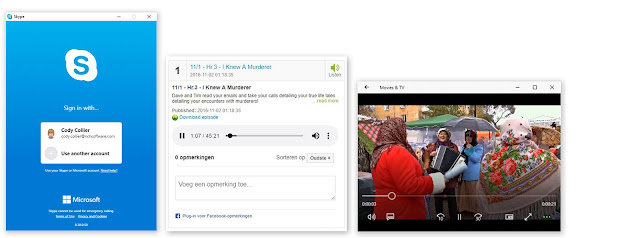
Locate the streaming audio source that you would like to record on your computer. SoundTap can record a variety of internet streamed audio, such as internet radio, audio from videos and audio from Voice over IP programs such as Skype. Any audio that can be played on your computer can be recorded with Soundtap. Open the application or file that you would like to capture the audio from on your computer.


Record Streaming Audio

Click on the button that says Start Recording to begin recording streamed audio on your computer. While SoundTap is recording, the program will record any audio that is playing on your computer. If you would like to record audio from your computer's microphone in addition to the audio playing on your computer, simply check the box that says "Also record from microphone."


Export & Save

When you are finished recording your streamed audio, simply click the button that says Stop Recording. Your audio file will be saved in the default location that you set earlier. Click on the Find & Play button to launch the Find and Play Recordings window. From here you can listen to your recordings, see where they are saved, or save them to a new location by clicking the "Save As" button.



Wednesday, May 4, 2011

Convert your Favorite Movie Line to a Ringtone

WavePad Ringtone Creator Audio SoftwareDo you ever hear famous lines from movies as ringtones and get secretly jealous? Or even obviously jealous? Lucky for you, any line can become a ringtone in just a few short minutes...and you can do it yourself.

What you'll need:
Switch Audio File Converter
WavePad Audio Editor

Nope, that is not a typo—using Switch audio file converter, you can extract the audio from any video file and convert it into a workable audio file format. However, if you think you'll get more use out of video file conversion software, Prism Video File Converter also allows you to extract audio from video files and convert to mp3 or wav files.

Step One:
Extract the audio. Load the video file into Switch, select the format you want to convert to (wav will work fine for now), and click the Convert button. Whew! That was too easy.
Tip: If you don't want to convert such a long audio file, you can trim the video file to a smaller size, isolating the clip you want using VideoPad Video Editor first.

Step Two:
Edit the audio. Now that you have an audio file, load it into WavePad using the Open File icon in the toolbar, browse to your new audio file and open it. Now, isolate the movie line by clicking and dragging to highlight the audio you want to keep in the file. You can make adjustments to the edges of the selected portion by clicking and dragging the edges of the selection. Don't be afraid to preview how the line sounds by pressing the spacebar to play the selection. When everything is just as you want it, press Ctrl+T to trim away everything but your selection. Now save the file in a format appropriate for your phone, load it on your phone and set it as your ringtone.

Voilà! Now who's jealous of your movie ringtone?

Friday, September 11, 2009

Convert Any Media File to any Audio File with Switch Audio Converter

Our Switch Audio File Converter is one of our more popular applications, allowing you to convert audio files between a wide range of audio file formats including: mp3, wav, wma, acc, dvf, midi and more. If you have audio files on your computer that you want to put on your mp3 player that aren't mp3s you need an application like Switch for mp3 conversion first. With the batch audio converter feature you can convert thousands of files from multiple formats all in one go.

Convert wma to mp3 or extract audio from DVD with this universal audio converter


As proof of its popularity, Switch Audio Converter was rated number one from Top Ten Reviews. Read their review or watch the video spotlight.
Have a Mac? Read the Mac Review from BrightHub.

Did you know that you can extract audio from video too?
With Switch, not only can you convert audio files, but you can use it for extracting audio files and sound bites from DVDs and other video file formats as well. It is as easy as adding the video file to your list of files to convert, pick your format and destination and click convert. The process is the same if you are converting wma to mp3 or mov to wav.

Best of all, Switch is free. We make the standard version of Switch free because we know you will love it so much you will want to upgrade to Switch Plus which supports additional encode-to formats for serious audio professionals. Whichever one you decide to use, we hope that you will agree that if you need to convert and audio file, Switch Audio Converter from NCH Software is the best choice.