Showing posts with label audio software. Show all posts

Friday, March 8, 2019

How to Mix Audio, Music and Voice Recordings

How to Mix Audio, Music and Voice Recordings with MixPad


This tutorial will show you how to mix audio, music and voice recordings with MixPad Multitrack Recording and Mixing Software.

Download MixPad to get started: https://www.nch.com.au/mixpad/


Mix Audio, Music and Voice Recordings


How to Mix Audio

  1. Load each track with your audio clips or record audio to a track
  2. Use the track tools to set the volume, settings and any effects for each track
  3. Use play controls to listen to the result
  4. When you are happy with your mix, click the Export Mix button
  5. Select your output file type for your mix and click Export
  6. Save your MixPad project for easy future editing


For more on MixPad, check out these posts:

Friday, December 14, 2018

Best Audio Converter Software of 2019

Best Audio Converter Software of 2019


We are very happy to announce that Switch Audio Converter has recently been recognized by TopTenReviews.com as the "Best Overall Audio Converter of 2019." We are constantly aiming to improve our software based on the feedback and demand of our customers. After each new release, the goal remains to deliver a product that is efficient and effective for our users. With a product like Switch, that means making sure that a wide variety of export/import formats are supported and that conversion speeds are lightning fast.

Click here to read the whole review: Switch Audio Converter: Best Overall Audio Converter of 2019

"We believe Switch Plus Edition is the best audio converter for most people because it has all the major import and export formats, and it can convert faster than any software we tested. If you need to convert a large number of files quickly, this is the best option." - TopTenReviews

"Switch is the fastest audio converter software we tested. To test the speed of each converter software, we timed how long it took to convert a 625MB WAV file to a 26MB MP3 file." - TopTenReviews


Switch is one of the most stable, easy-to-use, and comprehensive multi-format audio file converters available. The program supports conversion between over 40 different audio file formats as well as allows you to perform batch conversions and edit audio file metadata. If you have not had a chance to try out switch, download your free trial today and see what you are missing. As we are constantly making improvements to our programs, we encourage users new and old to send us questions and leave us feedback so that we can keep providing our customers with the best of the best.


For more on Switch, check out these pages:

Friday, September 21, 2018

Record Streaming Audio Easily with SoundTap

How to Record Streaming Audio


There are many different reasons why you may want to know how to record streaming audio on your computer. Learning how to record streamed audio will allow you to record and save audio from VoIP calls, videos, internet radio, and more. With a simple audio stream recording software such as SoundTap Streaming Audio Recorder, you can easily record any audio playing on your computer.


Install SoundTap

First, you will have to install SoundTap Streaming Audio Recorder onto your computer. This install requires that you restart your computer after downloading so that SoundTap can use your computer's audio driver to record audio playing on your computer. After your computer has rebooted, you will see SoundTap opened on your desktop.


Set the Output Destination & File Type

Click on the Options button in the program to open the SoundTap options window. Here you can select where you would like to save your streamed audio recordings. You can also set your desired output format for your audio files. Once you are finished adjusting your settings, click OK.


Find an Audio source to Record

Locate the streaming audio source that you would like to record on your computer. SoundTap can record a variety of internet streamed audio, such as internet radio, audio from videos and audio from Voice over IP programs such as Skype. Any audio that can be played on your computer can be recorded with Soundtap. Open the application or file that you would like to capture the audio from on your computer.


Record Streaming Audio

Click on the button that says Start Recording to begin recording streamed audio on your computer. While SoundTap is recording, the program will record any audio that is playing on your computer. If you would like to record audio from your computer's microphone in addition to the audio playing on your computer, simply check the box that says "Also record from microphone."


Export & Save

When you are finished recording your streamed audio, simply click the button that says Stop Recording. Your audio file will be saved in the default location that you set earlier. Click on the Find & Play button to launch the Find and Play Recordings window. From here you can listen to your recordings, see where they are saved, or save them to a new location by clicking the "Save As" button.


Friday, July 27, 2018

Change Audio to MP3 Format with Switch

How to Change to MP3 format


The MP3 format is one of the most common audio file formats in the world today. MP3 files are widely used for saving and sharing digital audio files because of their compression size and ability to maintain the high quality of their original format. This makes the MP3 file type great for storing and emailing because download speeds are quick and the files don't occupy much space. You may have found yourself in possession of audio files on your computer or on a disc that is in a different format that you would like to change to MP3. With a simple file conversion software such as Switch Audio File Converter Software, you can quickly learn how to change to Mp3 format in a matter of seconds.


Import Files into Switch

The first step to learning how to change to MP3 format is to open your copy of Switch and add/import the files that you would like to convert. Switch allows you to import individual audio files, video files, entire folders, or even import them from a DVD or audio CD. Click on the green Add Files button at the top of the program to begin adding your files. Once you have selected the files you wish to convert, click Open. You can also drag and drop files from your File Browser window directly into Switch.
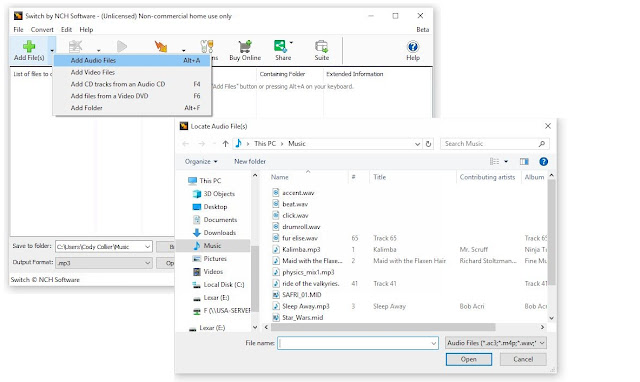
How to change to Mp3 Format
Import files to convert to mp3 

Set Output Destination

Next, decide where you would like your new files to go once you have converted them. This is where your files will be located after they are changed to MP3 format. Use the drop-down menu or the Browse button at the bottom of the program to set your output folder. You can click on the Open Output Folder button to view the selected output folder and its contents. You can also check the box next to it to save your files to the same folder as the source files. This option will output your converted MP3 files right next to their original versions.
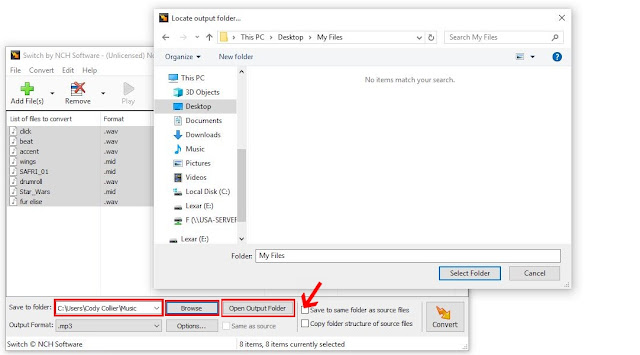
How to set output destination for changing to mp3 format
Set output destination 

Set Output Format

Switch is capable of converting to just about any audio file format you can think of. However, you are here because you want to know how to change to MP3 format, specifically. Click on the Output Format menu at the bottom of the program to open the drop-down menu. Select .mp3 as your output format. This will be applied to any and all files that you select.
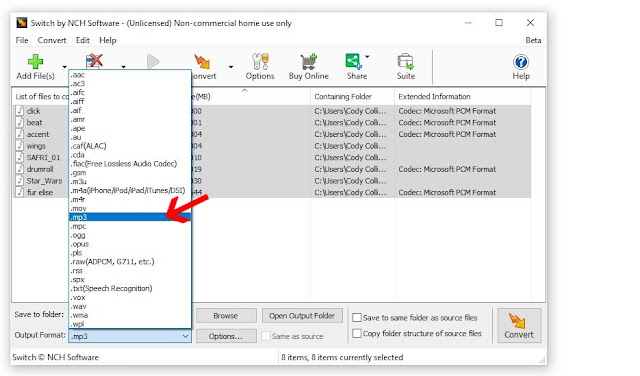
How to change output format of audio files to mp3
Set output format 

Output Options

Click on the Options tab next to the Output Format menu to open the Options window. Here you can adjust some of the more advanced options such as the Bitrate and Channel Mode. You can also adjust the metadata that will be attached to your newly converted MP3 files. For more information on adjusting audio file meta tags, check out this blog post:
How to Edit MP3 Tags and Metadata with Switch Audio Converter
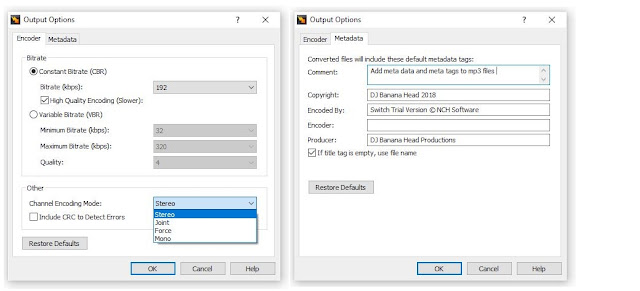
How to edit mp3 meta descriptions and mp3 meta data
Edit MP3 metadata 

Convert to MP3

Now that we have chosen our files and set the output format and destination, we are ready to convert our files to MP3. If you imported an entire folder or files from a disc and you only want to change some of them to MP3, simply go through and select those files. Otherwise, with all of your files selected, click on the Convert button at the bottom right of the program. The conversion will be performed and your new MP3 files can now be found in your chosen output folder.
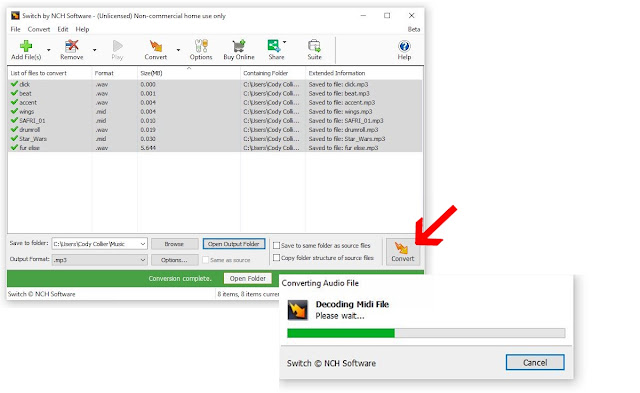
How to convert files to mp3 with Switch
Conversion complete


For more on Switch, check out some of our other posts:

Friday, June 1, 2018

Best Tool to Edit MP3 Tags and Metadata with Switch Audio Converter

Edit MP3 Metadata with Switch Audio Converter


Best Tool to Edit Metadata and Tags when Converting to MP3

When converting a track to MP3, you can edit the track metadata and tags to include title, artist, track artwork, producer, rating, genre, comments, and more. If you record your own music, you may want to set up metadata and tags for your finished recordings before sharing. Editing your tags and metadata will ensure that your album artwork, artist name, and other tags show up correctly when your track is loaded into a new audio library. You can easily edit the metadata of MP3 and tags for audio files when converting with Switch Audio Converter.


Edit MP3 Tags

To edit the tags of an audio file, begin by loading the file into Switch Audio Converter. To import an audio file, click on the "Add Files" button in the top left-hand corner of the program window.


After you have imported an audio file, you can right-click on the file in Switch and select "Edit Audio Tags" to edit the audio tags.


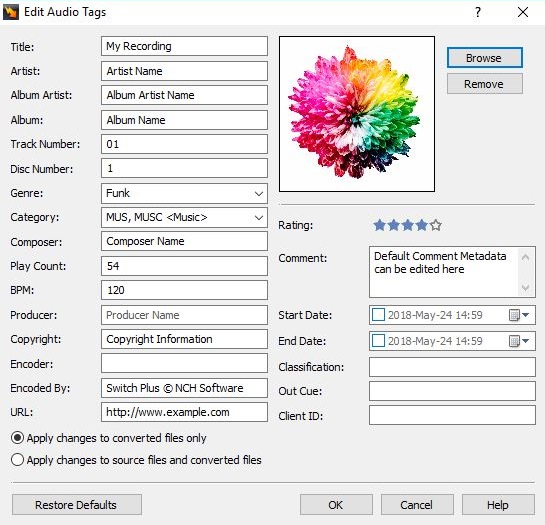
This will open the Tag Editor for the selected audio file. Here, you can edit the audio track title, artist, album, genre, BPM, producer, rating, artwork, and more. For new recordings, many fields will be blank. If the audio file that you are converting currently has audio tags, the existing tags will be displayed in the Tag Editor.


To edit a tag, click on the field that you would like to edit and type in the new tag information that you would like to save for your mp3 file. You can edit the song Rating by clicking on the star value that you would like to assign to the audio file.


Add Artwork to an MP3 File

To add the artwork to an MP3 file, click on the "Browse" button the right of the artwork image in the Tag Editor. Then, select a file from your computer to use as the artwork for your audio file. 

Apply Changes

You can apply changes to converted files only, or you can apply changes to source files and converted files. To apply tag edits to converted files only, select the option that says "Apply changes to converted files only". This option will leave the file tags for the source file in their original state while applying the tag edits to only converted files.


 To apply tag changes to the original source file as well as converted files, select the option that says "Apply changes to source files and converted files".


Convert to MP3 with New Tags

To convert your file to MP3 with the edited tags, click on the "Convert" button in the bottom right-hand corner of the Switch program window.