Showing posts with label image editor. Show all posts

Wednesday, June 17, 2015

New PhotoPad Embroidery Software!

PhotoPad Embroidery Software from NCH Software

Whether you are working on your first cross-stitch or you have been doing embroidery for years. PhotoPad offers the features you need to create an embroidery pattern from any image. The embroidery pattern tool is easy-to-use, so you can spend your time working on your project. Use PhotoPad to create custom embroidery designs from any of your favorite pictures or images!


Design custom cross stitch patterns with PhotoPad. Select the number of embroidery floss colors and the number of stitches in the project. The printed Key includes DMC Embroidery Floss codes and the printed image is converted to symbols which correspond to embroidery floss colors. This helpful software will assist you in spending more time working on your favorite embroidery projects!

http://www.nchsoftware.com/photoeditor/embroidery.html

Thursday, March 13, 2014

New Graphic Editor Software

DrawPad Graphic Editor is the newest product from NCH Software and adds another fantastic product to a great lineup of Graphic Software and Tools. This software is ideal for creating images, paintings, and drawings.

DrawPad is an easy-to-use image composition and manipulation program. We created it to function as an alternative to some of the top drawing/painting/image creation tools on the market. If you want something with more features than traditional paint programs, but don't have the expertise (or budget) to use a premium illustrator product, this is the perfect software for you. It is an essential tool for many different graphic design projects such as banner ads, icons, logos, invites, diagrams, paintings, sketches, and many more.

DrawPad features a wide variety of tools including
  • Pencils and brushes for sketching, drawing, or painting.
  • Tablet and touchpad sensitivity
  • Raster and vector images
  • Custom effects and textures.
  • Object/shape insertions.
  • Compatability with standard fonts.
  • Image manipulations (cropping, resizing, flipping, etc.)
  • Ability to save in a wide variety of formats.
If you are looking for a great free tool that any artist or designer can enjoy, try DrawPad Graphic Editor. If you have already had the chance to try DrawPad, let us know what you think. You can leave us feedback or suggestions for future features and take part in improving a product you already enjoy.

Friday, June 28, 2013

PhotoPad Photo Editor New for Mac OS X

PhotoPad mac photo editor now available PhotoPad photo editing software is now available for Mac OS X. If you own an Apple computer and have digital photos or pictures you would like to touch up before you share them or print them out you will want to try PhotoPad for a free and easy way to edit your pictures.

Not every photo needs a full-blown airbrushing session. And, just like how not everyone who snaps a photo is a professional; not everyone who wants to edit a photo should have to use software that takes professional know-how. That's where PhotoPad steps in, providing features to touch up blemishes, remove red-eye, adjust the color or brightness, crop or rotate, and more all at your fingertips. So you can make your edits and post your photos before you could even download another photo editor.

Whether you are a Mac or a PC, if you have pictures to edit download PhotoPad picture editing software for your computer today to make your digital photos shine.

Wednesday, May 15, 2013

Create a Panorama with Photo Stitching

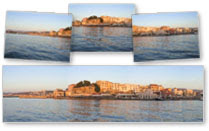
Panoramic Photo Stitching Software If you don't have a panoramic camera, you can still make panoramic photos by stitching several photos together. To successfully create a panorama you will need to take two—or more—pictures that overlap. Photo stitching software will need to scan the images to find points that match up in order to fit them together. A good rule of thumb is to take the pictures so that about a fourth of width overlaps other images.

For the best results, in addition to making sure the images overlap you also want to be sure you don't move or change any camera settings like the zoom, between the pictures in the panorama series. Changing your position or other settings will make it difficult, if not impossible, to stitch the photos together.

When you have photos ready to be stitched together open PhotoPad photo editing software and select Panorama on the Tools tab. This will open the Create Panoramic Image dialog where you can Add all of your overlapping photos and arrange them in order in the top preview window. When all of the photos have been added and are in the right order, you can click Update Panorama to stitch together a preview of the panoramic image. If you add or delete any source images the panorama will be deleted. When you are happy with the results in the panorama preview simply click OK and a new project will be created for the panoramic photo.

Note making panoramic images is a resource intensive process, so it can take a long time, and uses a lot of memory. If your computer runs out of memory, try scaling down the images, or using fewer photos.

Friday, May 11, 2012

Fast and Free Photo Red-Eye Removal

Easy Red-Eye Removal and Photo Touch Up SoftwareWe've all seen it—those glowing or red eyes on an otherwise great photo. There are numerous solutions out there to correct this common problem, but if that is all you want to do, you don't want to spend a lot or be forced to learn about photo editing and navigation in a fancy photo program. PhotoPad photo editor is free and user-friendly, and will help you remove all the red eyes from your pictures, and more.

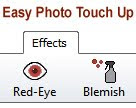
To eliminate those red eyes, click the Red-Eye button on the Effects tab, then click the red spot on your photo. A blue circle will appear, and you can adjust the circle size by dragging the edge, or move the circle around by clicking inside the circle and dragging. For greater accuracy, zoom in on the eye first. That's all there is to it. Download PhotoPad to try it out and explore the other easy-to-use photo touch-up features.

Friday, November 25, 2011

Create Your Own Photo Mosaics for the Holidays

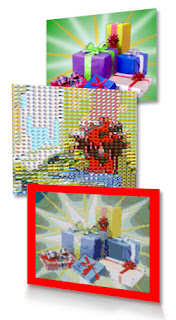
Create Unique Holiday Photo Mosaics with PhotoPadGive a unique and personalized gift this holiday season as well as share and preserve memories, make a photo mosaic image with PhotoPad photo editing software. The photo mosaic feature is similar to the collage feature but it builds a larger, composite image out of your photo collection using many small images. Unlike the mosaic posters and photos you may have seen on sale at the mall, the mosaics you make with PhotoPad can contain dozens of pictures all of your family and friends.

This a really fun tool to play with since there are a lot of different options and settings to experiment with as you edit the photo mosaic to get the results you want. You can change the numbers of tiles, swap out the template image which is the "big picture," change the folder that the tile images will be taken from, and the size of the image. I changed the background color of the image and made the mosaic smaller to add border around my mosaic.

On the Insert tab of PhotoPad's menu, click the mosaic button and select the image that will be used as the template for the mosaic. The level of detail in the mosaic is proportional to the number of images in the Tile Collection folder and the number of tile columns and rows specified in the Mosaic Image Properties. The default amount of tiles is rather low, so I recommend increasing the initial numbers. I also encountered mixed results when I only had 20 images in my Tile Collection folder. I saw a much greater variation in my final mosaic image when I had dozens of images in the Tile Collection folder, so make sure you give PhotoPad a good variety of photos to choose from.

PhotoPad is free, so download PhotoPad today and try out the mosaic feature. And if you like PhotoPad, check out more of our software gift ideas including PhotoStage slideshow software for another fun way to combine your photos into a unique and personal gift.

Tuesday, February 22, 2011

Web Designers: Why You Don’t Need DreamWeaver

web design without dreamweaver DreamWeaver is supposed to be a one-stop shop for web design. The package offer is very tempting to the beginning web designer in search of web-design training wheels, or even the small business owner who is comfortable working with HTML but needs help with everything else. But unless you can get DreamWeaver as part of a larger Adobe Suite, buying it alone is hardly worth it. Here, we break down the stages of designing a basic website and show how to avoid paying hundreds of dollars for something you really don’t need.

Concept Design
Obviously, the first place to start is with a paper and pencil. If you’re putting a site together for a client, ask as many questions about their design aesthetic as you can think of. If the site is for you or your business, make sure you cover all the functionality you need. Jot down the structure of the website as a chart or on separate pages. Plan everything out before you go to the computer.
Cost of Concept Design: $0

Graphic Layout
Not only is it nice to see what the site will look like before you do all the hard work, but a good digital mockup of your site will be easy to slice up for the images you’ll put in the code. Many designers use PhotoShop, but if your site doesn’t need to do back-flips and speak Martian, you can easily get away with using a more basic image editor.

PhotoPad Image Editor allows you to work with digital pictures, resize, and edit as you need for your website, then save in a web-friendly format. You can also add text and get a good feel for the layout you’ll be building into the site.
Cost of Graphic Layout: $0

To the Trenches: the Text Editor
This is where I geek out, so there’s no way I want a program that is going to do the coding for me! And the sooner you can wean yourself off the idea that web design can happen like any WYSIWYG word processor, the better. Plain and simple, you will have to know HTML and CSS to build a website. Once you’re comfortable with these two peas in a pod, any text editor will do. You want a fancy one, you say? Sure! Get one that color codes your tags for easy readability. Go big, but be sure to go free. There are several free, quality text editors out there that are more than qualified for this job.
Cost of Text Editor: $0

Test, Test, Test
Testing is a matter of opening your .html files in a browser and making sure they don’t look funny. And last time I checked, browser downloads are free.
Cost of Browsers for Testing: $0

FTP to Your Web Host
Your website is ready for the big time, finally! But how to get it off your local machine, and out into the World Wide Web? FTP, of course. You’ll do yourself a favor to find one that is easy to use, reliable, and can guide you through the initial setup with your web host.

Classic FTP is all of these. It has an intuitive interface that doesn’t get in the way of the functionality, and it stores your connection settings so that making updates to your site later on is absolutely painless.
Cost of FTP Software: about $45

There you have it. Web design without DreamWeaver, for a highly reasonable price. Try it. You’ll probably like saving money and getting just as much accomplished in the meantime.

Thursday, December 30, 2010

PhotoPad: Proving that Change Can be Good

PhotoPad Image and Photo Editor has a new look. It now uses tabs to sort the categories of features, effects, and filters to make more efficient use of the toolbar. Each time you click a new tab, the toolbar displays the options associated with that tab:

PhotoPad Photo Editing Software new tabbed ribbon toolbar

Remember when we first started seeing tabs in our Internet browser windows? At first we had to get over the impulse to keep numerous windows open and play the memory game with the task bar, but we recognized the convenience they provided us. Now we’re getting used to tabs atop some programs, such as Word and Excel, which Microsoft calls a ribbon. The initial change was stilting to those of us who had become experts at navigating the labyrinth of menus and options, but we’re starting to get used to this change too.

My point is, even though we resist it, without change we wouldn’t grow and develop.

When developing software, the rule of thumb is to stick with what people are comfortable with, or what they are used to seeing. That way, people won’t spend too much time looking around the interface before they can actually start using their new program. Another rule of thumb is to do what is best for your users. Sometimes these rules clash, and decisions have to be made. That’s what happened with PhotoPad.

PhotoPad is a product with lots of features, options, and cool buttons. Imagine all the possible photo manipulations there are, and then imagine designing a program that will organize all those features into the most user-friendly way possible. Then imagine that you are going to add features to the program over time, and need to plan for where those features might go. Enter tabs. They allow us to display many more options along the toolbar than one static toolbar would.

I know a lot of you are dubious. If you never got used to the Microsoft ribbon, and you really miss the menus. But believe me, everything that was in the menu is now on this tab, and the tabs require much less fine motor control over the mouse than using menus would. I happen to be a great fan of the new look.

Let us know what you think about the tabs, and look for them in more NCH Software products in the future. Let’s embrace change!

Friday, December 17, 2010

Image Editing Turned Scrapbooking Resource

Image editing and photo scrappbooking softwareAlong with a brand new user interface, the latest release of PhotoPad Image editing software brings with it many new tools, my favorite of which is the collage tool. Collage does exactly what you’d expect, making a digital college out of your images, but does it better than you might anticipate supporting an unlimited amount of images, orientation and background color options, random skew and (the best part) export options for web, HD and print. Better still, once you’ve set up your collage, PhotoPad separates each image into its own layer so you can optimize and edit individual photos while still keeping your layout. When you're satisfied with your creation, save it for the web or print it for your photo album. It's easy to get carried away with the ease and benefits of the collage tool, and if you’re into digital scrapbooking, this could be an absolute life saver. Best off all PhotoPad is free, so download PhotoPad today and try it for yourself. We would love to know what your favorite feature is. And if you like PhotoPad, you might also want to take a look at other graphics software.