Showing posts with label photos. Show all posts

Thursday, December 1, 2016

Edit and Order Professional Prints with PhotoPad

Order Prints directly from PhotoPad Photo Editing Software


We are very excited to announce that you can now order professional prints of your photos directly from PhotoPad Photo Editor! 


After editing your photos with PhotoPad, you can order photo prints, calendars, canvas prints, mugs, t-shirts, luggage tags, mousepads, posters, greeting cards, aluminum prints and more!


Custom Photo Prints

To order prints or customized products featuring your photos and images, begin by opening the photos that you would like to edit and print with PhotoPad. 


Edit, crop, and add effects to your photos as you see fit. When you are happy with your photo, click on the File menu, and select "Order Prints...".

PhotoPad will prompt you to enter a password to protect your photos. This password will be automatically copied to your clipboard every time you order prints so that you can use "Crtl" + "V" to paste your saved password. 


In the custom print gallery, you will be able to select a number of methods and products to print your photos. Click on "Buy" or "Select Product" to navigate to the gallery of custom print items.

To finalize your order, simply select the product that you would like to purchase, and add it to your cart. You can add multiple prints and product styles to your cart before finalizing your purchase. 


You may also like:


Tuesday, August 27, 2013

New Mac Digital Photo Slideshow Software

New Mac version of PhotoStage slideshow maker software One of our most popular programs, PhotoStage Slideshow Maker is now not only the best slideshow software for Windows but also an easy way to make slideshows with music, photos, video clips, narration and more on Mac OS X. Slideshows are a great way to keep your memories alive and creating dynamic video slideshows couldn't be easier. From Camera to DVD or posting online to share with friends and family follow the easy steps to add your media, enhance your photos and add effects for a professional touch in minutes. Download PhotoStage today to start making your own video picture slideshows and see how easy it is for yourself.

Friday, June 28, 2013

PhotoPad Photo Editor New for Mac OS X

PhotoPad mac photo editor now available PhotoPad photo editing software is now available for Mac OS X. If you own an Apple computer and have digital photos or pictures you would like to touch up before you share them or print them out you will want to try PhotoPad for a free and easy way to edit your pictures.

Not every photo needs a full-blown airbrushing session. And, just like how not everyone who snaps a photo is a professional; not everyone who wants to edit a photo should have to use software that takes professional know-how. That's where PhotoPad steps in, providing features to touch up blemishes, remove red-eye, adjust the color or brightness, crop or rotate, and more all at your fingertips. So you can make your edits and post your photos before you could even download another photo editor.

Whether you are a Mac or a PC, if you have pictures to edit download PhotoPad picture editing software for your computer today to make your digital photos shine.

Tuesday, May 21, 2013

Bringing Fond Memories Back to Life

Guest post by John Albergo

My dad was an engineer and a shutterbug, which meant that our vacations were meticulously captured through the lens of his German Leica. This was both a blessing and a curse.

Up close and personal with a buffalo

First, the blessing: Our summer car trips covered the Dakotas, Wyoming, Colorado, Montana and Alberta, and Dad captured everything on film—35mm slides, to be specific. The engineer in him demanded perfection, which resulted in beautiful photos of incredible, indescribable landscapes that most people never see. Even as children, we were awestruck by the forces of nature that merged to create these scenes—Yellowstone Park, Old Faithful, Twin Falls, the Grand Tetons, Glacier Park, the Badlands, rivers, forests, plains, snow-capped mountains and, of course, wildlife.

John's brother Pat, at Badlands National Park. "Take just a few more steps back..."

Now the curse: Fast forward to 2012. I inherited more than 1,000 slides, all neatly organized into cartridges, that were taking up space in my basement. Suddenly, there was a renewed interest in slides that no one has seen in years; now everyone wanted to see them again. I had to figure out how to digitize and share them across several states. It would have taken me weeks to scan, edit and clean up all of the old slides, so I opted to have them professionally scanned. (Hint: Some photo and film digitizing services send their work overseas on container ships, which can take months, so I chose a company that does everything locally)

Rather than simply send everyone CDs with a bunch of images, I wanted to create a slide show in which they could identify what the photos were. I downloaded a trial of PhotoStage Slideshow Maker and created a show with a few scanned images; I was sold immediately. Creating and editing a slide show is simple. Once I created a slide show, altering the duration of each slide took only a few clicks, allowing me to time the music I added to the showdown to the second.

That was nice for starters, but the real test was when I got nearly 500 hi-res images back from the scanning service. I found that uploading even a high volume of images into PhotoStage is fast, and it allowed me the option of transferring everything in sub-folders that indicated where groups of photos were taken, such as "Glacier Park" and "Little Bighorn." The folders show up in the menu system of DVD players, allowing viewers to select sideshows by location or subject. Once I created and saved the show, it was just a matter of copying it to a CD or DVD.

Memories Preserved for Lifetime
Whether your family's cherished memories are sitting in boxes of photos, neatly arranged photo albums or encased in slide carousels, that's all they're doing—just sitting there. And they can fade over time or, heaven forbid, be destroyed by natural disasters. Once you digitize them, PhotoStage lets you recreate and preserve those memories and enhance them with music, titles and other effects. Everyone in my family can now view these photos as a reminder not only of our beautiful country but how truly fortunate we were to have a Dad who wanted us to see it.

John Albergo is a writer with more than 15 years of experience in business communications, spanning IT services, software licensing, health and safety programs, and general business. He's also a bit of a shutterbug and even had his own darkroom while in high school.

Wednesday, May 15, 2013

Create a Panorama with Photo Stitching

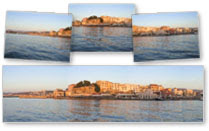
Panoramic Photo Stitching Software If you don't have a panoramic camera, you can still make panoramic photos by stitching several photos together. To successfully create a panorama you will need to take two—or more—pictures that overlap. Photo stitching software will need to scan the images to find points that match up in order to fit them together. A good rule of thumb is to take the pictures so that about a fourth of width overlaps other images.

For the best results, in addition to making sure the images overlap you also want to be sure you don't move or change any camera settings like the zoom, between the pictures in the panorama series. Changing your position or other settings will make it difficult, if not impossible, to stitch the photos together.

When you have photos ready to be stitched together open PhotoPad photo editing software and select Panorama on the Tools tab. This will open the Create Panoramic Image dialog where you can Add all of your overlapping photos and arrange them in order in the top preview window. When all of the photos have been added and are in the right order, you can click Update Panorama to stitch together a preview of the panoramic image. If you add or delete any source images the panorama will be deleted. When you are happy with the results in the panorama preview simply click OK and a new project will be created for the panoramic photo.

Note making panoramic images is a resource intensive process, so it can take a long time, and uses a lot of memory. If your computer runs out of memory, try scaling down the images, or using fewer photos.

Tuesday, April 30, 2013

PhotoStage Android Slideshow App

PhotoStage New Android Slideshow Maker App The Android releases are continuing, now one of our long-time favorites, and the best slideshow software, PhotoStage, is now available for Android tablets. So you can make and share slideshows of your vacations before you return home. Quickly combine photos, video clips, music, record narration and more to make fun slideshows that will make everyone wish they were there too. You can download it now from the Google Play app store.

Thursday, April 18, 2013

Best Method to Easily Resize Photos with Pixillion

how to easily batch resize photos and imagesIf you have a bunch of photos from your last vacation or night out, you may want to share them all with friends and family. But, you may find that your batch of photos is too large to email. The solution is easy, you can resize or rotate all your digital photos in bulk with a Pixillion image resizer and converter. If you will be editing photos you could resize them as you go, but the more pictures you have, the more time you can save by doing a batch photo resize.

So, to resize your photos, simply add them all to the list in Pixillion. At the bottom of the window click on Effects to open the format options. Here you can use the drop-down menu under Scale to set the photo resizing options. Once that is selected click OK to save your options. You only need to set this once, the effect(s) will be applied to all of the photos being converted in a batch, so Select All—or all the photos you want to apply those changes to—and click Convert. That is all there is to it. Pixillion photo converter will process all of the selected photos and save the newly resized photos for you ready for you to email, upload, and share.

Thursday, January 17, 2013

Create Videos From Photos

Take photos from your camera or hard drive and transform those photos into videos in no time. With PhotoStage photo movie maker you can quickly bring new life to your digital photos.

Use the quick create option to add all the photos in a folder into a slideshow to get you started. Simply drag and drop to rearrange photos. Add effects, captions, music and narration for that little something extra to truly turn your photos into something special.

Monday, June 11, 2012

Video Review of the Best Slideshow Software: PhotoStage

You may already know that TopTenReviews has honored our PhotoStage SlideShow Software, naming it The Best Slideshow Software. Now take a look at their video review, including a look at some of the very easy-to-use features that helped make it number one.

Friday, May 11, 2012

Fast and Free Photo Red-Eye Removal

Easy Red-Eye Removal and Photo Touch Up SoftwareWe've all seen it—those glowing or red eyes on an otherwise great photo. There are numerous solutions out there to correct this common problem, but if that is all you want to do, you don't want to spend a lot or be forced to learn about photo editing and navigation in a fancy photo program. PhotoPad photo editor is free and user-friendly, and will help you remove all the red eyes from your pictures, and more.

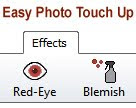
To eliminate those red eyes, click the Red-Eye button on the Effects tab, then click the red spot on your photo. A blue circle will appear, and you can adjust the circle size by dragging the edge, or move the circle around by clicking inside the circle and dragging. For greater accuracy, zoom in on the eye first. That's all there is to it. Download PhotoPad to try it out and explore the other easy-to-use photo touch-up features.

Thursday, March 8, 2012

G is for Graphics

NCH Software ABCs Series

G is for Graphics SoftwareGraphics, photos, pictures and images: we are a very visual society between the tv and media we consume, to the pictures we share online. NCH graphics, image and photo software is available to help you edit photos, convert image formats or add pictures to other projects with software like Disketch CD and DVD labeling software to add that finishing visual touch to your discs.

Also included in our graphics software are some programs that might not immediately jump to mind because they are used in a business environment. Our graphics team also works on Barillo barcode generator and CardWorks business card software. Graphics are important not only in media but also in a professional setting, and we plan to expand the graphic tools we offer in the future to include even more useful applications. For example, we are currently in the early stages of development on a program for creating flow charts and diagrams. Our current range of graphics software includes:
<<< Previous: F is for FTP
Next: H is for Hardware >>>

Thursday, December 15, 2011

Don't Panic, Photo Recovery Software

photo recovery softwareIf you take a lot of photos, you have probably experienced that moment of panic when you connect one of your memory cards to your computer and you don't see anything there. Where could the photos be? Oh no! This should have lots of pictures from my vacation to Bali and my daughter’s ballet recital on it! What happened?!? First make sure you are looking at the right memory card, and if you are, before you mourn the loss of those photos, there still might be hope.

When electronic files get "deleted," whether they were on a memory card or a hard disk, the space they occupy is typically only flagged as free to have something else saved there. So recovering a "deleted" or "missing" file is only a matter of using a program like Orion Photo Recovery Software to scan for the pictures that have been mistakenly flagged as free space. With Orion, you can search your computer or any external device, such as a memory card or your camera, for these files, restoring them to their former visible glory for you to share, print and save.

Monday, December 12, 2011

Make A Seasonal Slideshow

Make Holiday Slideshows with PhotoStage slide show softwareThere is something nostalgic about this time of year. Shopping for gifts, making holiday plans, going to parties. And between the parties, presents, and traditions—like sitting on Santa's lap, cutting a Christmas tree, decking the halls, or cooking the special family recipes that only come out once a year—there are also a lot of photos to share.

But what if this year, instead of posting hundreds of individual pictures to Facebook, you combined all your favorites into a slideshow that will warm the heart? PhotoStage Slideshow Creator, rated the best slideshow software by TopTenReviews, makes it easy to combine your memories into a truly magical movie slideshow starring none other than your family. TopTenReviews recently posted an article that runs down how to make a personalized winter slideshow with PhotoStage. With its easy-to-use interface, the most important thing is just to come to the table with your imagination, ready to play with and perfect your slideshow.

Whether you want set your photos to your favorite holiday songs, record the family caroling, or add captions or narrations, you have complete creative control to tell the story of any memorable holiday, moment or event. If a picture is worth a thousand words, a slideshow is easily worth ten thousand, and with easy sharing options, lots of transitions, and dynamic features, there is no better way to create a slideshow than with PhotoStage Slideshow Maker.

Friday, November 25, 2011

Create Your Own Photo Mosaics for the Holidays

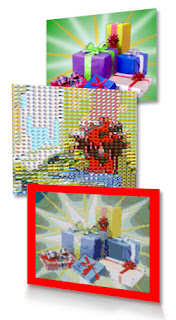
Create Unique Holiday Photo Mosaics with PhotoPadGive a unique and personalized gift this holiday season as well as share and preserve memories, make a photo mosaic image with PhotoPad photo editing software. The photo mosaic feature is similar to the collage feature but it builds a larger, composite image out of your photo collection using many small images. Unlike the mosaic posters and photos you may have seen on sale at the mall, the mosaics you make with PhotoPad can contain dozens of pictures all of your family and friends.

This a really fun tool to play with since there are a lot of different options and settings to experiment with as you edit the photo mosaic to get the results you want. You can change the numbers of tiles, swap out the template image which is the "big picture," change the folder that the tile images will be taken from, and the size of the image. I changed the background color of the image and made the mosaic smaller to add border around my mosaic.

On the Insert tab of PhotoPad's menu, click the mosaic button and select the image that will be used as the template for the mosaic. The level of detail in the mosaic is proportional to the number of images in the Tile Collection folder and the number of tile columns and rows specified in the Mosaic Image Properties. The default amount of tiles is rather low, so I recommend increasing the initial numbers. I also encountered mixed results when I only had 20 images in my Tile Collection folder. I saw a much greater variation in my final mosaic image when I had dozens of images in the Tile Collection folder, so make sure you give PhotoPad a good variety of photos to choose from.

PhotoPad is free, so download PhotoPad today and try out the mosaic feature. And if you like PhotoPad, check out more of our software gift ideas including PhotoStage slideshow software for another fun way to combine your photos into a unique and personal gift.

Tuesday, October 25, 2011

Wedding Slideshow Creation with PhotoStage

PhotoStage wedding slideshow softwareOne of the the truly wonderful things about PhotoStage slideshow software is that it can be used for so many different things. We've had stories in our blog about making stop-motion videos, digital storytelling, making a music video and more. PhotoStage is ideal for preserving memories of all kinds of events, and one of the big events that more and more users are beginning to use PhotoStage for is making a wedding slideshow to share with friends, family, guests and more.

The Daily Wedding Blog recently wrote about creating wedding slideshows with PhotoStage as a digital addition to the traditional framed photo and photo album that couple keeps. Just one of the great things about putting together a slideshow is how easy they are to share, whether you post the finished slideshow to Facebook or burn them to a DVD and send them out with your thank yous. The possibilities are endless and there is no reason to limit yourself. You may only get one wedding album, but there is no reason you can't make multiple wedding slideshows, maybe one for the bridesmaids that also includes pictures from the bachelorette party and another version for the groomsmen. If you're getting married we hope you will use PhotoStage for making wedding slideshows, and for more inspiration and tips on planning a wedding without breaking the bank visit the Daily Wedding Blog.

Friday, September 16, 2011

Convert and Compress Files

Whether you're on a Mac or a PC, these conversion applications cover nearly every file type you'll run into, making them the most complete and reliable software for converting and compressing files out there.

Switch Audio File Converter

For your music, presentations, or audio projects, Switch Audio Converter lets you put your music anywhere at any time. Convert music for your iPod, PSP or phone. Compress audio to save hard drive space. Create a ringtone on your phone by converting the format, or even extract audio from video files.

Prism Video File Converter

Your computer might only be able to open certain video file types. Use Prism Video Converter to ensure you'll always be able to watch your videos. With Prism you have complete control over video settings such as compression and encoder rates, resolution, frame rate, and size output. You can also batch convert thousands of files at once and preview videos before conversion.

Pixillion Image File Converter

Pixillion isn't just image conversion software, there are many additional settings to make adjustments to your images while converting including adding watermarks, adjust the image quality, size or resolution, or even crop and rotate photos.

Express Zip File Compression Software

Express Zip is currently the only application on this list that is only available for Windows, but it is an extremely valuable compression tool. Use Express Zip archiving software to create, manage, and extract zipped files and folders. Plus extract files from a variety of other archive formats including rar, cab, iso, tar, and 7z or convert those archives into zip files. You can also easily email zipped files from the program or simply compress files to save disk space.

Wednesday, September 7, 2011

Slideshow Software Doesn’t Have to Be Difficult

5 Star CNet review for PhotoStage Slideshow producer softwareAs further proof that PhotoStage is the best slideshow software, we can now add a 5 star review from the editors at CNET to its accolades. We strive to make our software easy and intuitive and were thrilled to have the editors comment that "PhotoStage Slideshow Producer shows that slideshow makers don't need to be difficult to use to produce great results," and going on to say:

"We were pleasantly surprised to find that PhotoStage offers a narration feature that let us add our own music to our slideshow; you can even record your own voice, if you have a microphone. The Save step gave us numerous options for saving our newly created slideshow, including saving it as a Flash file, DVD movie, or a data disc, or we could save it to our hard drive or portable device. It took a few seconds to save, but in no time, we were able to play our newly created slideshow back. PhotoStage Slideshow Producer will appeal to users of all skill levels."

CNET

You can read the complete review of PhotoStage Slideshow Software on download.com, or download it now to get started making your own slideshow presentations right away.

Wednesday, July 27, 2011

Stop Motion Animation with Slideshow Software

Make stop motion viedos string sequential still photos together with photostage slideshow softwareI recently stumbled across another great use for PhotoStage Slideshow Software, combining sequential still photos into a stop motion video animation. That is exactly what a class of students did in the Napa Valley in a CyberMill Technology Center summer program as reported on by Howard Yune of the Napa Valley Register.

CyberMill is a Napa Valley nonprofit technology center, affiliated with the national Computers for Youth nonprofit organization. The CFY Network is committed to improving the home learning environment of low-income families by providing home computers and educational resources, helping students learn the technology skills they need to compete and thrive in the 21st Century. In this particular summer program Yune explains that

"For nearly four hours a day over five days, children at the animation camp work through all the phases of building a short video. Digital point-and-shoot cameras snap numerous photos — as many as 465 for each short — of box-size backdrops built by the children themselves, guided by scripts based on poems of their creation or choosing.

Instructors also guide students in using Photostage software to merge the stills into short movies, adding electronic titles and recording dialogue in an audio studio set inside a walk-in closet."

Ever wanted to make a movie about a goldfish?

We were excited to learn about this project of making stop motion animated shorts with PhotoStage and applaud the programs of the CyberMill Technology Center for bringing technology to those who might not have as much exposure to this important piece of our world today, while keeping it fun at the same time.

Wednesday, July 20, 2011

Pixillion Mac Image Converter Software

image converter software for Mac and Windows PCOne of the things NCH is best known for is our converting software. Take virtually any audio file and make it an mp3 for your iPod with Switch MP3 Converter, and not being able to watch a video on your computer is never a problem when you have Prism Video Converter. Video files in particular used to plague me at home on my Mac because of platform compatibility issues. Now Mac users can add another converter to their arsenal with Pixillion Image Converter which recently had its first Mac release.

What makes Pixillion great is that it isn't just another conversion program, additional options allow you crop, resize, rotate and compress your digital photos during conversion. And for any photographers out there not only can you batch convert but you can add watermarks to protect your images as well. So if you have photos, and we know you do, take a look at Pixillion Image Converter to help you reformat your pictures.

Friday, May 13, 2011

PhotoStage: The Best Slideshow Software

Best Slideshow SoftwarePhotoStage photo slideshow software is an excellent and easy way to take your photos and create stunning movies of your cherished memories and events. You don't have to take our word for it: TopTenReviews just awarded PhotoStage the Gold award, proclaiming it the best slideshow software. They describe PhotoStage Slideshow Producer as "intuitive and savvy photo slideshow software that enables you to assemble artistic, personalized picture slideshows with total ease," going on to say:

"PhotoStage really does an outstanding job of bridging the gap between ease of use and multifaceted functionality. The photo slideshow application delivers a well-supplied feature set that is easy to utilize, and we were able to create an entire slideshow without any difficulty. Furthermore, we loved how clean and sophisticated the user interface is; it seems more akin to a sleek graphic design tool than a basic slideshow maker. Such a seamless melding between ease of use and an advanced appearance and feature set makes the photo slideshow software a viable option for both casual and tech-savvy users."
TopTenReviews
Read the complete review of PhotoStage slideshow software on the TopTenReviews website. Or download a copy of the software today and get started making photo slideshows right away. As TopTenReviews pointed out, the "easy drag-and-drop functionality make the software simple to use and it delivers high-definition output quality," so you won't regret having this application on hand for turning your digital photos into stunning movie slideshows to share with family and friends.