Showing posts with label Crescendo. Show all posts

Thursday, November 26, 2020

Add a Note Beam with Crescendo Music Notation Software


Learning how to add a note beam is important for musicians as it makes sheet music significantly easier to read. A beam is a horizontal or diagonal line used to connect multiple consecutive notes to indicate rhythmic grouping. With Crescendo Music Notation Software, it is fast and easy to automatically add or remove a beam in note groups as this video tutorial will show you how. 

Adding note beams in 3 steps


  1. To toggle the automatic adding of note beams on or off, go to the Notation toolbar, click the Beams dropdown and toggle on or off the Automatic Beams Mode

  2. Beams will be automatically added to contiguous groups of short notes, such as sixteenth notes when the feature is On.  

  3. When the feature is off, beams will not be automatically added to short notes. 


There you have it! You have successfully learned how to add beam notes automatically or manually with Crescendo. Download Crescendo to try it out now! For more Crescendo tips and trips, check out more video tutorials here


Friday, February 8, 2019

Writing Your Own Drum and Percussion Notation
Writing Your Own Drum and Percussion Notation


Percussion notation is a type of musical notation indicating notes to be played by percussion instruments. Many people forget that drummers can also write and read music just like any other type of musician. A feature that users have been asking for, drum and percussion notation for Crescendo Music Notation Software, is finally here.


Drum Kit Score

Generally, there are two categories for percussion instruments: pitched and non-pitched. For non-pitched percussion instruments like drum kits, you can create a score with a blank percussion stave using the New Blank button on the Score toolbar tab, New Blank Drum Kit Score from the File menu, or the keyboard shortcut Ctrl+D. You can also insert a percussion stave in the Parts and Staves dialog.  This will open up a new blank score that is specifically used for creating drum and percussion sheet music.
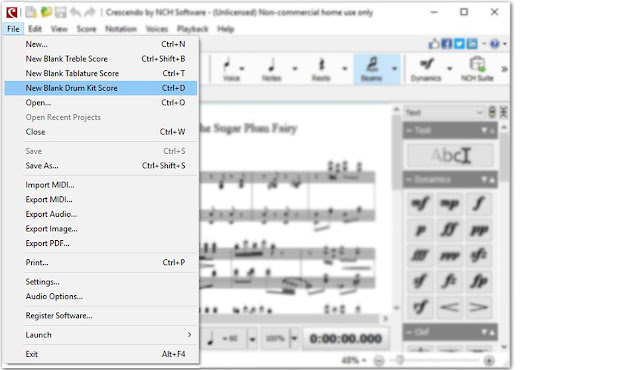
Creating a new drum kit score in crescendo


Drum and Percussion Notation

There are many different ways percussionists will write and transcribe drum notation in sheet music. Luckily there are some universal standards that are agreed upon and also followed in Crescendo Music Notation Software. Below is a sample that shows how Crescendo will interpret and recognize just a few of the different percussion music "notes."
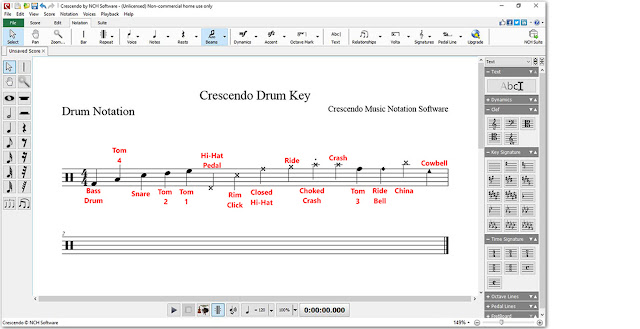
Crescendo Music Notation Software drum key sample


Adding Percussion Notes

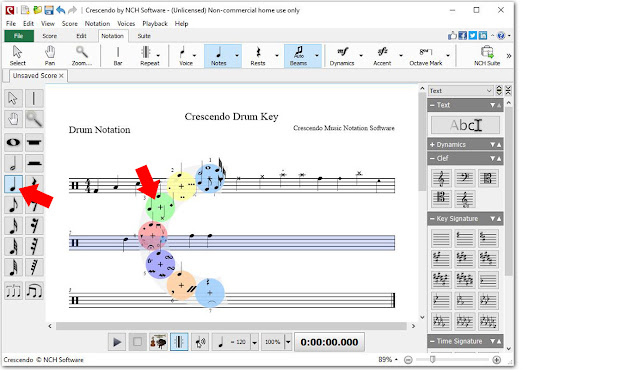
You can select a note tool to add notes on the percussion stave by choosing the type of note from the toolbar on the left-hand side of the program and then clicking on a bar to place that note within your score. Once you click to place the note, a half-circle menu will appear to show you the different distinctions you can make to the note, such as making it a cymbal, drum, rimshot, or other percussion-related specification.


Adding Slurs and Tuplets

Adding slurs and tuplets to your drum and percussion composition is simple and easy. Simply select the slur or tuplet option from the toolbar on the left-hand side of the program to load the cursor with this option. Then just click on the notes where you would like to start and end your slur or tuplet within your score. You will see the new line drawn between your selecting notes to indicate a slur or a tuplet.
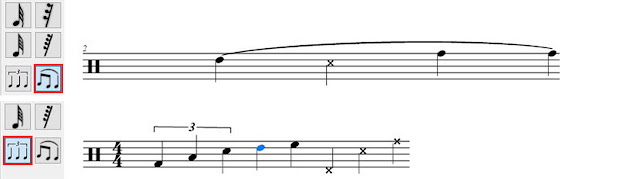
Creating Slurs and Tuplets in Crescendo Music Notation Software


Changing Time Signatures

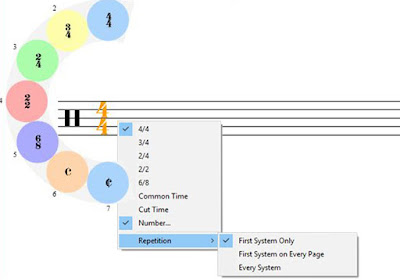
Changing time signatures in Crescendo Music Notation SoftwareTo change the time signature of your drum and percussion score, click on the time measure once to display the wheel of different time signatures. Simply select the option you desire to have that time signature applied to your project. You can also right-click on the time signature in the staff and select a new time signature from the drop-down menu.


Playback

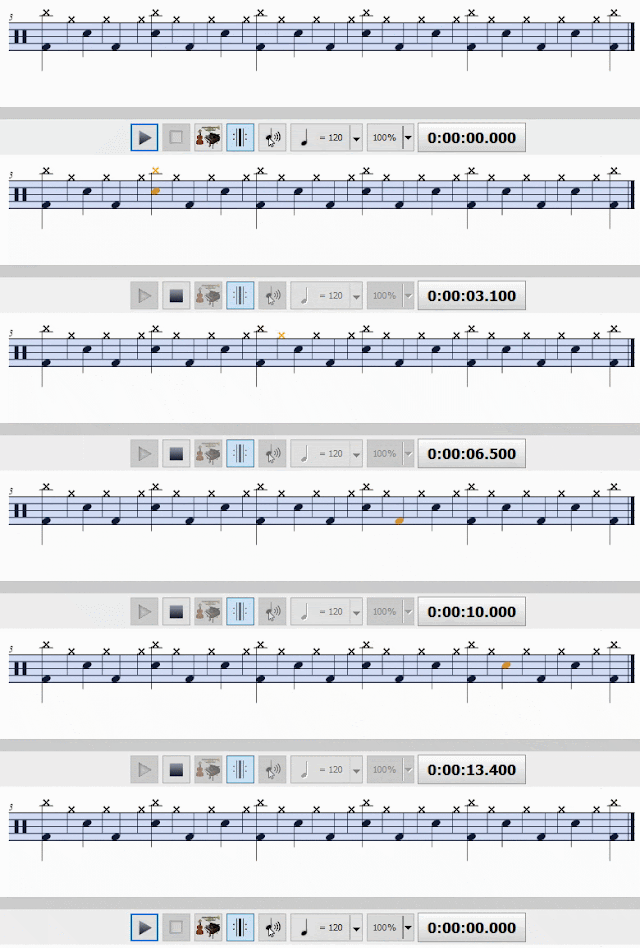
Crescendo Music Notation Software allows you to listen to your drum and percussion notation as it is played back to you on the very instruments it was written for. Simply click on the play button at the bottom of the program to listing to your composition on your computer. Playback music notation and written sheet music in Crescendo

Save and Share

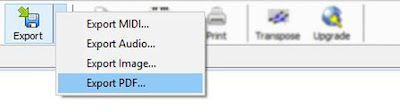
Export music notation audio in CrescendoWhen you are finished creating your drum and percussion sheet music, simply click on the Export icon, located at the top of the program. You can choose to export your music as an audio file. Then, listen to it and share it over and over again. You can also choose to export your sheet music as an image file or a PDF file if you are going to be taking your creation to the stage. Save your file and print it, so you are ready to rock at any time.


Do you need help using Crescendo? 

View the Help Manual: http://help.nchsoftware.com/help/en/crescendo/win/help.pdf

Visit the Crescendo Help Forum: http://nch.invisionzone.com/forum/123-crescendo-music-notation/

Contact Crescendo Technical Support: https://www.nch.com.au/support/supportcontact.html?software=Crescendo

Friday, September 28, 2018

Crescendo Music Notation Tutorial - How To Add a Slur

How to Add a Slur to Music Notation with Crescendo

How to Add a Slur to Music Notation

This video will show you how to add a slur to a music notation project with Crescendo Music Notation Software.

Download Crescendo to get started: https://www.nch.com.au/notation/index.html

To view more Crescendo Music Notation tutorials, visit: https://www.nch.com.au/notation/tutorial.html


How to Add a Slur to Sheet Music with Crescendo

  1. On the Notation tab, click S to activate the Slur tool. 
  2. Click on the first note then click on the last to add the slur.

For more information and additional tips and tricks, watch the full video tutorial above.

To view more Crescendo Music Notation tutorials, visit: https://www.nch.com.au/notation/tutorial.html


Do you need help using Crescendo?
View the Help Manual: http://help.nchsoftware.com/help/en/crescendo/win/help.pdf

Visit the Crescendo Help Forum: http://nch.invisionzone.com/forum/123-crescendo-music-notation/

Contact Crescendo Technical Support: https://www.nch.com.au/support/supportcontact.html?software=Crescendo

Friday, September 7, 2018

How to Use VSTi with Crescendo Music Notation Software

How to Use VSTi with Crescendo Music Notation Software


Using VSTi with Crescendo Music Notation Software

This tutorial will show you how to use VSTi with Crescendo Music Notation Software.
Download Crescendo to get started: https://www.nch.com.au/notation/index.html

To view more Crescendo Music Notation tutorials, visit: https://www.nch.com.au/notation/tutorial.html


How To Use VSTi with Crescendo Music Notation Software

  1. To select a VSTi instrument, click the Parts Setup button on the Score toolbar to open the Parts and Staves dialog. 
  2. Select the part or staff from the list, then, select the VSTi radio button. 
  3. Select your instrument from the dropdown.
Watch the full video tutorial above for additional tips and tricks.


To view more Crescendo Music Notation tutorials, visit: https://www.nch.com.au/notation/tutorial.html

Do you need help using Crescendo?


Friday, June 29, 2018

Tablature - Crescendo Music Notation Tutorial

Crescendo Music Notation Software Tutorial - Tablature


Guitar Tablature Tutorial - Crescendo Music Notation Software

Download Crescendo to get started: https://www.nch.com.au/notation/index.html

To view more Crescendo Music Notation tutorials, visit: https://www.nch.com.au/notation/tutorial.html

How to Add Guitar Tablature 

  • Select New Tablature Score from the New Blank dropdown list. 
  • To add fingering to the tablature, select a note of apt duration, click on the tablature and then type in the fret number.


To view more Crescendo Music Notation tutorials, visit: https://www.nch.com.au/notation/tutorial.html

Do you need help using Crescendo?


Wednesday, August 22, 2012

Music Writing Software Gets MIDI Playback

music composition notation software MIDI playbackCalling all musicians and aspiring composers: The newest release of Crescendo Music Notation Software (version 1.06) has a new feature that we are excited to introduce and that will help your musical compositions jump off the page. With the New MIDI Playback Feature, you can flip over to the Playback tab at any time and listen to your score to make sure all the notes are lining up the way you want, which can be a very satisfying feeling when you've been working away at putting down your musical score. You can even choose to Export MIDI to save a music file of your composition to share with others. We hope you will be as excited to take advantage of this new feature as we are, and will download or upgrade Crescendo Music Writing Software today.

Tuesday, April 17, 2012

J is for Jammin' Music Software

NCH Software ABCs Series

jammin music softwareGet down with your music, and liven up all your favorite jams. Keep the beat on the dance floor, be the DJ at your party with your music library favorites, modernize and convert your vinyl collection, or record a jam session with your garage band, all with software from NCH Software’s audio department. Music is a part of who we are. It defines us as listeners and fans, and is a creative outlet for musicians. Whether you are trying to identify notes in a song to play along, or commit the composition in your head to paper, there are all kinds of jammin' musical software for your inner musician to explore:
<<< Previous: I is for International
Next: K is for Keep >>>

Friday, September 10, 2010

Software for Musicians

Audio Software is one of our biggest categories, and sound editing is just the beginning; we have lots of tech solutions for musicians too. From music recording software to other handy musician software tools, each program is specifically designed for a particular music related task so musicians can go high tech while tuning, transcribing or even just practicing. Check out a few of our audio software favorites for musicians:

Software Applications for MusiciansTwelveKeys Music Transcription Software is perfect for any musician trying to learn how to play a piece of recorded music, or for notating compositions. TwelveKeys provides a visual aid for musical transcription using a graphical representation of the music, allowing musicians to notate any orchestration with accuracy and ease.

Crescendo Music Notation Software is a simple way to work with musical notation. Crescendo allows musicians to compose, save and print music from their computer. The wide array of notation symbols, time and key signatures, and text on a free-form layout gives you complete control over musical arrangements.

PitchPerfect is a free guitar tuner that also works great for other string instruments. It automatically detects the note you are playing and lets you know if you are sharp, flat, or perfectly in tune. Performing will be less daunting, having this product to eliminate the need of tuning a guitar conventionally.

TempoPerfect is a free software metronome. Designed to help musicians play in time, this tempo software creates accurate beat patterns for simple or complex rhythms. TempoPerfect provides a clear and precise beat that won't wind down, making it an essential tool for all musicians.

WavePad Sound Editor is designed to be an easy to use audio editing package. Within minutes you will be able to open or record a file and edit it. It has many robust tools including audio effects to amplify, normalize, reverb, a free sound effect/music library, text-to-speech voice synthesis, and a voice changer, just to name a few. Combined with MixPad multitrack mixing software, these two audio applications are perfect for any audio project, from making soundtracks and podcasts to creating high quality demo CDs for your band.

Thursday, March 11, 2010

Crescendo - Aspirations of musical domination

Crescendo music notation software for composing and writing musical scoresLast month, we released new software for musical notation. The initial release of Crescendo, version 0.92, provides a mere proof-of-concept and a solid starting point. Much more is planned for this project; the intention is to create something uniquely powerful and flexible. So how will Crescendo distinguish itself?

Freeform awesomeness
Crescendo will allow you to grab and move anything you can see; to re-arrange and re-structure anything as you see fit. Other applications may be restrictive about the formatting of what you write: once you've decided the structure of the piece, it can be a pain to change it later. Crescendo will let you adjust any aspect of your creation on-the-fly, in the most visually intuitive way possible.

How does that work and why would it be useful?

For instance (in the next version) staves can be braced together simply by drawing lines between them. There's no tedious set-up to work before you can begin your composition; i.e. if you've got bass notation on the page, you can connect it up to the corresponding treble notation with a quick drag. Different instrument parts can be swapped out by literally pulling them out of bracing and connecting them to another group. All with no dialogs pop-ups to get in your way; it's as if you could grab and push around the notation with your own hands.

Crescendo will allow you to work like you would with paper. Anything you say goes; nobody is querying you about the final structure of the piece; you just draw notation in as you go along.

A bit of style
Composing music is enjoyable; there's no need for the application to look like accounting software. Crescendo has a nice clean look and animated motion, and not just for aesthetics sake, the shading and movement also help convey structure and continuity.

What?

When changes are made, the screen won't just “blink” to the new state, you'll see elements move from their old position to their new positions, clearly showing you what's going on. When you “pick up” and move things, shadows will appear underneath so you can tell what's being moved and see its relative depth as you move it over the page. Every object that can be interacted with by the mouse will highlight as you move the cursor over it – no guesswork involved.

All the essential features
Crescendo will have:
  1. Bracing (i.e. grand staff or multi-instrument notation)
  2. Playback; hear what you see.
  3. On-screen keyboard input, and other rapid-input methods.
  4. More export formats.
  5. More beaming options.
  6. Dynamics.
Work on Crescendo is moving full-steam-ahead. Keep an eye out for the next release.