
Showing posts with label MixPad. Show all posts
Showing posts with label MixPad. Show all posts
Friday, July 10, 2026

Wednesday, November 19, 2025
Tuesday, October 20, 2020
How to Make a Beat using MixPad

How to Make a Beat Easily
Everyone is making beats these days and it makes sense why - a catchy beat is the basis to any good song. You don't have to be an experienced producer or a DJ to make a great beat, with the best beat maker software, you can start making beats easily in a few minutes. Download MixPad Beat Maker Software for free and follow the below tutorial to create your first beat that even J Dilla would be proud of.
Learn How to Make Beats with MixPad’s Beat Maker
1.Click Create Beat on the home toolbar to open the Beat Maker.
2. Double click on an empty bar to add a beat pattern to it.
3. Click on the bar division lines to add beats. The higher a beat is placed in the pattern, the louder it will be.
4. Click Play to listen to your composition.
5. Add your beat to a track in your mix by clicking the Export button.
Watch the below video tutorial for more information and tips. For more MixPad tutorials, click here.
Friday, March 8, 2019
How to Mix Audio, Music and Voice Recordings
How to Mix Audio, Music and Voice Recordings with MixPad

This tutorial will show you how to mix audio, music and voice recordings with MixPad Multitrack Recording and Mixing Software.
Download MixPad to get started: https://www.nch.com.au/mixpad/
Mix Audio, Music and Voice Recordings
How to Mix Audio
- Load each track with your audio clips or record audio to a track
- Use the track tools to set the volume, settings and any effects for each track
- Use play controls to listen to the result
- When you are happy with your mix, click the Export Mix button
- Select your output file type for your mix and click Export
- Save your MixPad project for easy future editing
For more on MixPad, check out these posts:
Friday, November 2, 2018
How to Mix an Audio File and Change to MP3 format
How to Mix an Audio File and Change to MP3 Format
 Mixing audio files is a great way to take the best parts of all of your favorite songs and combine them into one awesome track. With MixPad Audio Mixer, you can mix a variety of audio types together to create mixes and mashups of your very own. After you have made a mix you love, you can change to MP3 format and share it with the world.
Load/Record Tracks
Click on the Load icon underneath the Home tab to add audio clips to your mix. You can add clips from your computer, rip a clip from a disc, or add an empty midi clip to record on a track using a midi controller. Imported clips will be added to the selected track. You can also record your audio tracks directly into MixPad by enabling recording on the selected track, then clicking on either the record icon underneath the Home tab or on the record button at the bottom of the program.
Arrange your Clips
Use click and drag to rearrange the position of the tracks in your mix. Under the Editing tab, you can choose from a variety of options to cut and trim the clips in your mix. Select a portion of audio in a track to trim, delete, or silence it. Click on any point in an audio clip and choose the Split Clip option to divide it into two separate clips. You can then move the clips around or move them to different tracks in your mix. You can also Merge two separate clips into one clip anywhere you would like within your mix.
Adjust track settings
Adjust the play volume of an entire track using the volume slider in the track controls. You can also adjust the volume at different points in your track by clicking on the red line in the waveform and then dragging the square box that appears up or down to increase or decrease the volume. Click on the envelope icon to choose whether you are adjusting the volume or the pan in your track.
Apply Effects
You can apply live effects to the audio tracks in your mix by selecting a track and then clicking on the FX button to launch the effects window. Layer multiple effects on top of one another and edit and adjust them as you please. Effects will be applied to the audio in the selected track.
Change to MP3 Format
Now that you are finished mixing your audio, you can export your mix and change to MP3 format. Click on the Export Mix button located underneath the Home tab. Use the Browse button to select your output destination, name your file, and set your output file type to MP3. You can also change your file to MP3 directly from the Export Options window by clicking on the dropdown menu and choosing MP3 from the list of output file types. Click Export when you are ready to export your audio mix as an MP3 file.
For more on MixPad and audio editing, check out these tutorial videos:
Friday, September 14, 2018
How to Make Beats Using the MixPad Beat Maker

Whether you consider yourself an experienced producer or a just a beginner at making music, knowing how to make beats is an important part of your process. MixPad Multi-Track Recording Software is a great recording software for audio and music production, but did you know that it also has an easy and exciting beat making feature? With the MixPad Beat Maker, you can quickly learn how to make beats for all types of music projects.
Beat Maker
After opening MixPad on your computer, click on the Create Beat button in the main toolbar underneath the Home tab. This will launch the Beat Maker window. You will be able to use the beats that you make with the beatmaker in the main program for future mixing projects.
Edit Kits
Before you begin learning how to make beats in MixPad, you need to set up your drum kit. Click on the Edit Kits tab to pick and choose different drums and sounds to add to your kit. You can import sounds of your own to use or work with the existing sounds in the program. MixPad comes with two different kit options that are filled with a variety of different drums and cymbals. You can add as many components to your kit as you would like. Once you have built your kit, exit out of the Edit Kit window to begin using it.
Adding New Bars to Your Measure
To create a new bar, click on the empty space in your track to highlight it blue. Then click on the Add + button underneath the Home tab. This will add an empty bar to your selected track. You can add all of the bars to your tracks before you start placing beats or you can wait and add them as you go. You can delete a bar you have added by simply clicking on the bar in your track and then clicking on the Delete button.
Beats Per Bar
Now that you have placed your bars on your tracks, you can adjust how many beats per bar you would like. You can add 1-16 beats per bar by selecting your bar and then typing the value into the box titled Beats Per Bar on the right-hand side of the program. Simple beats and slower beats require fewer beats per measure while more complicated beats will require more.
Bar Division
You can adjust your timing and further divide your bars by clicking on the Bar Divisions button underneath the Home tab. This allows you to have extra control and use extreme precision when creating your beats.
Adding Beats
Now that you have added bars to your tracks and you have set the number of beats per bar, you are ready to start adding beats. To add beats to your tracks, simply left click in the vacant boxes on your bars to place beats. You can drag the white beat markers up or down to determine the volume at which they are played back. The higher the beat marker is in your bar, the louder it will be played.
Making Beat Loops
Learning how to make loops using the MixPad Beat Maker tool is simple. The Beat Maker loops your tracks by default, but you can adjust the duration and placement of the loop however you would like. Simply change the values in the Loop Start and Loop End boxes on the right-hand side of the program to determine where your loop begins and ends. A green line will appear above the tracks that will be included in your loop. This will playback your tracks on repeat only at those specific bars.
Adding Tracks
You can add unlimited tracks with the MixPad Beat Maker tool. Simply click on the Add Track button in the top toolbar under the Home tab to add a new track. New tracks will appear at the bottom of your mix and you can use the drop-down arrows to select which drum or instrument you want to use on that track.
Beat Patterns
MixPad has a number of pre-existing beat patterns that you can use as well. Choose one from the pattern menu on the right side of the beat maker. Click on an empty bar, select the pattern you would like to add, and then click the Use button to add the pattern to your track. You can adjust these patterns with the settings above and add to them as well.
Exporting Beats
When you are finished making your beat, you can export it directly to the main program. Simply click on the Export button in the main toolbar or go to File and then click Export. You can then exit out of the Beat Maker window and your newly created beat will appear in the first available track in the regular MixPad program. From there you can use it in a new mix or export the mix as is with just your beat in it.
For more on music-making software, check out these posts:
Friday, August 19, 2016
How To Record Instrumental and Vocal Tracks with MixPad MultiTrack Mixer
Record Audio and Instrumental Tracks with MixPad MultiTrack Mixer

MixPad MultiTrack Audio Editor
How To Record Audio Tracks with MixPad
To enable recording in MixPad, click on the recording icon on the track that you would like to record.
When recording is enabled for a track, the recording icon will be red.

When you are ready to record, click on the recording icon on the bottom of the MixPad window. You can also use the F5 key on your keyboard to begin recording without clicking in MixPad.


To pause or stop your recording, click on the stop button, or square in the bottom toolbar. You can also press the space bar on your keyboard to stop recording without clicking in MixPad.

Recording multiple tracks will allow you to isolate instruments, vocals, and other audio tracks. With MixPad, you can then add effects, change volume levels, apply pitch correction, change stereo pan, and apply looping to tracks.
Isolated tracks will allow you to remove vocals to create audition tapes and karaoke tracks, remove or re-record instruments, and professionally edit your audio tracks. Bands and recording artists can use MixPad to lay down instrumental and vocal tracks individually, then mix, edit and upload songs directly to fans on SoundCloud with the click of a button.
Easily Identify Instrument Tracks
You can edit the names and colors of individual tracks in order to make them easily identifiable during the editing process. To edit the name of a track, select the "Track" tab from the top menu. Click to select the track, then select, "Rename Track" from the Track Tab.

You can also double click on the "Untitled Track" label to edit the track name. The track name will become an editable field which you can change to whatever title will be easily identifiable for you.

To change the color of a track, select the "Track" tab from the top menu. Click to select the track, and then select "Track Color" from the top menu. A color selector window will appear. You can select a common pre-set color, or you can create custom colors by clicking on the button that says "Define Custom Colors".

Download MixPad Here
You may also like:
How To Record Instrumental and Vocal Tracks with MixPad MultiTrack Mixer
Record Audio and Instrumental Tracks with MixPad MultiTrack Mixer
MixPad MultiTrack Audio Editor
How To Record Audio Tracks with MixPad
To enable recording in MixPad, click on the recording icon on the track that you would like to record.When recording is enabled for a track, the recording icon will be red.
When you are ready to record, click on the recording icon on the bottom of the MixPad window. You can also use the F5 key on your keyboard to begin recording without clicking in MixPad.
To pause or stop your recording, click on the stop button, or square in the bottom toolbar. You can also press the space bar on your keyboard to stop recording without clicking in MixPad.
Recording multiple tracks will allow you to isolate instruments, vocals, and other audio tracks. With MixPad, you can then add effects, change volume levels, apply pitch correction, change stereo pan, and apply looping to tracks.
Isolated tracks will allow you to remove vocals to create audition tapes and karaoke tracks, remove or re-record instruments, and professionally edit your audio tracks. Bands and recording artists can use MixPad to lay down instrumental and vocal tracks individually, then mix, edit and upload songs directly to fans on SoundCloud with the click of a button.
Easily Identify Instrument Tracks
You can edit the names and colors of individual tracks in order to make them easily identifiable during the editing process. To edit the name of a track, select the "Track" tab from the top menu. Click to select the track, then select, "Rename Track" from the Track Tab.
You can also double click on the "Untitled Track" label to edit the track name. The track name will become and editable field which you can change to whatever title will be easily identifiable for you.
To change the color of a track, select the "Track" tab from the top menu. Click to select the track, and then select "Track Color" from the top menu. A color selector window will appear. You can select a common pre-set color, or you can create custom colors by clicking on the button that says "Define Custom Colors".
Download MixPad Here
You may also like:
Thursday, March 17, 2016
How to Use MixPad as a Free Virtual Drum Beat Maker
Beat Designer - Free Digital Beat Maker/Drum Kit Software in MixPad

MixPad's Beat Designer is a built-in tool that lets users create a beat or drum tracks for their songs or any audio project. Users can take any audio file as a source for the Beat Designer (even record your own drums as a source!), but today, we'll cover how to access and use the free drum kit sound pack that comes with our top-rated multitrack recording software.
To open Beat Designer and download the free drum kit:
- Open MixPad
- Tools -> Beat Designer
- In the Beat Designer window, File -> Download Kits and Patterns
- A downloader will popup and automatically install the sound pack
This kit includes the following percussion sounds:
- Kick
- Snare (Off/On)
- Flam
- Hi-Hat (Open/Closed)
- Pedal Hi-Hat
- Side Stick
- Rim Shot
Now you're ready to start creating your drum beat track!
By clicking along the timeline, users can add cues for each instrument - the red bar in each cue is the volume/intensity/velocity of each drum strike that can be dragged up or down.
For other options, from the Beat Designer help page:
Tool Panel
The tool panel is located in the bottom-left corner beside the timeline and contains controls for adjusting the tempo (BPM), time signature, and length (in bars) of the beat clip you are creating. Changing their value will change the scale of the timeline.
Beat Divisions
You can subdivide each beat in a track to create smaller beat durations. So, for your kick drum, you may have a kick every 1/4 quarter note, but for your hi-hat, you may have a hit every 1/8 note. To change the beat divisions click on the spanner icon of the track and change the number of divisions.
Adding a Beat
The sound a track makes is determined by the sound that is assigned to it. You can create and manage sounds using the Sound tab from the main toolbar. You can assign a sound to a track by clicking on the button with the trumpet icon. You add sounds to your track by simply clicking on the division you would like to place a sound.
Adjusting the Volume
You can change the volume of each individual sound by dragging the small fader control in the center of each beat up or down. If the sound you are using consists of only one file then the volume will be attenuated by processing the audio. You can however configure your sound to use multiple files assigned to different volume ranges. In this case MixPad will choose the file which most closely fits the fader volume and then apply further processing to adjust the volume as required.
Tapping a Rhythm
If you'd like to tap a rhythm into the Beat Designer while playing back, you can bind a key to each track so that when you hit the key, a sound will be placed in the division at the current cursor position. You can assign a key binding by clicking on the spanner icon of the track.
Loading your Beat Clip Back Into MixPad
Once you are finished building your beat clip, click the Create Clip button on the toolbar and MixPad will create a new audio clip in the selected track of MixPad's main window.
Pattern Library
A pattern is just a sequence of events played across the tracks of your beat clip. You can save and load your favorite patterns from the pattern library by using the Save Pattern and Load Pattern buttons. Patterns can be re-used with different sounds and kits. So you may have a standard 4/4 rock pattern that you like to begin with, but you can change it up quickly by assigning different sounds to the tracks.
You can subdivide each beat in a track to create smaller beat durations. So, for your kick drum, you may have a kick every 1/4 quarter note, but for your hi-hat, you may have a hit every 1/8 note. To change the beat divisions click on the spanner icon of the track and change the number of divisions.
Adding a Beat
The sound a track makes is determined by the sound that is assigned to it. You can create and manage sounds using the Sound tab from the main toolbar. You can assign a sound to a track by clicking on the button with the trumpet icon. You add sounds to your track by simply clicking on the division you would like to place a sound.
Adjusting the Volume
You can change the volume of each individual sound by dragging the small fader control in the center of each beat up or down. If the sound you are using consists of only one file then the volume will be attenuated by processing the audio. You can however configure your sound to use multiple files assigned to different volume ranges. In this case MixPad will choose the file which most closely fits the fader volume and then apply further processing to adjust the volume as required.
Tapping a Rhythm
If you'd like to tap a rhythm into the Beat Designer while playing back, you can bind a key to each track so that when you hit the key, a sound will be placed in the division at the current cursor position. You can assign a key binding by clicking on the spanner icon of the track.
Loading your Beat Clip Back Into MixPad
Once you are finished building your beat clip, click the Create Clip button on the toolbar and MixPad will create a new audio clip in the selected track of MixPad's main window.
Pattern Library
A pattern is just a sequence of events played across the tracks of your beat clip. You can save and load your favorite patterns from the pattern library by using the Save Pattern and Load Pattern buttons. Patterns can be re-used with different sounds and kits. So you may have a standard 4/4 rock pattern that you like to begin with, but you can change it up quickly by assigning different sounds to the tracks.
Enjoy creating! If you'd like to get creative, remember that any sound recording/audio file can be used as a sound source for the Beat Designer.
Click on the link to download or purchase:

Wednesday, February 10, 2016
Write the Perfect Valentine's Day Love Song
Best Words for Your Love Song Lyrics

Writing your Valentine a love song? Have writer's block?
Don't worry, here is some inspiration for you!
From an analysis of the Billboard Top 50 Love Songs of All Time, here are the 60 most commonly used words in alphabetical order:
- ago
- around
- baby
- belong
- best
- better
- boom
- breaking
- care
- cause
- deny
- diamonds
- every
- eyes
- feel
- found
- girl
- give
- go
- gonna
- got
- happy
- heart
- hold
- hopeless
- hours
- know
- let
- like
- living
- long
- love
- loved
- made
- make
- mind
- need
- oh
- one
- place
- protection
- really
- see
- selection
- show
- side
- silly
- stop
- suposed
- tell
- til
- time
- useless
- want
- way
- whoa
- wish
- world
- yeah
- yesterday
Now Combine the Lyrics with the Music
When you're done writing your new masterpiece, give it that professionally produced sound by using mixing software - give MixPad a try.
MixPad allows users to:
Recent user review:
"Dear NCH SOFTWARE/ Mix Pad Team, I would like to say thank you for all of the team members to create Mix Pad, You made a great job. It was a great tool to made my first promotional video sound editing, easy and fast. No doubts, this is my tool for next time as well"
"Dear NCH SOFTWARE/ Mix Pad Team, I would like to say thank you for all of the team members to create Mix Pad, You made a great job. It was a great tool to made my first promotional video sound editing, easy and fast. No doubts, this is my tool for next time as well"
-Gabor Szilagyi, www.relaxbeer.com
Click on the link to download or purchase:

Thursday, October 31, 2013
MIDI Recording and Editing
 Did you know that built into our MixPad multi-track recording and mixing software is a MIDI editor that gives you precise control of MIDI tracks?
What this means is that you can record from MIDI instruments and devices, then edit those tracks, adding or deleting notes, adjust the pitch and duration of notes. Even quantize and humanize your MIDI creations adding small amounts of variability to the track so it sounds less like a robot and more like a musician. All of this with support for VSTi instruments and the standard MixPad features giving you the ability record and mix multiple audio tracks, add audio effects and more, expanding the power of this comprehensive sound studio software.
Thursday, October 10, 2013
Music Mixing on Android
If you weren't already excited enough about having WavePad Audio Editor available for your Android tablet, being able to install WavePad's long time partner in audio crime, MixPad Music Mixer, on your Android too may just put you over the edge.

MixPad is a powerful multi-track mixer. Move from perfecting individual audio files with WavePad to mixing, remixing or mashing up multiple audio files into a full-fledged soundtrack or any other audio production project no matter the size. The app may be small, but the possibilities are huge. Download the MixPad Audio Mixing App from Google Play to have ready for the next time you want to put together some audio, whether you are hanging out in a waiting room, or recording on location.
MixPad is a powerful multi-track mixer. Move from perfecting individual audio files with WavePad to mixing, remixing or mashing up multiple audio files into a full-fledged soundtrack or any other audio production project no matter the size. The app may be small, but the possibilities are huge. Download the MixPad Audio Mixing App from Google Play to have ready for the next time you want to put together some audio, whether you are hanging out in a waiting room, or recording on location.
Thursday, July 11, 2013
Royalty-Free Music Library
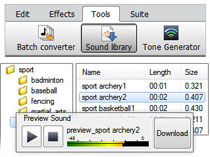 When you purchase products like MixPad audio mixer, WavePad audio editor or VideoPad video editor from NCH Software, you get more than just high-quality audio and video software. You also get hundreds of dollars worth of royalty-free music and sound effects that you can use in your productions.
Your purchase entitles you to download, at no additional cost, a wide array of music clips in genres such as blues, dance, and rock. You can also download lots of sound effects including animals, alarms, office sounds, sports and many others.
Music and sound effects libraries can cost you hundreds or even thousands of dollars to purchase and use in your audio and video productions. But with products like VideoPad, WavePad and MixPad you won't spend an extra cent for all those music clips and sound effects.
The term royalty-free, if you're not familiar with it, means that you can use this copyrighted material without paying royalties or license fees for each use. The reason you don't have to pay is that NCH Software purchased this library of music and sound effects and negotiated to allow our customers' free use of the library. Even if you are creating a project for which you're getting paid you can use the music and sound effects library for your production.
If you have wondered if the sound effects in the sound library can be used for your projects. The answer is that the library can be used in a wide range of productions:
You have the right to synchronize the audio content with audio and/or visual productions or applications such as:
- film, video, DVD & TV productions
- training, marketing and trade show presentations
- corporate videos & educational applications
- on hold messages & advertising
- radio presentations & commercials
- television presentations & commercials
- live performances
- speech & audio book products
- Web pages & multimedia presentations
- PowerPoint & Flash productions
- interactive programs & computer games
- AV & computer generated displays, podcasts
(all such applications hereinafter referred to as "the Production")
So, the next time you create an audio or video project, be sure to take advantage of the bonus royalty-free music and sound effects library included with your editing software.
Tuesday, March 12, 2013
Adding an Audio Voice Over with WavePad
 If you want to record a your voice over a piece of music you have two choices in the NCH Software audio suite. MixPad recording and mixing software is the more advanced program, that will allow you to record multiple tracks, and fine tune the mixing of the music and vocal tracks, but you can also try the Paste Mix feature in WavePad audio editor for quickly combining to files.
WavePad doesn't allow you to record directly over another file, highlighting a file and clicking record will end up replacing the selection. Instead, use the Paste Mix feature to combine two audio files into a single track.
Copy the recorded voice over to the clipboard, then select all in the audio file you want to add that voice over to and click Paste Mix on the Edit Tab.This will open a window with options on what to do if your files are not the same length. If the Mix Audio—which is your voice recording on the clipboard—is the shorter of the two files, you can ignore the options and click OK. If the Mix Audio is longer, you need to decide what to do when the audio you are mixing into is finished. When you click OK the two pieces of audio will be combined and when you press Play you will hear both files.
Tuesday, February 12, 2013
Software Sweethearts
With so much software, what's not to love?

Looking for the perfect match? Save by bundling related programs pairs and purchasing them together.
VideoPad & Express Burn
This dynamic duo will guide you faithfully from beginning to end of any video project. Use VideoPad video editing software to capture, import, edit and add effects to your videos. Finish up by burning the video to DVD with Express Burn. Create a heartfelt video recording for your beau this Valentine's Day.
WavePad & MixPad
This pair is the audio software dream team. Use WavePad audio editor to record and edit a song first, then incorporate with other tracks with MixPad for your multi-track mixing needs. They work together seamlessly to help you create your own love song for your valentine this year.Express Dictate & Express Scribe
If ever there was a practical match, it's this one. Express Dictate digital dictation software allows you to record dictation, and send to a transcriptionist, while Express Scribe makes transcription easy with features like variable speed playback, and file management.Looking for the perfect match? Save by bundling related programs pairs and purchasing them together.
Saturday, December 15, 2012
Y is for YouTube
NCH Software ABCs Series
 YouTube has a wealth of videos, from information to humor you can find videos about just about everything, a whole world of endless amusement is just a click away. But watching videos isn't the only side. There are millions of aspiring YouTube stars out there who would do well to note some of the useful and easy YouTube software programs below that can help you download, record, edit and upload videos directly to YouTube. Who knows, yours could be the next big viral video.
YouTube has a wealth of videos, from information to humor you can find videos about just about everything, a whole world of endless amusement is just a click away. But watching videos isn't the only side. There are millions of aspiring YouTube stars out there who would do well to note some of the useful and easy YouTube software programs below that can help you download, record, edit and upload videos directly to YouTube. Who knows, yours could be the next big viral video.
- VideoPad - Edit Video for YouTube
- Debut - Record Video for YouTube
- Prism - Convert Video for YouTube
- WavePad - Record and Edit Audio or Voice-overs
- MixPad - Create and Mix Together A Video Soundtrack
- FlashLynx - YouTube Video Downloader
- Switch - Extract Audio from Video Clips
| <<< Previous: X if for eXpress | Next: Z is for Zip >>> |
Friday, November 23, 2012
Best Software for Making Music

Software Review Boffin recently reviewed MixPad multitrack mixing and recording software, adding it to their list of music making software titles. In the review they praised not only MixPad alone for being exceptional software, but noted that "the [high] standard is consistent with other NCH products that Software Review Boffin has audited before." The review also went on to say:
"With MixPad Multitrack Recording Software users are able to record instruments and vocals for their music production. Users will find it simple to rearrange, copy and integrate music to the intended state the user desires. Create audio productions within minutes of downloading is a great start for music making software."
– Software Review Boffin
– Software Review Boffin
You can read the complete review of MixPad music mixing software from Software Review Boffin, or download MixPad today to test out the multi-track recording and mixing features for yourself. Also be sure to check out our other exceptional and award-winning, audio software or musician software titles for additional music making tools.


