Showing posts with label audio conversion. Show all posts

Friday, May 24, 2019

How to Change WMA to MP3 with Switch Audio Converter

How to Change WMA to MP3 with Switch Audio Converter


Windows Media Audio files, or WMA files, are a common audio file format, primarily meant to be opened and played on Windows Media Player and other Microsoft audio players. You can play WMA files with some other third-party software, but many audio players and devices (iPhone) will not support them. That is why it is useful to know how to change WMA to MP3. MP3 files are a much more commonly supported file type and are arguably a superior format anyways. You can easily change WMA files to MP3 format with an audio file conversion program such as Switch WMA File Converter Software.


Download Switch

Download Switch Audio File Converter software. Follow the installation instructions and launch the program on your computer.
Download Switch Audio File Conversion Software

Import WMA Files

Click on the green Add File(s) button located in the main toolbar to open the file finder window. Find and select the WMA files on your computer and click Open to bring them into Switch to convert them to MP3 format. You can also drag and drop WMA files directly into the program to change.
Import WMA files to Change them to MP3

Options Menu

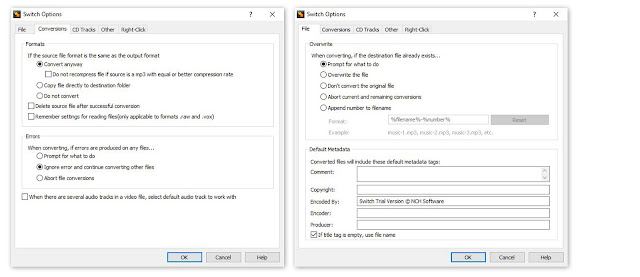
Click on the Options icon in the main toolbar to open the Options window. This is where you can add and make adjustments that will be performed on your WMA files during the conversion. You can add metadata to your converted MP3 audio files as well as change settings to handle duplicate files and formats. Once you are finished adjusting these options, click OK.
Audio File Converter Options

Select Output Destination

Set the output destination where you would like your converted files to go after you have converted them from WMA to MP3 format. Click on the Save to folder drop-down menu to select a folder from this list, or click on the Browse button to open the file finder window and select a folder on your computer.
Set Output Destination for MP3 Files

Set Output Format to MP3

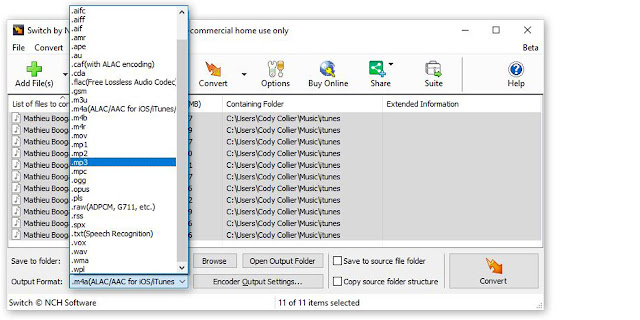
With your output folder set, you can now set the output format to MP3. Click on the drop-down menu on the left side of the program next to the words "Output Format" to view the list of available audio file formats. To change your WMA files to MP3 files, simply select the option from this list that says, "MP3." All conversions performed will now be in the MP3 audio file format.
Set Output Format Type to MP3

Encoder Options

Click on the Encoder Output Settings... button to launch the window for WMA Output Settings. Here you can make adjustments and change audio encoder settings such as metadata, sample rate, bitrate, and amplify/normalizing audio. These settings will be applied during the conversion process while your WMA files are being changed to MP3 files.
WMA Encoder Options


Change WMA to MP3

Once everything is set up, you are ready to change your WMA files to MP3. Simply click on one of the Convert buttons, located in the bottom right-hand corner of the program and in the main toolbar. This will start the conversion process. You can select only one file to convert them one at a time or you can select all of them to perform easy batch MP3 conversions.


Finished

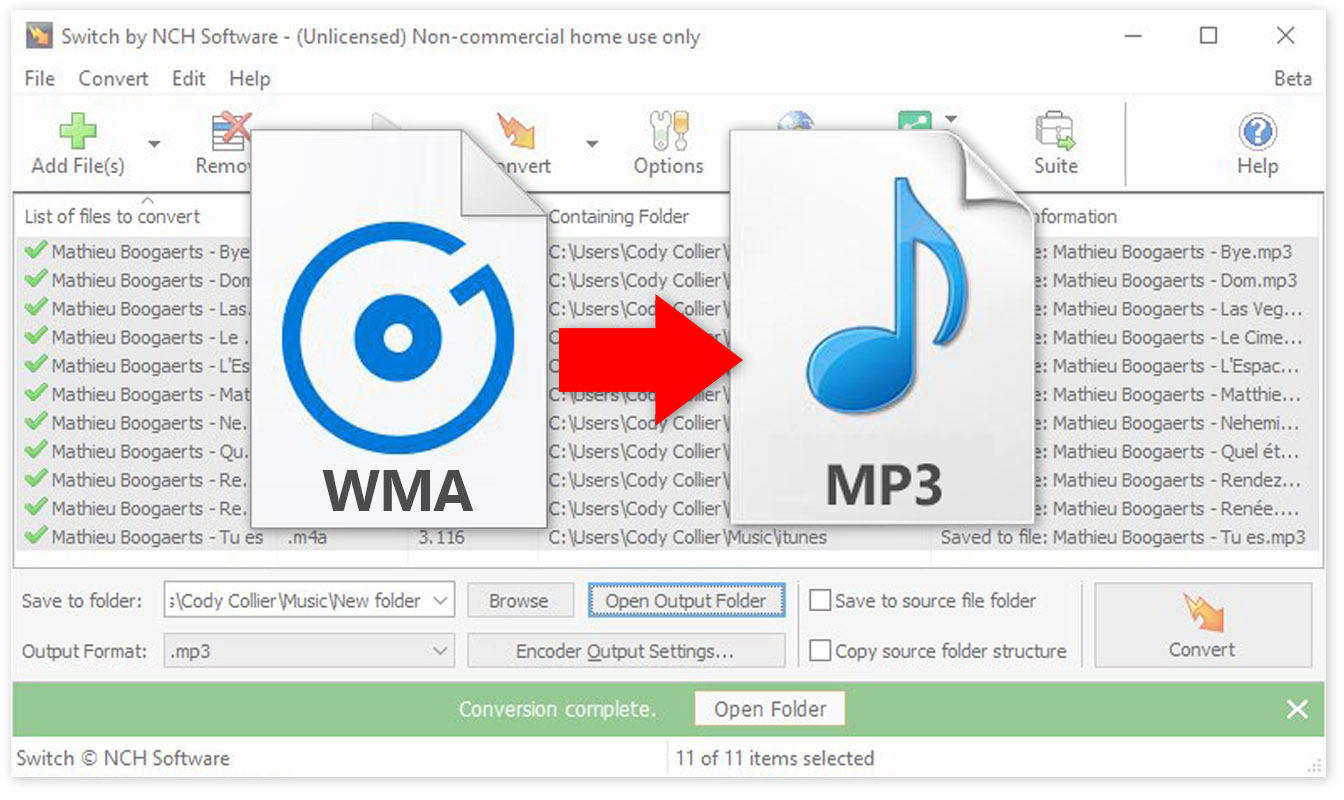
After the WMA to MP3 conversion is complete, you will see a green banner at the bottom of the program that says "Conversion Complete." You can click the button on the banner to open the output folder and view your newly converted MP3 files. You have now successfully learned how to changed WMA to MP3 using Switch Audio File Converter Software.


To read more about Switch and other audio topics, check out these similar posts:

Friday, February 15, 2019

How to Change M4A to MP3 Audio Files with Switch

How to Change M4A to MP3

How to Convert M4A to MP3

M4A files (MPEG-4 Audio files) are a common audio file type used by Apple, similar to the MP4. All of the songs on the Itunes Store are in the M4A format because of their compression size and high quality. Not all audio players and browsers will work with M4A files, though. That is why it is important to know how to change M4A to MP3 to be able to store your files in a more versatile and widely recognized format. With a simple audio file conversion software such as Switch, you can easily change M4A to MP3 without any problems.


Download Switch

You can download Switch Audio File Converter Software by clicking on one of the red download buttons on this page. You can also learn more about the program before downloading by visiting the product page here: www.nch.com.au/switch/
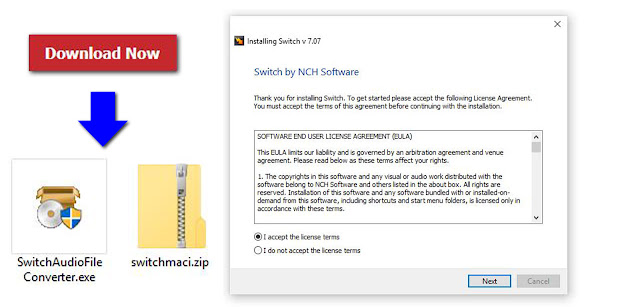
An image demonstrating how to download and install Switch Audio File Conversion Software
Download Switch Audio File Conversion Software
Download the program and follow the installation instructions as directed. Once you have installed the software on your computer, you can open the program and prepare to convert M4A to MP3.

Import M4A Files

Import your M4A files into the program by clicking on the icon with the green plus symbol in the top left-hand corner of the program that says "Add Files." This will open the file finder window where you can browse your computer and locate the M4A files that you would like to convert to MP3s.
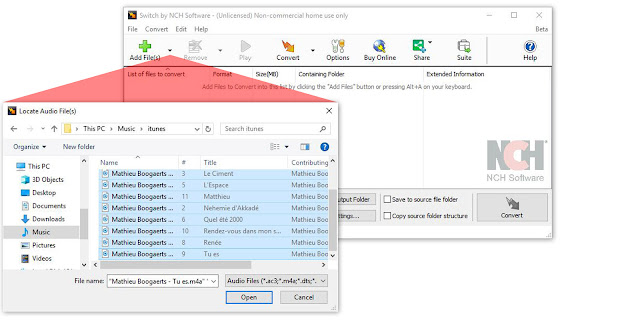
An image demonstrating how to import M4A files into Switch to convert to MP
Import M4A files to Convert to MP3

Options Menu

Click on the icon that says "Options" in the main menu to open the Options Window and view some of the changes and adjustments you can make to your M4A files while performing this conversion. Here you can add metadata to your converted MP3 files as well as fix settings to handle duplicate files and formats. When you are finished adjusting these options, click "OK."
A screenshot of the options menu in Switch Audio File Conversion Software
Audio Conversion Options

Choose Output Folder

Select your output destination where you would like your converted files to end up after you have changed them from M4A to MP3 format. You can click on the "Save to folder" dropdown menu to select a folder from this list or click on the "Browse" button to open the file finder window and select any output folder destination on your computer.
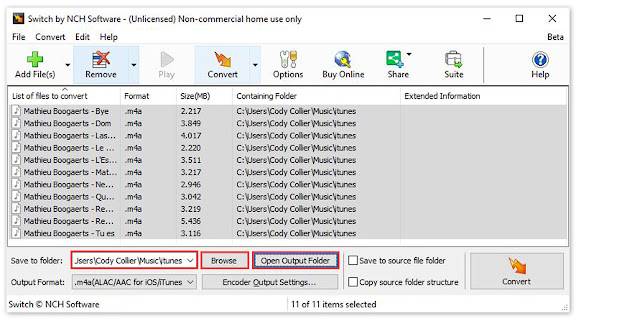
A screenshot displaying the buttons to set an output destination folder in Switch Audio File Converter Software
Set Output Destination for MP3 Files

Set Output File Type to MP3

Once your output folder is set, you can select the output format. Click on the dropdown menu on the left side of the program next to the words "Output Format" to view the list of available audio file formats you can convert to. To change your M4A files to MP3 files, simply select the option from this list that says, ".mp3."
A screenshot demonstrating how to set the output format type to convert M4A to MP3
Set Output Format Type

Encoder Options

Click on the "Encoder Output Settings..." button to launch the window for M4A Output Settings. Here you can make adjustments and change audio encoder settings such as metadata, sample rate, bitrate, and amplify/normalizing audio. These settings will be applied during the conversion process while your M4A files are being changed to MP3s.
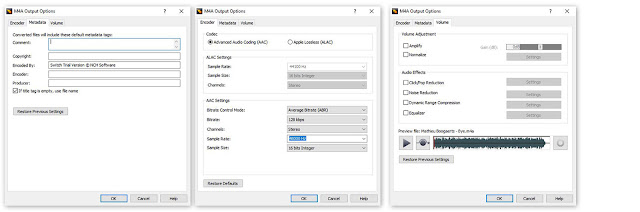
Encoder options windows for M4A encoding in Switch
M4A Encoder Options


Change M4A to MP3

Now that we have everything set up, you are ready to change your M4A files to MP3. Simply click on the "Convert" button, located in the bottom right-hand corner of the program, to begin the conversion process. You can select only one file to convert or select all of them to perform easy batch conversions.
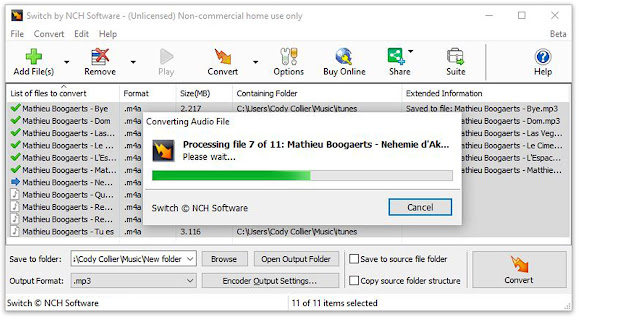
Switch Audio File Converter Software converting M4A files to MP3 in a batch conversion
Converting M4A to MP3

Finished

After the conversion is complete, you will see a green banner at the bottom of the program that says "Conversion Complete." You can click the button on the banner to open the output folder and view your newly converted MP3 files. You have now successfully learned how to change M4A to MP3 using Switch Audio File Converter Software
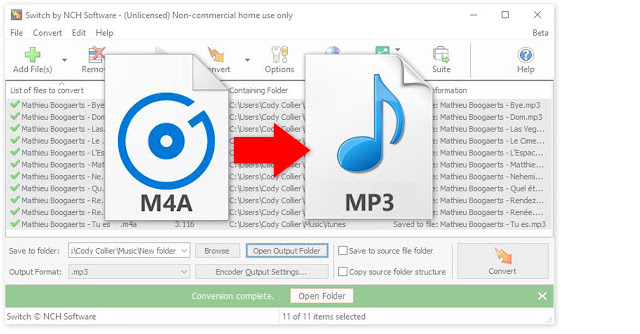
How to convert M4A to MP3 with Switch Audio File Converter Software
Completed M4A to MP3 Audio File Format


To read more about Switch and audio file conversion, check out these similar posts:

Friday, July 27, 2018

Change Audio to MP3 Format with Switch

How to Change to MP3 format


The MP3 format is one of the most common audio file formats in the world today. MP3 files are widely used for saving and sharing digital audio files because of their compression size and ability to maintain the high quality of their original format. This makes the MP3 file type great for storing and emailing because download speeds are quick and the files don't occupy much space. You may have found yourself in possession of audio files on your computer or on a disc that is in a different format that you would like to change to MP3. With a simple file conversion software such as Switch Audio File Converter Software, you can quickly learn how to change to Mp3 format in a matter of seconds.


Import Files into Switch

The first step to learning how to change to MP3 format is to open your copy of Switch and add/import the files that you would like to convert. Switch allows you to import individual audio files, video files, entire folders, or even import them from a DVD or audio CD. Click on the green Add Files button at the top of the program to begin adding your files. Once you have selected the files you wish to convert, click Open. You can also drag and drop files from your File Browser window directly into Switch.
How to change to Mp3 Format
Import files to convert to mp3 

Set Output Destination

Next, decide where you would like your new files to go once you have converted them. This is where your files will be located after they are changed to MP3 format. Use the drop-down menu or the Browse button at the bottom of the program to set your output folder. You can click on the Open Output Folder button to view the selected output folder and its contents. You can also check the box next to it to save your files to the same folder as the source files. This option will output your converted MP3 files right next to their original versions.
How to set output destination for changing to mp3 format
Set output destination 

Set Output Format

Switch is capable of converting to just about any audio file format you can think of. However, you are here because you want to know how to change to MP3 format, specifically. Click on the Output Format menu at the bottom of the program to open the drop-down menu. Select .mp3 as your output format. This will be applied to any and all files that you select.
How to change output format of audio files to mp3
Set output format 

Output Options

Click on the Options tab next to the Output Format menu to open the Options window. Here you can adjust some of the more advanced options such as the Bitrate and Channel Mode. You can also adjust the metadata that will be attached to your newly converted MP3 files. For more information on adjusting audio file meta tags, check out this blog post:
How to Edit MP3 Tags and Metadata with Switch Audio Converter
How to edit mp3 meta descriptions and mp3 meta data
Edit MP3 metadata 

Convert to MP3

Now that we have chosen our files and set the output format and destination, we are ready to convert our files to MP3. If you imported an entire folder or files from a disc and you only want to change some of them to MP3, simply go through and select those files. Otherwise, with all of your files selected, click on the Convert button at the bottom right of the program. The conversion will be performed and your new MP3 files can now be found in your chosen output folder.
How to convert files to mp3 with Switch
Conversion complete


For more on Switch, check out some of our other posts: