Showing posts with label switch audio converter. Show all posts

Friday, May 24, 2019

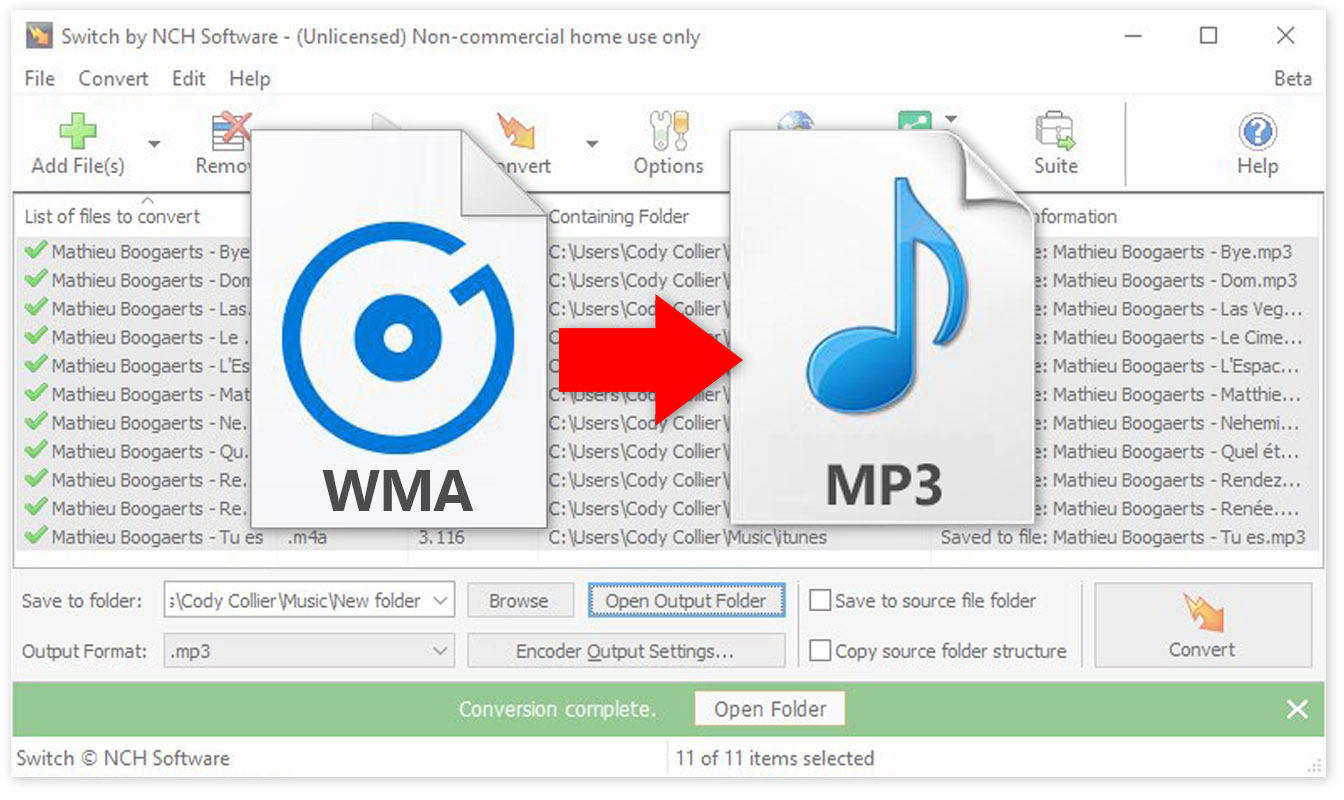
How to Change WMA to MP3 with Switch Audio Converter

How to Change WMA to MP3 with Switch Audio Converter


Windows Media Audio files, or WMA files, are a common audio file format, primarily meant to be opened and played on Windows Media Player and other Microsoft audio players. You can play WMA files with some other third-party software, but many audio players and devices (iPhone) will not support them. That is why it is useful to know how to change WMA to MP3. MP3 files are a much more commonly supported file type and are arguably a superior format anyways. You can easily change WMA files to MP3 format with an audio file conversion program such as Switch WMA File Converter Software.


Download Switch

Download Switch Audio File Converter software. Follow the installation instructions and launch the program on your computer.
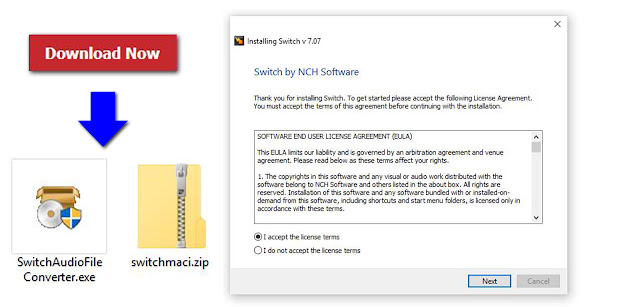
Download Switch Audio File Conversion Software

Import WMA Files

Click on the green Add File(s) button located in the main toolbar to open the file finder window. Find and select the WMA files on your computer and click Open to bring them into Switch to convert them to MP3 format. You can also drag and drop WMA files directly into the program to change.
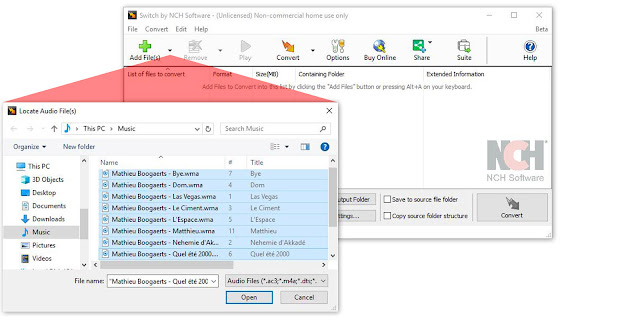
Import WMA files to Change them to MP3

Options Menu

Click on the Options icon in the main toolbar to open the Options window. This is where you can add and make adjustments that will be performed on your WMA files during the conversion. You can add metadata to your converted MP3 audio files as well as change settings to handle duplicate files and formats. Once you are finished adjusting these options, click OK.
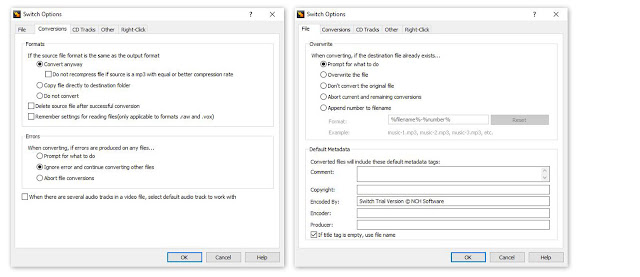
Audio File Converter Options

Select Output Destination

Set the output destination where you would like your converted files to go after you have converted them from WMA to MP3 format. Click on the Save to folder drop-down menu to select a folder from this list, or click on the Browse button to open the file finder window and select a folder on your computer.
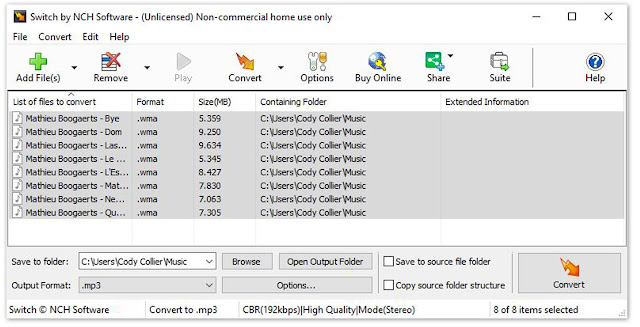
Set Output Destination for MP3 Files

Set Output Format to MP3

With your output folder set, you can now set the output format to MP3. Click on the drop-down menu on the left side of the program next to the words "Output Format" to view the list of available audio file formats. To change your WMA files to MP3 files, simply select the option from this list that says, "MP3." All conversions performed will now be in the MP3 audio file format.
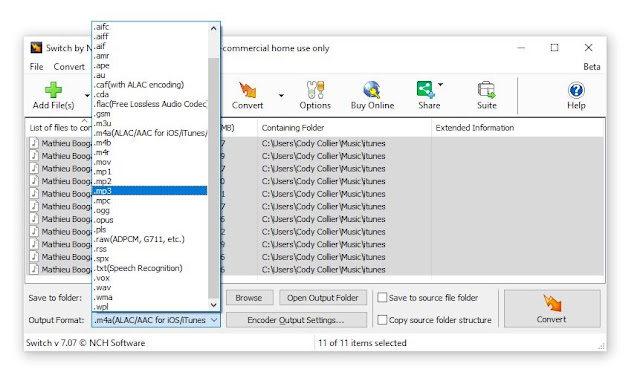
Set Output Format Type to MP3

Encoder Options

Click on the Encoder Output Settings... button to launch the window for WMA Output Settings. Here you can make adjustments and change audio encoder settings such as metadata, sample rate, bitrate, and amplify/normalizing audio. These settings will be applied during the conversion process while your WMA files are being changed to MP3 files.
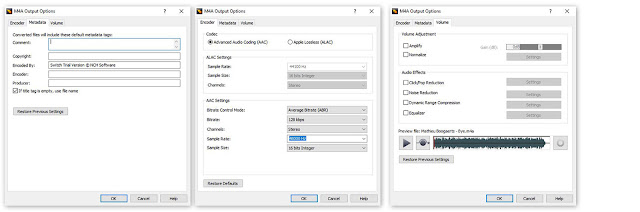
WMA Encoder Options


Change WMA to MP3

Once everything is set up, you are ready to change your WMA files to MP3. Simply click on one of the Convert buttons, located in the bottom right-hand corner of the program and in the main toolbar. This will start the conversion process. You can select only one file to convert them one at a time or you can select all of them to perform easy batch MP3 conversions.


Finished

After the WMA to MP3 conversion is complete, you will see a green banner at the bottom of the program that says "Conversion Complete." You can click the button on the banner to open the output folder and view your newly converted MP3 files. You have now successfully learned how to changed WMA to MP3 using Switch Audio File Converter Software.


To read more about Switch and other audio topics, check out these similar posts:

Friday, December 14, 2018

Best Audio Converter Software of 2019

Best Audio Converter Software of 2019


We are very happy to announce that Switch Audio Converter has recently been recognized by TopTenReviews.com as the "Best Overall Audio Converter of 2019." We are constantly aiming to improve our software based on the feedback and demand of our customers. After each new release, the goal remains to deliver a product that is efficient and effective for our users. With a product like Switch, that means making sure that a wide variety of export/import formats are supported and that conversion speeds are lightning fast.

Click here to read the whole review: Switch Audio Converter: Best Overall Audio Converter of 2019

"We believe Switch Plus Edition is the best audio converter for most people because it has all the major import and export formats, and it can convert faster than any software we tested. If you need to convert a large number of files quickly, this is the best option." - TopTenReviews

"Switch is the fastest audio converter software we tested. To test the speed of each converter software, we timed how long it took to convert a 625MB WAV file to a 26MB MP3 file." - TopTenReviews


Switch is one of the most stable, easy-to-use, and comprehensive multi-format audio file converters available. The program supports conversion between over 40 different audio file formats as well as allows you to perform batch conversions and edit audio file metadata. If you have not had a chance to try out switch, download your free trial today and see what you are missing. As we are constantly making improvements to our programs, we encourage users new and old to send us questions and leave us feedback so that we can keep providing our customers with the best of the best.


For more on Switch, check out these pages:

Friday, June 1, 2018

Best Tool to Edit MP3 Tags and Metadata with Switch Audio Converter

Edit MP3 Metadata with Switch Audio Converter


Best Tool to Edit Metadata and Tags when Converting to MP3

When converting a track to MP3, you can edit the track metadata and tags to include title, artist, track artwork, producer, rating, genre, comments, and more. If you record your own music, you may want to set up metadata and tags for your finished recordings before sharing. Editing your tags and metadata will ensure that your album artwork, artist name, and other tags show up correctly when your track is loaded into a new audio library. You can easily edit the metadata of MP3 and tags for audio files when converting with Switch Audio Converter.


Edit MP3 Tags

To edit the tags of an audio file, begin by loading the file into Switch Audio Converter. To import an audio file, click on the "Add Files" button in the top left-hand corner of the program window.


After you have imported an audio file, you can right-click on the file in Switch and select "Edit Audio Tags" to edit the audio tags.


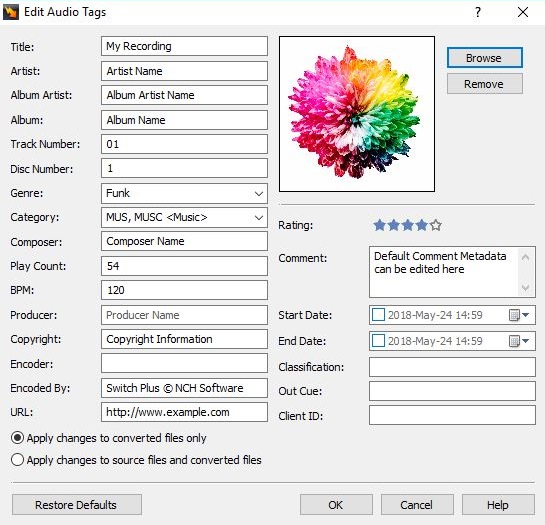
This will open the Tag Editor for the selected audio file. Here, you can edit the audio track title, artist, album, genre, BPM, producer, rating, artwork, and more. For new recordings, many fields will be blank. If the audio file that you are converting currently has audio tags, the existing tags will be displayed in the Tag Editor.


To edit a tag, click on the field that you would like to edit and type in the new tag information that you would like to save for your mp3 file. You can edit the song Rating by clicking on the star value that you would like to assign to the audio file.


Add Artwork to an MP3 File

To add the artwork to an MP3 file, click on the "Browse" button the right of the artwork image in the Tag Editor. Then, select a file from your computer to use as the artwork for your audio file. 

Apply Changes

You can apply changes to converted files only, or you can apply changes to source files and converted files. To apply tag edits to converted files only, select the option that says "Apply changes to converted files only". This option will leave the file tags for the source file in their original state while applying the tag edits to only converted files.


 To apply tag changes to the original source file as well as converted files, select the option that says "Apply changes to source files and converted files".


Convert to MP3 with New Tags

To convert your file to MP3 with the edited tags, click on the "Convert" button in the bottom right-hand corner of the Switch program window.


Friday, July 8, 2016

How to Change WAV to MP3 files with Switch WAV Converter

How to Change WAV to MP3 Files with Switch WAV Converter


Audio files exist in a wide variety of formats, each with its own benefits and potential drawbacks. When editing or playing audio tracks, you may need to convert from one format to another to suit your distribution needs.

What are WAV Audio Files?

WAVE files are uncompressed, lossless CD-quality music files. Though they are popularly known by their file extension, .wav, WAVE stands for Waveform Audio File Format. WAV files can contain compressed audio, however, they are more often used to take advantage of uncompressed audio. 

 When Should You Use WAV Audio Files?

Due to their uncompressed nature, .wav files are the best choice for radio, TV, DVDs, and other projects that require uncompromised high-quality audio tracks. As a result, it is uncommon to share WAV files on the internet because uncompressed audio files are often very large files and result in slow file transfer. WAV files are favorable for keeping archived versions of original recordings as they will retain original audio quality.

What are MP3 Audio Files?

MP3 is a compressed, lossy format that is widely used for audio tracks on the internet in web pages, web videos, audio sharing, and more. MP3 audio files are extremely popular because they take up very little disk space due to being compressed to roughly one-tenth of their original size. 

When Should You Use MP3 Audio Files? 

MP3 audio files are able to load quickly while retaining high audio quality, which makes them favorable for use on web pages, in embedded videos, in audio sharing, and in multimedia presentations.  However, this popularity is a double-edged sword as compressed MP3 audio tracks retain less information and as a result, can be more difficult to edit.

How To Change WAV to MP3 Files

After editing an original audio recording in WAV format, you may want to compress your file for easy sharing on the internet. Switch Audio Converter is a simple audio converter that can accomplish WAV to MP3 conversion quickly and easily. Switch also has the option to batch convert audio files, which is efficient and effective for audiophiles who need to change hundreds of audio tracks in a short period of time. 

Step 1: Load WAV Files

In order to change WAV to MP3 with Switch, begin by loading the WAV files that you would like to convert. To do this, open Switch Audio Converter and click on the "Add File(s)" button.


Step 2: Select Audio Output Format 

Once you have added the WAV audio files that you would like to convert, select the audio output format that you would like from the "Output Format" selector at the bottom left of the Switch window. 


You can also select a specific folder where the converted file will be saved, or check the box to output to the same folder as the source file. 

Step 3: Change Audio Files

Now that your file has been added to Switch and you have selected MP3 as your desired output format, simply click the "Convert" button to change your files!


Once your file has been converted, a prompt will appear allowing you to be taken directly to the output folder you selected, or to open the file directly. 


Congratulations! Your new MP3 file is now ready to be shared with the world.


Download Switch Audio Converter to Get Started!


More Audio Posts from NCH Software: 


Tuesday, March 10, 2015

Now Available: Switch Audio Converter for Android

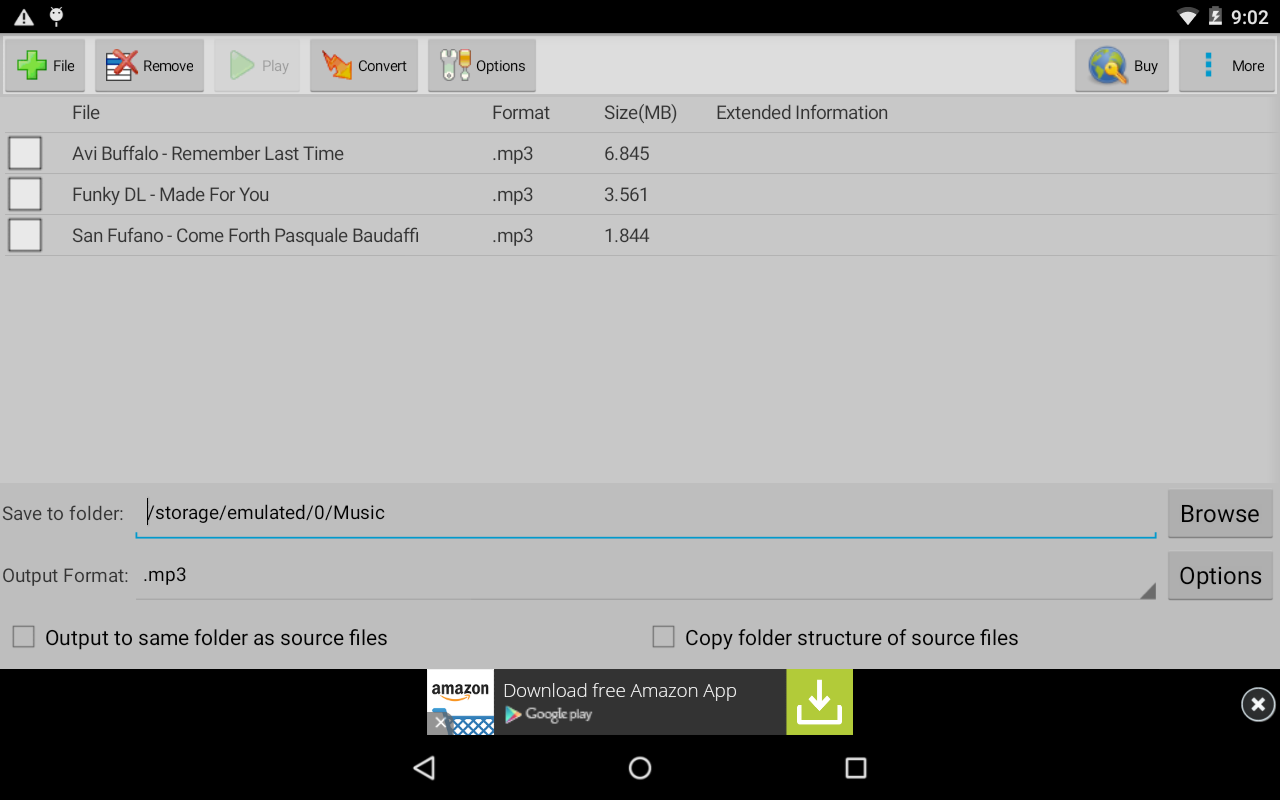
NCH Software is proud to announce that Switch Audio File Converter, one of our most popular audio programs, is now available on Android devices through the Google Play and Amazon App Stores.

If you need to convert a single file, or a whole batch of files, Switch Sound Converter gets the job done quickly and easily. It supports over 40 file types, including all popular audio formats and many specialty formats for amateurs and professionals alike. Whether you have a single song that you need to convert for iTunes, or have hundreds of files that need to be converted into a specialty format, Switch is the app you've been waiting for.

Switch Audio Converter Free - screenshot

Switch Audio Converter Released for AndroidOur desktop version of Switch Audio File Converter has won numerous awards, including the TopTenReviews.com Gold Award in the audio converter category for the second year in a row. Like the app, it is considered the most stable, comprehensive, and functional multiple format sound file converters available.

For Android, we made sure that Switch preserve's the metadata and tags on any song it converts so it can be easily identified after conversion. It can import entire playlists from any folder library on your phone/tablet, and produces fast results.

Switch Audio File Converter for Android will help you convert, organize, transform, and enhance the way you enjoy your favorite sound files. As always, we are happy to take any and all feedback from our wonderful customers to make this app even better in future versions, so if you want a new feature just let us know!

Get it for free from Google Play.