Showing posts with label file conversion. Show all posts

Friday, March 22, 2019

How to Change JPG to PDF with Pixillion JPG Converter
How to Change JPG to PDF with Pixillion JPG Converter

JPG files are the most common image file type for photographers, designers, and hobbyists alike. However, sometimes it is useful to convert a JPG image to a PDF file so that it can easily be shared and stored while maintaining the same high quality as the original JPG format. Learning how to change JPG to PDF is a useful skill for anyone dealing with image files and with Pixillion Image Conversion Software, it has never been easier to do.


Import JPG Files

To begin converting JPG to PDF, start by adding your JPG files to Pixillion. You can do this by clicking on the green Add Files icon at the top of the program, or by dragging and dropping your JPG image files directly into the Pixillion.

JPG Converter Options

Click on the Options icon located in the main toolbar to view some of the JPG to PDF conversion options available to you in Pixillion. Here you can make adjustments to the image resolution, add image metadata,  background colors, and more. This is also where you can decide how the program should handle duplicate files and folders when/if they are created.


Add JPG Conversion Effects

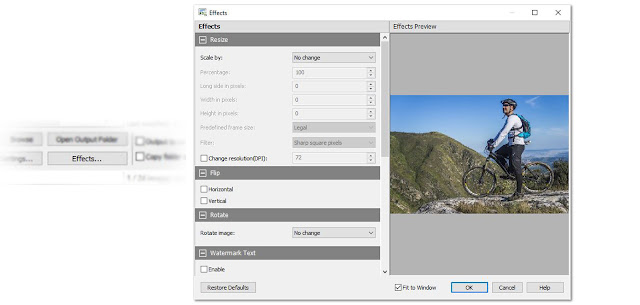
Click on the Effects button located at the bottom of the program to open the JPG conversion effects window. From here you can select from various image effects that you would like to have applied at the time of conversion when changing your JPG files to PDF. Pixillion allows you to resize your images, flip and rotate them, apply watermarks, and more. Click OK after you have set and selected your desired effects and they will be applied to all of the JPG to PDF conversions you perform.

Set Output Destination

Next, we need to choose our output folder. This is where your converted PDF files will go once you have changed them from JPG to PDF. You can use the dropdown menu to quickly select an output folder option or click on the Browse button to launch the file finder window and locate an output folder anywhere on your computer.


Set Output File Type to PDF

After you have chosen an output destination, you will need to set your output format. Because we want to change JPG to PDF, we are obviously going to set the output format to PDF. Click on the dropdown menu and select PDF from the list of output file types. From this point forward any conversions that you perform will be made to the PDF file type.


Change JPG to PDF

With our effects added, our output folder is chosen, and our output format set to PDF, we are now ready to convert our JPG images to PDF files. Click on the Select All button, located at the top of the program, to select all of the files at once and perform a batch conversion. You can also select and convert one file at a time. Hold down the Ctrl key while clicking on the files you wish to convert to select them. With your JPG files selected, click on the Convert button in the bottom left-hand corner of the program to start the conversion process. Your selected JPG files will quickly be changed to PDF and appear in your output folder as new PDF files.


Combine Multiple Images in a PDF

If you would like to combine multiple JPG images into a single PDF file, you can do so by selecting those images and then clicking on the Combine icon located in the main toolbar. This will open the Combine Images window where you can view your selected images. Click the button at the bottom of the window that says Combine images... to open the file finding window where you can choose an output folder and name your new combined PDF file. Once you click Save, a new PDF file will appear that contains all of the selected JPG images within it.


Friday, March 1, 2019

Best Method to Rotate Videos with Prism Video Converter Software

Best Method to Rotate Videos with Prism Video Converter Software


In a world where more and more videos are taken on mobile devices, the struggle is real when it comes to making sure that all of your videos are oriented correctly for your video projects. Knowing how to rotate videos is a great skill to have and it will help you make sure that your videos are viewed at their best. With a simple video converter software, such as Prism Video Converter, you can quickly and easily rotate your video for your viewing pleasure.


Import Video Files

Download Prism Video Converter by clicking on one of the red download buttons on this page. Follow the installation instructions and open the application on your computer. Import the video files that you would like to rotate by clicking the "Add Files" button or by pressing Alt+A on your keyboard. Locate and select the video files on your computer and click "Open" to bring them into the program. 

Preview Videos

To preview a video before rotating it or converting it to another format, simply double click on the file name in the program to launch the preview window. You can also select a file and then click on the "Preview" button, located at the bottom of the program.


Video Effects

Click on the "Effects..." button at the bottom of the program to launch the video effects window. Here you can choose from a variety of video effects that you would like to have applied to your videos at the time of the conversion. Prism allows you to adjust the lighting in your videos, add text captions, watermarks and you guessed it, rotate and flip your videos. You can also get to any of these options by simply right-clicking on a file and choosing one from the cursor menu. 

Rotate Videos

To rotate a video, click on the video file you wish to rotate to select it. Then click on the "Effects..." button shown in the previous step. Click on the tab in the Video Effects window that says "Rotate and Flip" to view the options for rotating videos. You can also right-click on a file and select the same option from the right-click menu. Click the green arrow buttons to determine how many times you want to turn your video, either clockwise or counterclockwise. You can also choose to flip or mirror your video from this same menu. At the bottom of the window, you can choose to apply the rotation to only the selected files or to all of the files in the program. A small checkmark will appear in the effects column next to the file that the rotation effect will be applied. 

Output Settings

Before converting your files and rotating your videos, choose where you want your newly rotated video files to appear after the conversion process. At the bottom of the program, use the "Save to folder" dropdown menu or click on the "Browse" button to select a location on your computer where you would like Prism to output your new video files. Prism Video Converter can convert video files to a variety of formats. If you wish to change file types while rotating your videos, you can do so by selecting a new format from the list in the dropdown menu next to the words "Output Format."

Convert Video File(s)

Once you have chosen your output settings and applied the rotation effect to the video files you wish to rotate, you can simply click the "Convert" button, located in the main toolbar or in the bottom right-hand corner of the program. The rotation effect, as well as any other effects or changes in formats you chose, will be applied to your selected video files and appear in your chosen output folder/location.

How to Rotate Videos

You have now learned how to successfully rotate videos using Prism Video Converter Software. You can open and view your rotated videos from your output folder and if you want you can go even back and rotate them again. You can rotate your videos until you are dizzy. You can also take your rotated video files and create your next movie masterpiece with VideoPad Video Editing Software.


For more on video editing, check out these posts:

Friday, February 15, 2019

How to Change M4A to MP3 Audio Files with Switch

How to Change M4A to MP3

How to Convert M4A to MP3

M4A files (MPEG-4 Audio files) are a common audio file type used by Apple, similar to the MP4. All of the songs on the Itunes Store are in the M4A format because of their compression size and high quality. Not all audio players and browsers will work with M4A files, though. That is why it is important to know how to change M4A to MP3 to be able to store your files in a more versatile and widely recognized format. With a simple audio file conversion software such as Switch, you can easily change M4A to MP3 without any problems.


Download Switch

You can download Switch Audio File Converter Software by clicking on one of the red download buttons on this page. You can also learn more about the program before downloading by visiting the product page here: www.nch.com.au/switch/
An image demonstrating how to download and install Switch Audio File Conversion Software
Download Switch Audio File Conversion Software
Download the program and follow the installation instructions as directed. Once you have installed the software on your computer, you can open the program and prepare to convert M4A to MP3.

Import M4A Files

Import your M4A files into the program by clicking on the icon with the green plus symbol in the top left-hand corner of the program that says "Add Files." This will open the file finder window where you can browse your computer and locate the M4A files that you would like to convert to MP3s.
An image demonstrating how to import M4A files into Switch to convert to MP
Import M4A files to Convert to MP3

Options Menu

Click on the icon that says "Options" in the main menu to open the Options Window and view some of the changes and adjustments you can make to your M4A files while performing this conversion. Here you can add metadata to your converted MP3 files as well as fix settings to handle duplicate files and formats. When you are finished adjusting these options, click "OK."
A screenshot of the options menu in Switch Audio File Conversion Software
Audio Conversion Options

Choose Output Folder

Select your output destination where you would like your converted files to end up after you have changed them from M4A to MP3 format. You can click on the "Save to folder" dropdown menu to select a folder from this list or click on the "Browse" button to open the file finder window and select any output folder destination on your computer.
A screenshot displaying the buttons to set an output destination folder in Switch Audio File Converter Software
Set Output Destination for MP3 Files

Set Output File Type to MP3

Once your output folder is set, you can select the output format. Click on the dropdown menu on the left side of the program next to the words "Output Format" to view the list of available audio file formats you can convert to. To change your M4A files to MP3 files, simply select the option from this list that says, ".mp3."
A screenshot demonstrating how to set the output format type to convert M4A to MP3
Set Output Format Type

Encoder Options

Click on the "Encoder Output Settings..." button to launch the window for M4A Output Settings. Here you can make adjustments and change audio encoder settings such as metadata, sample rate, bitrate, and amplify/normalizing audio. These settings will be applied during the conversion process while your M4A files are being changed to MP3s.
Encoder options windows for M4A encoding in Switch
M4A Encoder Options


Change M4A to MP3

Now that we have everything set up, you are ready to change your M4A files to MP3. Simply click on the "Convert" button, located in the bottom right-hand corner of the program, to begin the conversion process. You can select only one file to convert or select all of them to perform easy batch conversions.
Switch Audio File Converter Software converting M4A files to MP3 in a batch conversion
Converting M4A to MP3

Finished

After the conversion is complete, you will see a green banner at the bottom of the program that says "Conversion Complete." You can click the button on the banner to open the output folder and view your newly converted MP3 files. You have now successfully learned how to change M4A to MP3 using Switch Audio File Converter Software
How to convert M4A to MP3 with Switch Audio File Converter Software
Completed M4A to MP3 Audio File Format


To read more about Switch and audio file conversion, check out these similar posts: