Showing posts with label multitrack. Show all posts

Tuesday, October 20, 2020

How to Make a Beat using MixPad


How to Make a Beat Easily

Everyone is making beats these days and it makes sense why - a catchy beat is the basis to any good song. You don't have to be an experienced producer or a DJ to make a great beat, with the best beat maker software, you can start making beats easily in a few minutes. Download MixPad Beat Maker Software for free and follow the below tutorial to create your first beat that even J Dilla would be proud of. 


Learn How to Make Beats with MixPad’s Beat Maker

1.Click Create Beat on the home toolbar to open the Beat Maker.

2. Double click on an empty bar to add a beat pattern to it.

3. Click on the bar division lines to add beats. The higher a beat is placed in the pattern, the louder it will be. 

4. Click Play to listen to your composition. 

5. Add your beat to a track in your mix by clicking the Export button.


Watch the below video tutorial for more information and tips. For more MixPad tutorials, click here


Thursday, March 17, 2016

How to Use MixPad as a Free Virtual Drum Beat Maker

Beat Designer - Free Digital Beat Maker/Drum Kit Software in MixPad


MixPad's Beat Designer is a built-in tool that lets users create a beat or drum tracks for their songs or any audio project. Users can take any audio file as a source for the Beat Designer (even record your own drums as a source!), but today, we'll cover how to access and use the free drum kit sound pack that comes with our top-rated multitrack recording software.

To open Beat Designer and download the free drum kit:

  1. Open MixPad
  2. Tools -> Beat Designer
  3. In the Beat Designer window, File -> Download Kits and Patterns
  4. A downloader will popup and automatically install the sound pack

This kit includes the following percussion sounds:

  • Kick
  • Snare (Off/On)
  • Flam
  • Hi-Hat (Open/Closed)
  • Pedal Hi-Hat
  • Side Stick
  • Rim Shot
Now you're ready to start creating your drum beat track!

By clicking along the timeline, users can add cues for each instrument - the red bar in each cue is the volume/intensity/velocity of each drum strike that can be dragged up or down.


Tool Panel
The tool panel is located in the bottom-left corner beside the timeline and contains controls for adjusting the tempo (BPM), time signature, and length (in bars) of the beat clip you are creating. Changing their value will change the scale of the timeline.

Beat Divisions
You can subdivide each beat in a track to create smaller beat durations. So, for your kick drum, you may have a kick every 1/4 quarter note, but for your hi-hat, you may have a hit every 1/8 note. To change the beat divisions click on the spanner icon of the track and change the number of divisions.

Adding a Beat
 The sound a track makes is determined by the sound that is assigned to it. You can create and manage sounds using the Sound tab from the main toolbar. You can assign a sound to a track by clicking on the button with the trumpet icon. You add sounds to your track by simply clicking on the division you would like to place a sound.

Adjusting the Volume
 You can change the volume of each individual sound by dragging the small fader control in the center of each beat up or down. If the sound you are using consists of only one file then the volume will be attenuated by processing the audio. You can however configure your sound to use multiple files assigned to different volume ranges. In this case MixPad will choose the file which most closely fits the fader volume and then apply further processing to adjust the volume as required.

Tapping a Rhythm
 If you'd like to tap a rhythm into the Beat Designer while playing back, you can bind a key to each track so that when you hit the key, a sound will be placed in the division at the current cursor position. You can assign a key binding by clicking on the spanner icon of the track.

Loading your Beat Clip Back Into MixPad
 Once you are finished building your beat clip, click the Create Clip button on the toolbar and MixPad will create a new audio clip in the selected track of MixPad's main window.

Pattern Library
 A pattern is just a sequence of events played across the tracks of your beat clip. You can save and load your favorite patterns from the pattern library by using the Save Pattern and Load Pattern buttons. Patterns can be re-used with different sounds and kits. So you may have a standard 4/4 rock pattern that you like to begin with, but you can change it up quickly by assigning different sounds to the tracks.


Enjoy creating! If you'd like to get creative, remember that any sound recording/audio file can be used as a sound source for the Beat Designer.

Click on the link to download or purchase:

Thursday, October 31, 2013

MIDI Recording and Editing

midi software recording, editing and mixing Did you know that built into our MixPad multi-track recording and mixing software is a MIDI editor that gives you precise control of MIDI tracks?

What this means is that you can record from MIDI instruments and devices, then edit those tracks, adding or deleting notes, adjust the pitch and duration of notes. Even quantize and humanize your MIDI creations adding small amounts of variability to the track so it sounds less like a robot and more like a musician. All of this with support for VSTi instruments and the standard MixPad features giving you the ability record and mix multiple audio tracks, add audio effects and more, expanding the power of this comprehensive sound studio software.

Thursday, October 10, 2013

Music Mixing on Android

If you weren't already excited enough about having WavePad Audio Editor available for your Android tablet, being able to install WavePad's long time partner in audio crime, MixPad Music Mixer, on your Android too may just put you over the edge.


MixPad is a powerful multi-track mixer. Move from perfecting individual audio files with WavePad to mixing, remixing or mashing up multiple audio files into a full-fledged soundtrack or any other audio production project no matter the size. The app may be small, but the possibilities are huge. Download the MixPad Audio Mixing App from Google Play to have ready for the next time you want to put together some audio, whether you are hanging out in a waiting room, or recording on location.

Tuesday, March 12, 2013

Adding an Audio Voice Over with WavePad

audio mixing If you want to record a your voice over a piece of music you have two choices in the NCH Software audio suite. MixPad recording and mixing software is the more advanced program, that will allow you to record multiple tracks, and fine tune the mixing of the music and vocal tracks, but you can also try the Paste Mix feature in WavePad audio editor for quickly combining to files.

WavePad doesn't allow you to record directly over another file, highlighting a file and clicking record will end up replacing the selection. Instead, use the Paste Mix feature to combine two audio files into a single track.

Copy the recorded voice over to the clipboard, then select all in the audio file you want to add that voice over to and click Paste Mix on the Edit Tab.This will open a window with options on what to do if your files are not the same length. If the Mix Audio—which is your voice recording on the clipboard—is the shorter of the two files, you can ignore the options and click OK. If the Mix Audio is longer, you need to decide what to do when the audio you are mixing into is finished. When you click OK the two pieces of audio will be combined and when you press Play you will hear both files.

Friday, November 23, 2012

Best Software for Making Music

Award for MixPad Multitrack Audio Software
Software Review Boffin recently reviewed MixPad multitrack mixing and recording software, adding it to their list of music making software titles. In the review they praised not only MixPad alone for being exceptional software, but noted that "the [high] standard is consistent with other NCH products that Software Review Boffin has audited before." The review also went on to say:

"With MixPad Multitrack Recording Software users are able to record instruments and vocals for their music production. Users will find it simple to rearrange, copy and integrate music to the intended state the user desires. Create audio productions within minutes of downloading is a great start for music making software."
  – Software Review Boffin

You can read the complete review of MixPad music mixing software from Software Review Boffin, or download MixPad today to test out the multi-track recording and mixing features for yourself. Also be sure to check out our other exceptional and award-winning, audio software or musician software titles for additional music making tools.

Thursday, September 20, 2012

Creating and Editing Extreme Electronic Music

Guest post by Scott Lefebvre

My motivation for creating digital music is that the music I want to hear doesn’t exist yet, so I have to create it myself. I was looking for extreme break-core music and although I appreciate the work of musical artists like Bong-Ra, Drumcorps, Babylon Disco, Atari Teenage Riot, and Aphex Twin, I wasn’t able to find anything extreme enough to satisfy my desire for the ultimate in extreme electronic music, so it looked like it was up to me to try to create the sounds I was looking for.

Although the technology has existed for a few years to perform this task, the software has often been expensive, and required a significant amount of time to put towards learning how to use the software with any kind of proficiency.

I originally discovered NCH Software’s WavePad audio editing software through a general search for “Edit MP3s” on Cnet.com because I wanted to edit out the silence associated with many “Unlisted Tracks” on albums released by self-indulgent artists and play long, unnecessary silent periods.

While I was editing out those silences, I noticed that WavePad offered many other options to copy, save clips and to combine clips, so I began to assemble a sample library and experiment with mixing clips.

The single-track mixing offered by WavePad was prohibitive when I started thinking about compiling a full-length song, so I decided to try out NCH Software’s MixPad multi-track audio software. The interface of MixPad was simple to master and after only a couple missteps I was able to easily put together my clips in the way that I wanted to create new songs from the clips I had compiled.

A tip for new users: Don’t try to add all of your clips to your project at the same time or it will all play at the same time as an un-listenable jumble of sound. Add them one at a time and ease them into the sequence for the desired effect.

When I had a completed song, I wanted to post it to my YouTube account to share, but I wanted to create something visually stimulating to accompany the song so it wouldn’t be accompanied by a blank black screen. First I tried to use Windows Movie Maker, which I used to great effect when I was running Windows Vista, unfortunately, with my new laptop running Windows 7, Microsoft simplified the interface for Windows Movie Maker so much that it was impossible to do what I wanted. Since I had a positive experience with NCH Software so far, I downloaded their VideoPad video editing software.

VideoPad had all of the usability that older versions of Windows Movie Maker used to have so after about an hour of fumbling and playing around I was well on my way to creating the videos I wanted to make. Also it’s a relief that VideoPad has all of the effects and transitions making it possible to do some pretty amazing things.

Using Microsoft Paint and a 4,000 font package I downloaded for free from Cnet.com I was able to create a tribute to the title sequence to Gaspar Noe’s “Enter the Void” to accompany a re-mix I made while compiling a sample library from the discography of Japanese extreme pop music band Melt Banana:


Granted, it took a little time to figure out. But what probably took the film-maker thousands of dollars and weeks of time to put together I was able to do in a couple hours by myself using VideoPad.

My ultimate goal for this project is to put together an album of extreme digital music and to put together a band to perform the music live, kind of like Nine Inch Nails in concert was a live cover band for music created by Trent Reznor. I also want to create a video presentation to play behind the band to supplement the audio/video experience of the live show as I’ve seen done by Nine Inch Nails, KMFDM, and Neurosis.

To be perfectly honest, anyone can do what I’m doing with the NCH Software suite. All you need is the time and effort required to mix-down and sample your music library and the aesthetic sensibility to see how you would prefer that the samples be rearranged to suit your preference. So if you’re thinking about purchasing software from NCH Software, I say, don’t hesitate. The pros of this software are too many to list and the cons are so few that they are dwarfed by the incredible flexibility of the pros.

The only minor problem I have is with WavePad, and that I am not able to load an entire album of songs for editing down at the same time, but editing an album in ten song groups is a small price to pay for being able to capture whatever sample you want from whatever song you want and to be able to amplify and reduce noise on any sample.

The NCH Software suite has made it possible for me to easily create the music that I want to hear and I would recommend it to anyone interested in creating their own digital music without a moment of hesitation.

Scott Lefebvre creates digital music under the name Master Control. You can see more of his music projects on his YouTube channel or follow the adventures of Master Control at www.facebook.com/TheLefebvre

Monday, September 17, 2012

R is for Recording Software

NCH Software ABCs Series

R is for Recording Software Recording is another commonly needed feature. If you are anything like my family you have lots of things you save and hold on to and recording software is just one way to create digital copies of things you want. From recording voice overs and audio dictation to music and videos we have the software that you need. Whether you are digitizing a recording you have on another media, like a vinyl record or VHS tape, or recording something brand new, browse our complete recording software collection for the program perfect for your recording needs.
<<< Previous: Q is for QuickNext: S is for Sharing >>>

Monday, April 23, 2012

Easier Than Ever Audio Mixing

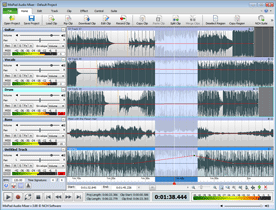
When you’re mixing an audio project, you want things to be as simple as possible. Some great new features have been added to the latest version of MixPad recording and mixing software making it easier to use than ever.

To help you quickly make changes to the tracks in your projects - like adjusting the volume of tracks, adding effects, or using a VSTi - we've added a "mixer" view that opens in a separate floating window so you can still see the tracks. You can move the mixer anywhere on your desktop, or minimize or close it when you don’t need to use it. The mixer includes faders for each track along with a Master fader so you can control the volume of your entire project. Along with the faders for each track, the mixer has controls to:

  • Pan a track right or left
  • Arm a track to record
  • Mute or Solo a track
  • Open the Effects Chain to add, modify or delete effects
  • Adjust the Audio Options
  • Add a VSTi for a MIDI track
Another improvement you're sure to like is the ability to change the colors of the waveforms in each track. Use this feature to help organize your project. For example set your drum tracks to blue, your guitar tracks to green, and your vocal tracks to yellow. Now, at a glance, you can see where things are located in your project. It’s simple to change the colors of each track using the controls on the mixer, or just right-click on a track and select "Track Color" from the menu

Other enhancements you’ll find in the new version of MixPad multitrack mixing software include presets for effects, and an easier way to delete fade points. So if you mix audio, you will definitely want to check it out.

Monday, April 9, 2012

Do More with Audio - Blog Carnival April 9, 2012

Here are this edition's entries to Do More with Audio:

Hina Azille presents How to Record Professional Quality Vocals With a Normal Mic, saying, "The big tip to recording good vocals, is learning to recognize peaks/clips/‘the red’ whilst recording. Understanding and recognizing the warning signs while you are recording will help ensure that you get the cleanest vocals possible. This Hub covers how to record the cleanest vocals, applying effects and the difference between mixing and mastering."

Daryl Sams presents The Art of Mixing Songs posted at Edgar Allen Floe, saying, "Tips I've learned over the last 15 years as a studio engineer."

Yelin george presents 10 Songs Whose Lyrics We Get Wrong, saying, "Have you ever come across the lyrics to a favorite song and realized you’d been singing it wrong for years? It’s happened to me – several times, in fact. If you’ve ever discovered that what you were singing wasn’t what the artist was singing, then you will no doubt appreciate this list."

Joe Hannigan presents Recording Classical Music: Microphones and Multi-tracks posted at Joe Hannigan's blog Weston Sound Blog, saying, "My take on why we record music with more than just two microphones."

John presents Podcasting Teaches Valuable Lessons to Homeschoolers posted at The Wired Homeschool, saying, "The ways which podcasting can help your student in their education."

Michael Walsh presents Understanding Audio Effects posted at Sounds Defy Gravity, saying, "Even if you are just starting out on your audio production journey, you’ve likely come across audio effects including delay, reverb, distortion, compression, phase, flange, pitch-shift, ring modulators or filters. This article will help familiarize you with these terms and what they do."

Varosound presents The Many Shapes of Delay posted at Variety of Sound, saying, "There are quite a number of different types and applications for audio delay effects that open the door to a wide range creative effects that can lead to a complete deconstruction of the original sound."


That concludes this edition of Do More with Audio. If you have an audio story to share or advice, tips or tricks to share, we hope you will submit your audio posts and articles to the next edition.

Tuesday, November 29, 2011

Upgrades to MixPad Music Mixer include VST plugin support

MixPad audio production software with VST plugin supportFor recording your band, creating voiceovers, or mixing music, MixPad Multitrack Audio Software has always been a valuable tool. It's both easy to use, and robust enough to handle your biggest audio production projects. And most recently MixPad has had some significant updates that include a tabbed interface for quick access to all of the music mixing and editing features, VST plugin support to apply extended effects to your projects, improved selection making mixing even faster and improved effects chain allows you to apply non-destructive effects to individual tracks. All of these upgrades are available now with the same great small download size to get you working on audio production projects in mere minutes without taking up your valuable disk space.

Wednesday, November 17, 2010

Boost Audio Quality for Radio and Podcast Production

From radio to podcasting, having high quality audio matters. So if you are recording and producing audio content, NCH Software's top audio software duo Wavepad audio editor and Mixpad multitrack recorder and mixer will provide you with the audio tools you need to produce high quality audio to your listeners. Just ask the people behind The Yes Hour Radio Show, a growing radio program that will be increasing their broadcasts in January. As they grow they have been committed to providing the highest quality audio to their listeners, so one of the recent changes they've made was changing their audio editing software and coming to NCH:

"The first thing we've done, which you might have noticed, is to change our editing software. We initially started by using magic studio, which served its purpose for a small production, but as things grew, that is, as we began to develop our content for The Yes Hour and invited guests on the show we decided to try another program called Mixpad and it's editing component Wavepad... These two NCH Software applications have enabled us to do so much, including recording on a multi-track bed, editing telephone interviews, importing new music from local and existing artists."

Serious Voice of New York, The Yes Hour Radio Show

If you are producing your own radio show, or any other audio project, we hope you too will check out the full range of audio software and software for radio stations we provide to help make you sound your best.

Monday, October 4, 2010

Create Unique Sounds with MixPad and WavePad

MixPad is typically used as a multitrack audio recorder and mixer instead of spending 10’s of thousands of dollars for a professional multitrack mixing desk. However, I like to Sound Waveuse MixPad to create a variety of unique sounds I can use as sound effects or to play on my synthesizer. These sound effects can be used in commercials, movies, videos, music, audio programs, or by DJs on the radio. I still have a synthesizer in my basement midi studio that utilizes waveform oscillators to create sounds. One of them was advanced for the time and had 3 oscillators to create sound. With MixPad, I can create sounds with a virtually unlimited number of oscillators by loading snippets of sounds on the tracks and mixing them to create a new unique sound. MixPad has given me a range of possibilities I hadn’t had before.

To create your own sounds, once MixPad and WavePad are installed, all you need is a sound or waveform. You can get this from WavePad’s new sound library, NCH Tone Generator (another handy program from NCH Software), load an mp3 from your computer, rip tracks from a cd, or record a new sound with a microphone. I would begin in WavePad and play around with the sound. Listen to it forwards, backwards, apply live effects, etc. Once you have the fundamental sound, you can load it into MixPad to mix with other sounds. MixPad will allow you to stagger and mix the various snippets of sound you create. The result is a unique sound envelope that is yours and doesn't exist anywhere else in the world. Vanilla Ice could have learned a lot from this simple technique back in the early 90’s.

Tuesday, June 15, 2010

Make your own Glee Music Mash-up

Make your own Glee Music Mash-up with MixPad Multitrack Audio Mixing SoftwareIt isn't very often that I get caught up in popular mainstream televisions shows, but I have to admit that I have been completely hooked by Glee. I have really enjoyed watching this weekly musical. Waiting for the next season is going to leave a gap in my weekly entertainment that I can only hope the reruns will satisfy, but with no new episodes, maybe I will take a little time and attempt to put together my own music mash-up and mix two songs together with MixPad audio mixing software. I'm under no delusions that it will be as easy to make one seamless song out of two as they make it appear on the TV show--but with a whole summer of waiting for season two ahead, I think it might be a fun project for when the storm clouds come out. Even if the rainy days are few and far between, there should be plenty of time to get the hang of mixing two songs together.

Here are a few tips to get you started after you have chosen the songs that you want to use in your mash-up:
  • It can be helpful to have the vocals separated from the instrumental music. Try searching for a cappella versions of your songs. If you can't find a cappella versions, try using WavePad to help you extract the voice, but note this can be a time consuming step to get it right.
  • Load all of your clips in MixPad. MixPad can import audio from a wide range of formats and even extract audio from video files, so you don't need to worry about converting your audio files first.
  • You may need to adjust the pitch of one of your two songs to get them into the same key.
  • Adjust the tempo of one of your songs to match the other for a common beat throughout your arrangement.
  • Use a drum sample of one of the songs to make a tempo grid marking the beat for your mix and help you place samples of your two songs.

If any of you have put together your own musical mash-ups I'd love to hear the tracks you have put together. And if you have any tips on mixing tracks together, please share what you have learned.

Thursday, April 15, 2010

Comparing Audio Software: Recording, Editing and Mixing

Yesterday on BrightHub, Kristina Daguia posted an article comparing two of the cornerstone products of the NCH Audio Suite, WavePad and MixPad. It’s a great comparison to Audio Software make--both products are powerful audio tools that anyone serious about audio would be glad to have in their software library. Depending on the audio project, you might only need the audio editing capabilities of WavePad, the multi-channel recording and mixing control provided in MixPad, or the combined power of the two.

"Two of the best selling digital media recording and professional editing programs from NCH Software - WavePad and MixPad - established a name for themselves with their chart topping reviews and being best sellers from online marketing sites."

In addition to the flattering remarks about NCH Software and our audio software this article does a good job at looking at some of the differences between these two audio programs. Read all of Daguia's comments in the complete article, MixPad vs. WavePad: Comparing Audio Recording Software. And don't forget that all of our software including MixPad and the Master's version of WavePad all are available for a free 14-day trial to help you further explore the difference and find the solution that is best for your needs.

Monday, March 22, 2010

MixPad Multitrack audio recording and mixing software now available for Mac

MixPad Multitrack audio recording and mixing software now available for Mac MixPad multi-track audio mixing software is now available for Mac. MixPad has been the perfect complement to WavePad for Windows users for a long time, expanding audio editing capabilities to that of a full blown sound studio. We are really excited to offer this audio powerhouse pair to our Mac users as well.

MixPad has all the features professionals need for low latency multitrack recording and mixing for creating music mixes, radio advertisements, soundtracks, or remixes. You can load audio files, record clips directly, or drag and drop files from your desktop to the program where they will be added to the timeline for powerful audio mixing capabilities, including unlimited track mixing so you can handle over a hundred track simultaneously.

So whether you are on Mac or a PC, if you are serious about audio you should be sure to check out MixPad and WavePad for all you audio editing and mixing needs.