Showing posts with label youtube. Show all posts

Monday, February 27, 2023

Amazing Features in a editing software that youtubers use

List of features in a editing software that youtubers use


Most people that decide to try their hand at producing video content online nowadays tend to wonder what editing software YouTubers use. The main reason, of course, is that YouTube is the undisputed king of all online video streaming platforms on the internet. But this topic, and the whole online video production and editing industry as a whole, are more complex than you might first think. 


Indeed, YouTube is just the tip of the iceberg. There are a number of other great video streaming platforms available online, and a lot of people also use those to distribute their video content. So if you're looking to create and share videos of your own - whether by yourself or with a team working alongside you - we've rounded up some useful info that you can use to make the whole process much easier to accomplish.

Thursday, October 15, 2020

5 Things To Consider When Choosing a YouTube Video Editor


Once just a job for Hollywood or video professionals, video editing can now be achieved by anyone who wants to post a video on YouTube. However with over 30,000 hours of video content uploaded to YouTube every hour, you know in order to stand out from the crowd and keep your viewers on the edge of their seats, you need to deliver engaging high-quality YouTube videos. 


However, with so many video editors available, picking the right video editor for YouTube can be overwhelming. You want to make sure you make the right decision. Below are 5 factors to consider when choosing a YouTube video editor:


How to choose a video editor for YouTube?

1. Ease of Use 

A good place to start is to consider how easy and intuitive the YouTube video editing software is. You do not want to pick a video editor that makes you refer to the user-guide each time you need to edit the video or apply an effect.


Some video software are complicated and take forever for you to even load the video. Since it is likely you will be recording and editing a lot of YouTube videos, you want to make sure your video post-production is as easy and enjoyable as possible. 


If you are looking to learn more about video editing, a good YouTube video editor should include lots of video tutorials so you can learn each feature and maximize your editing capabilities. In summary, ensure your video editor for YouTube has an intuitive workflow and puts all the tools at your fingertips.  


2. Video Format Support

Import

Before buying your video editing software for YouTube, make sure it supports the video format captured by your camera or recorder. This is especially important if you want to edit videos from 360 cameras, Stereoscopic cameras, 4K action cameras, drones, and more. 


Export

Imagine if you spent hours importing your video clips, trimming, adding effects, voice-overs, and video effects, only to realize that your exported video is low-definition or not in a video format supported by YouTube.


As an added bonus to save time, you also want to ensure your edited video can directly be uploaded to YouTube so you don’t have to waste time exporting the video onto your machine and then logging into YouTube and uploading the video. 


3. Advanced Editing Features

While most video editors have basic editing features that allow you to slice and dice videos, you know in order for your video to stand out on YouTube, you need to take your video to the next level! Some of the advanced video editing features for YouTubers to consider include:


  • Color correction

  • Video stabilization

  • External plugin support

  • Chroma key green screen

  • 3D and 360 video editing

  • Fast video rendering


4. Audio Tools

Often an overlooked key feature, make sure your YouTube video editor software has good audio editing capabilities. Things to consider include whether the audio is included in the timeline and the video editor has the ability to separate audio from video.


Most professional YouTube videos will need background music and depending on your video editor, this can be an added cost to either purchase the music and/or buy an expensive audio editing software/plugin. 


Ensure your video editor for YouTube has a royalty-free stock sound library and advanced audio features including:


  • Volume adjustments

  • Voice over recording

  • Noise removal

  • Surround sound

  • VST plugin support


5. Budget 

It is very easy to be overwhelmed by a list of features and fancy marketing videos, but an important consideration for picking a YouTube video editor is to assess how much you are willing to pay? There is a range of paid and free YouTube video editors available, some that even that cost a couple of thousand dollars. Depending on the range of features you require, performance, and ease of use, make a decision.


It is also a good opportunity to consider YouTube video editors that include free trials so you can test out all the features you require, performance, and ease of use, before making a purchase decision. 


Recommended YouTube Video Editor 

That’s all the key information you need in choosing a video editor for YouTube. If there’s one video editor we would recommend you try out, it’s VideoPad.

Not only is it easy-to-use and intuitive, it includes all the video and audio features listed in this article, supports all video formats including direct export to YouTube, and not going to cost you an arm and a leg. You have access to all the tools you need to edit videos for YouTube and make professional-looking videos in a matter of minutes.


With incredible reviews and having been voted as one of the best video editing software from leading review sites such as PC World, Top Ten Reviews, Tom's Guide and TechRadar VideoPad is one of the best options when it comes to YouTube video editing. But don’t take our word for it, download VideoPad for free and try it out yourself! Happy editing! 


Tuesday, September 15, 2020

How to Make a Slideshow with Music using PhotoStage


Slideshows are great. Slideshows with music are even better. Learning how to make a slideshow with music and pictures can liven up the montage and help make your beautiful memories more exciting. With PhotoStage Slideshow Maker, you can make a slideshow with music in a couple of steps. Combine pictures, video, and audio with effects, text, captions, and more to create a memorable slideshow that you can easily share with family and friends. 

Making a Slideshow with Music Easily using PhotoStage


  1. Click on the Wizard Icon to have PhotoStage quickly create a slideshow from a folder of images for you.

  2. Set the Image Display Length to determine how long each image in your slideshow will play.

  3. Add music from a local file or choose something out from the NCH Sound Library. You can also add your own narration.

  4. Select a theme and add your intro and outro titles.

  5. Add transitions and set their durations.

  6. When you’re finished with your settings, click Create.

  7. Preview your slideshow with music and click Export to save it to file, disc, or upload to YouTube, Vimeo & more.


Simply follow the steps demonstrated in the above YouTube tutorial and you too can create your own slideshow with music in a matter of minutes, using PhotoStage Slideshow Software. Available for PC, Mac, iPad, Android and Kindle, download PhotoStage for free below. To view more PhotoStage slideshow tutorials and tips, click here.

Friday, April 12, 2019

The Best Video Editor for YouTube

The Best Video Editor for YouTube


In the age of social sharing, everyone has a voice and a message that they want to be heard. YouTube has remained the major platform for those voices for many years and as a result, it has propelled many musicians, comedians, filmmakers, & thrill-seekers into the spotlight. In fact, did you know that YouTube even has awards that it sends out to its best "YouTubers" after they achieve certain numbers of views and subscribers? All the more reason to get started creating your own viral video content! It does take more than just uploading a video to achieve YouTube fame, though. Most YouTubers will tell you that basic video editing skills are a necessity if you want to succeed.


What Makes a Good YouTube Video?

Obviously, how "good" a video is is entirely subjective. Beauty is in the eye of the YouTube viewer. However, YouTube does have an algorithm for ranking videos and the best videos are usually those that are edited well. This is why I say that having good YouTube video editing software is very important. The YouTube algorithm places a heavy emphasis on engagement, which means that keeping your viewers' attention is key to your videos climbing the ranks and getting that golden YouTube award. The best YouTube video editing software is going to have to have the below features to be considered a good YouTube video editor.


Cutting & Trimming
Cutting out the less exciting parts of a video will make it more enjoyable to watch and keep viewers engaged. YouTube does favor longer videos in their algorithm, but they should belong because they are full of great footage, not because you included all thirty-one attempts that it took to stick a good-looking backflip into the pool.

Transitions & Effects

Transitions help to make video clips play together seamlessly. Smooth transitions can help make the switch between clips with different scenery a lot more subtle and easier on the eyes. Additionally, adding effects to your YouTube videos such as Ken Burns (pan and zoom) can help make basic clips like still scenery a little more lively.

Audio & Sound
Many YouTuber's create videos with just pictures and then they provide a voice-over to accompany the images. When done right, these types of videos are every bit as engaging as actual video clips. Having music playing throughout your video adds another layer of engagement as well. A cooking video with a long clip of someone stirring cake batter in complete silence will lose viewers a lot quicker than if there were music being played in the background.

Add Text to Video
The use of text in YouTube videos for titles and captions can help keep the viewer informed and engaged. Text can be used to create subtitles if the speaker's voice in a video can't be heard clearly, as well as to show language translations. You can also use text as an attention-getter to have an important word that was said display on the screen.

Proper Formatting
Properly formatted videos will receive more clicks and views than those that aren't because they are exposed to the right audience. Using the appropriate thumbnails, titles, descriptions, & tags will help make sure that a video is put in front of relevant viewers. A good YouTube video editing software will have features that make formatting your YouTube videos a breeze.


So, What is the Best Video Editor for YouTube?

If you are looking for the best video editor for YouTube, then look no further than VideoPad Video Editing Software. VideoPad checks all of the above boxes and more when it comes to producing quality YouTube videos. This full-featured, professional video editor allows you to create movie masterpieces in minutes that will be shared by your followers over and over again. VideoPad works with just about any file type you can think of, so editing 4K footage, 360 videos, GoPro footage, or video from your mobile phone has never been easier. The simple drag and drop interface makes compiling and organizing clips easy and adding text, transitions & effects is a breeze. It is for these reasons that VideoPad was recently named "The Best Video Editor for YouTube" by TomsGuide.com

Other YouTube Video Editing Features

VideoPad YouTube Editor comes equipped with settings designed specifically with YouTube video editing in mind. It allows you to save your login credentials so that you can upload videos directly to YouTube from the program. When you are finished with a video you can simply select Export to YouTube from the export options menu. The export window will allow you to select a YouTube video category, add keywords, titles and descriptions, and select the output format from right inside the application. The program supports editing all kinds of video types including 360 video editing for 360 YouTube videos and HD videos. You can easily adjust the aspect ratio for YouTube videos too, with choices ranging from 480p all the way up to 4k.


For more on VideoPad, check out these posts:

Monday, May 15, 2017

How to make a YouTube Video Like a Pro in 5 Easy Steps


Things you need

  • Media for your video - This could be anything from a video recording, webcam recording, stock video, just some video that you shot on your phone or camcorder, photos, slides, collages, animation clips, or a mix of any of the stated options.

  • A Video Editor - An intuitive, easy to use video editing software (Download VideoPad, an award-winning video editor, which now has an exciting new feature - 360 editing)


Now let's get started

Step 1
Import your media into Video Editing Software. If the media is already a video, you can upload it to YouTube as is, but it's always a good practice to clean up the video to make it sharp, crisp, and web-friendly before upload. Also, to make it more visually appealing by adding stunning video transitions and effects.

VideoPad - Add Media

Step 2
Once you import your footage, the next step is to make it more exciting by editing the various media pieces together so it plays like a movie.

You may want to do one or more of the following
  • Adjust the resolution - For an HD video, 1280*720 is a good resolution to work with whereas for places where you want to load the video quickly you may want to opt for a lower resolution.
  • Edit Clip Speed - Get rid of unnecessary frames, play the video slower where more detail and emphasis is required.
  • Add Transitions and Effects - Apply transitions when switching from frame to frame, add effects for a professional touch.
  • Content Frames - If you plan to divide your video into different sections then adding content frames is a good idea, it lets the viewer know what the next part of the video is all about.
  • Add background score, audio recording, music, commentary, or narration to your video.
  • Overlay text for captions and movie credits
You can find tutorials for adding media, effects, changing clip speeds, adding a logo or watermark, and adding text to your video here: https://www.nchsoftware.com/videopad/tutorial.html?ref=blog

Step 3
Take a final look at the To-be YouTube video and enhance it - fine-tune colors and visual effects, slow down, speed up or reverse video clip playback, reduce camera shakes. Make sure you get the same experience as you get while watching a movie.

Step 4
Export your video to YouTube, some video editors let you export the video directly to YouTube if you have connected the account already.

VideoPad - Export Video

Otherwise, you can just save the video in the best-suited format - a format that is accepted by Youtube and one which is lossless.

Step 5
Log into your YouTube account and upload the video. Optimize the video for YouTube and the web by adding notations, annotations, and captions. You can also add a transcript that appears below the YouTube video as well.

Now you are all set to show the world your movie-making skills - Go ahead and share it with the world using FB, Instagram or share the YouTube link on other sites.

Wasn't that EASY ... :)


Wednesday, April 27, 2016

Video Overlay for YouTube Videos with Debut

Record and overlay your webcam on video capture for YouTube gameplay and reaction channels

If you use video capture for reaction videos, video game playthroughs or reviews on YouTube, Debut Video Capture software can simultaneously and easily record your screen and your webcam.

How to Use Webcam Overlay with Your YouTube Videos in Three Easy Steps

  1. Start Debut, and select the screen you will be recording
  2. Press the Camera Overlay button or find the option under Tools
  3. Adjust options, and press the record button to start
That's all there is to it!

Whether you are in the middle of a deathmatch, a dungeon raid, or building a 1 million block work of art in Minecraft, share your skills and your reactions with all of YouTube at the same time! 

Like what you see? 
Click on the link to download or purchase:


Saturday, December 15, 2012

Y is for YouTube

NCH Software ABCs Series

YouTube has a wealth of videos, from information to humor you can find videos about just about everything, a whole world of endless amusement is just a click away. But watching videos isn't the only side. There are millions of aspiring YouTube stars out there who would do well to note some of the useful and easy YouTube software programs below that can help you download, record, edit and upload videos directly to YouTube. Who knows, yours could be the next big viral video. And, for video tutorials on many NCH products, stop by the NCH Software YouTube channel.

<<< Previous: X if for eXpressNext: Z is for Zip >>>

Friday, September 28, 2012

S if for Sharing

NCH Software ABCs Series

Social Sharing Software When you record, edit and create a video it is usually not only to enjoy and relive the moments again yourself, but more often than not you want to share those videos with friends, family and a greater audience. We have shown you before how you can easily go from VideoPad to YouTube, a feature shared with PhotoStage slideshow maker and Debut video recording software. But did you know that YouTube isn't your only choice to easily share straight from your NCH video software?

Share your videos, slideshows and tutorials online with easy sharing options for uploading. Upload your videos to Facebook or Flickr in addition to YouTube to share life's moments or show your inner videographer. And for more ways to share don't forget you can broadcasting or stream audio and video which we talked about on L if for Live because you can share prerecorded content too.

<<< Previous: R is for RecordingNext: T is for Typing >>>

Thursday, September 20, 2012

Creating and Editing Extreme Electronic Music

Guest post by Scott Lefebvre

My motivation for creating digital music is that the music I want to hear doesn’t exist yet, so I have to create it myself. I was looking for extreme break-core music and although I appreciate the work of musical artists like Bong-Ra, Drumcorps, Babylon Disco, Atari Teenage Riot, and Aphex Twin, I wasn’t able to find anything extreme enough to satisfy my desire for the ultimate in extreme electronic music, so it looked like it was up to me to try to create the sounds I was looking for.

Although the technology has existed for a few years to perform this task, the software has often been expensive, and required a significant amount of time to put towards learning how to use the software with any kind of proficiency.

I originally discovered NCH Software’s WavePad audio editing software through a general search for “Edit MP3s” on Cnet.com because I wanted to edit out the silence associated with many “Unlisted Tracks” on albums released by self-indulgent artists and play long, unnecessary silent periods.

While I was editing out those silences, I noticed that WavePad offered many other options to copy, save clips and to combine clips, so I began to assemble a sample library and experiment with mixing clips.

The single-track mixing offered by WavePad was prohibitive when I started thinking about compiling a full-length song, so I decided to try out NCH Software’s MixPad multi-track audio software. The interface of MixPad was simple to master and after only a couple missteps I was able to easily put together my clips in the way that I wanted to create new songs from the clips I had compiled.

A tip for new users: Don’t try to add all of your clips to your project at the same time or it will all play at the same time as an un-listenable jumble of sound. Add them one at a time and ease them into the sequence for the desired effect.

When I had a completed song, I wanted to post it to my YouTube account to share, but I wanted to create something visually stimulating to accompany the song so it wouldn’t be accompanied by a blank black screen. First I tried to use Windows Movie Maker, which I used to great effect when I was running Windows Vista, unfortunately, with my new laptop running Windows 7, Microsoft simplified the interface for Windows Movie Maker so much that it was impossible to do what I wanted. Since I had a positive experience with NCH Software so far, I downloaded their VideoPad video editing software.

VideoPad had all of the usability that older versions of Windows Movie Maker used to have so after about an hour of fumbling and playing around I was well on my way to creating the videos I wanted to make. Also it’s a relief that VideoPad has all of the effects and transitions making it possible to do some pretty amazing things.

Using Microsoft Paint and a 4,000 font package I downloaded for free from Cnet.com I was able to create a tribute to the title sequence to Gaspar Noe’s “Enter the Void” to accompany a re-mix I made while compiling a sample library from the discography of Japanese extreme pop music band Melt Banana:


Granted, it took a little time to figure out. But what probably took the film-maker thousands of dollars and weeks of time to put together I was able to do in a couple hours by myself using VideoPad.

My ultimate goal for this project is to put together an album of extreme digital music and to put together a band to perform the music live, kind of like Nine Inch Nails in concert was a live cover band for music created by Trent Reznor. I also want to create a video presentation to play behind the band to supplement the audio/video experience of the live show as I’ve seen done by Nine Inch Nails, KMFDM, and Neurosis.

To be perfectly honest, anyone can do what I’m doing with the NCH Software suite. All you need is the time and effort required to mix-down and sample your music library and the aesthetic sensibility to see how you would prefer that the samples be rearranged to suit your preference. So if you’re thinking about purchasing software from NCH Software, I say, don’t hesitate. The pros of this software are too many to list and the cons are so few that they are dwarfed by the incredible flexibility of the pros.

The only minor problem I have is with WavePad, and that I am not able to load an entire album of songs for editing down at the same time, but editing an album in ten song groups is a small price to pay for being able to capture whatever sample you want from whatever song you want and to be able to amplify and reduce noise on any sample.

The NCH Software suite has made it possible for me to easily create the music that I want to hear and I would recommend it to anyone interested in creating their own digital music without a moment of hesitation.

Scott Lefebvre creates digital music under the name Master Control. You can see more of his music projects on his YouTube channel or follow the adventures of Master Control at www.facebook.com/TheLefebvre

Wednesday, March 28, 2012

Recording Screencast Tutorials with Debut

Guest post by Dalvin Aboagye

Debut video screen recording softwareI'm sort of what you call a tech-oriented person and usually know my way around tech products. I maintain a YouTube channel dubbed Tech Time HD where I review and critique products sent by a myriad of companies, and cover tech rumors and news sometimes as well. I first started out on YouTube doing tutorials, so I needed a screen recording software solution to make these screen casting tutorials. I tried other software such as Cam Studio and Fraps but they didn't cut it for me. I stumbled upon Debut Video Recording Software whilst browsing Google. My first impression when I installed it was that it was a bit gimmicky and I wasn't impressed with the user interface, but after a couple weeks of using Debut I took back everything I said. The UI is very easy-to-use and intuitive, it doesn't gobble up on system resources as much as other programs I had tried, it supports a wide variety of video formats and has a great set of features—even the free version. I found myself hooked and would recommend it to anyone and everyone who needs to record a screencast, capture card or webcam. You won't regret downloading the trial, and you surely won't regret buying the software. My only wish is that the watermark feature was included in the free version, but it's a small price to pay for such great recording software.

Friday, July 29, 2011

Video-Sharing from Software to Site

Where do you share videos?

Upload videos to video-sharing sites from your softwareIt should come as no surprise to anyone that the use of video-sharing sites is on the rise, which is why we are working on making it as easy as possible to share your finished video projects from our video software, including VideoPad video editor and PhotoStage. Most recently we added direct uploading to Facebook and Flickr in addition to YouTube to the export options in VideoPad. All you have to do is set up your account information the first time, and VideoPad will do the rest. By automating the uploading process, we allow you to post more videos online.

But are there any other video-sharing sites that should be added? You tell us. We want to make sure that our software is as easy to use as possible. Post a comment to this post and we’ll take your suggestions to the developers. Thanks for the feedback!

Friday, January 14, 2011

Be a VideoPad YouTube Export Expert

Upload videos directly to YouTube with VideoPad video editing softwareOne of the neat things about our VideoPad Video Editor is the ability to not only output a YouTube-ready video, but the ability to upload a video directly to YouTube, making the transition from local to internet viewing quick and easy, eliminating much of the upload hassle on your part. How? Take my hand, friend, and we'll walk across this avenue together.

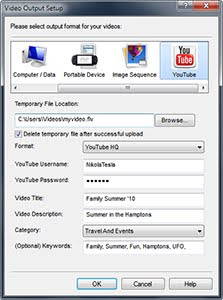
Inside VideoPad (and once you’re happy with your finished video), go up to the top menu and select the "Save Movie" button. This will bring up a dialog box with export settings for a variety of formats at the top. From this menu, scroll over to the rightmost selection, (YouTube), and select the YouTube icon. Once selected, you’ll notice that you have new, YouTube-specific options below, such as where to save your file locally, YouTube login details, places to add details about your movie, keyword information, etc. Fill in the blank fields and hit "OK". From here, VideoPad goes into autopilot and will remotely login to YouTube, encode your movie and upload it for you; all you have to do is sit back and relax.

This is just one of the many small innovations that make VideoPad one of the most user-friendly video editing packages available. If you’d like to jump into the editing arena, VideoPad offers an intuitive, simple interface so you’ll be editing your own masterpieces in no time. Try VideoPad free, and if you’re new to VideoPad or looking for a more in-depth look at the finer points of editing, watch our VideoPad tutorial series to help get your feet wet.

Sunday, November 28, 2010

See How In Action

We have been working on expanding the number of video tutorials on NCH Software products. Since our post back in March we have added several more video software tutorials plus the series on to help you with some the programs that you might want to make available to others over the Internet. Be sure to check out these video tutorials, and let us know if you are itching for a tutorial on one product in particular so we can try to move it up in the queue.
So now in addition to the BroadWave, Golden Records and WavePad tutorials we previously announced, you can also find video tutorials on VideoPad, BroadCam, Troubleshooting server-based software applications and Setting up Web Access in Express Invoice.

These videos are part of our continuing effort to help users get our software up and running as quickly as possible. We hope that these videos will answer some of the common questions about basic functions, especially for people with a visual learning style. Stay in the know and see all of our tutorials by subscribing to the NCH Software YouTube Channel.

Thursday, August 26, 2010

What you need to know about copying or editing someone else’s music

You might find yourself editing music and wondering, am I allowed to do this? Whether you’re making your own music mashup with the MixPad multi-track mixer, adding a soundtrack to your home videos with VideoPad video editor, or making a new ringtone for your phone with WavePad audio editor, there are some rules you need to know about your music, and how you’re allowed to use it.

What’s mine isn’t yours and what’s yours isn’t mine
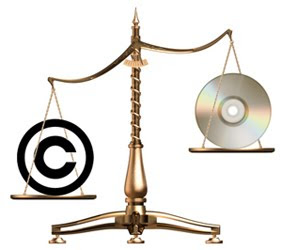
What you need to know about copying or editing someone else’s musicThat is the legal stance as far as copying or editing someone else’s music is concerned. With the increased popularity of the MP3 music format in the late 1990s, the sharing of copy written music without authorization became much more prevalent, causing an increase in concerns about copyright infringement. Today, copyright infringement isn’t something to take lightly. If you’re caught copying or editing someone else’s work you may be forced to pay heavy fines. Just ask former Boston University student Joel Tenenbaum - he had to pay $675,000 in fines for illegally downloading music.

Copying Music
According to The Copyright Act of 1976, you are allowed to copy someone else’s work if it falls under fair use. Fair use is described as using limited portions of a work, including quotes, comments, criticism, news reporting, and scholarly reports.

Editing Music
Since it is legal to create software to edit music, shouldn’t editing music be legal? There is a lot of talk about reselling and downloading copyrighted music, but not too much about edited music. The most important thing to know is you can edit music as long as you do not intend to use it for commercial use. Also, once you purchase music you inherit the rights to share that music with your friends, and you are also allowed to edit that music as long as you keep a copy of the original.

For more information see the following articles:
Using Edited Music on YouTube
For quite some time now, posting copyrighted or edited music to original videos on YouTube has been a problem. However, as of June anyone who wishes to put music behind their videos can, you just have to follow these simple rules. First, it is important to know that YouTube has signed a deal with Rumblefish, allowing users access to a library of music. Therefore, if you use music from this library you can edit it any way you like without worrying about YouTube removing your video. All you have to do is purchase the song for $1.99 and you will have a lifetime license to use and edit that song on YouTube.

Basic things to remember
  1. Always purchase music legally either at a music store or online
  2. If it’s not your original music, using it may be violating someone’s copyright
  3. If you aren't sure something is copy written, check with the US Copyright Office
  4. Selling or redistributing music without the copyright owners permission is a violation of the owner's rights
  5. If you edit or mix song you’ve purchased, you have to keep a copy of the original song
  6. Only the owner of copy written work has the right to prepare or authorize someone else to create a new version of that work
  7. When using someone else’s work, even just a portion of it for a video or any other project, it is always a good idea to credit the original artist(s)

Friday, May 14, 2010

Video Downloader Software
Saving Online Videos Made Easy

Online Video Downloader SoftwareWith thousands of web pages and files added every day, sharing is the cornerstone of the web, and online video is all the rage these days. With it's oft times comic whimsies and profound sentiment, online videos are arguably the most popular form of shared content on today’s internet. And while uploading videos has become so easy it’s practically an automated service, the same can’t be said for downloading them. It could be that a family member or friend uploaded a video you want to show others. Maybe you keep an archive of files for creative inspiration. And, if you’re like me, having these files on-hand is more convenient than bookmarking every video worth remembering. Whatever the reason, saving online video files isn’t as easy as, say, saving an image. Many times, these files are encoded in a way that makes saving them locally near-impossible if you don’t have the right tools.

Enter FlashLynx video downloader. Downloading video files shouldn’t be as difficult as it is, so make it easy on yourself. FlashLynx is a free, user-friendly online video downloading program for Windows. Simply type in the web URL of the video you want to download, choose the video file format (there’s over a half dozen to choose from), decide where to save it, and you’re done. Simple.

FlashLynx is also a stand-alone program, not a shady online video conversion service hiding in a dark lonely corner of the internet. So if you have a list of YouTube videos you've been wanting to burn to edit video clips together from, burn to DVD, or simply save, mosey on over to NCH, well-lit part of the internet, and download your free copy of FlashLynx video downloader software.

Wednesday, April 14, 2010

Video Software and YouTube Can Make Nice

Problem: you have a video you’d like to share with the world via YouTube, but for one reason or another, YouTube doesn’t like your movie file and ultimately rejects your upload. Uploading a video... the process sounds easy enough, but in reality, a lot of hand-shaking has to happen behind-the-scenes to get your video prepped accordingly before YouTube will accept your video. Do you wish there was an easy-to-use, yet powerful video editing package that would help streamline the process? Of course you do, and, like an arch-angel, VideoPad has jumped in to save the day!

If you’ve ever used any non-linear video editing software, exporting a project (that is, saving a project file to a watchable movie) can be the cause of many headaches, especially if all you want to do is upload a file to YouTube. Generally, you have to export your project file to an acceptable file format while keeping within the size limitations, and once that’s done, you’re at the mercy of YouTube to both encode the file properly and decide the video/audio quality, a sometimes shaky truce.

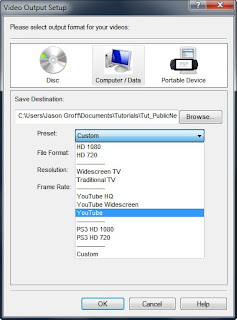
If you have ever had trouble with this in the past, you'll be happy to learn that VideoPad is one of the few video editing packages on the market that allows you to export your video directly to a YouTube-ready file. Simply select the "Save Movie" button from the toolbar, and in the window that pops up, choose one of the YouTube file formats under the preset tab; you can choose either YouTube standard, YouTube Widescreen or YouTube HQ, among others. VideoPad will do the heavy lifting for you, ensuring a pain-free uploading experience with minimal hassle when you're ready to share your final movie.

Taking things a step further, VideoPad even has custom presets for your mobile and PMP devices (such as the iPod, iPhone or PSP) for on-the-go sharing, so you can save your movie masterpiece to your cell phone too.

Such convenience usually has a price, but in this case, it’s free! Just head on over to NCH Software to download the free version of VideoPad Video Editor, and see just how easy sharing can be, and while you're at it maybe you might want to take a look at some of our other software for YouTube.