Showing posts with label Pixillion. Show all posts

Friday, March 22, 2019

How to Change JPG to PDF with Pixillion JPG Converter
How to Change JPG to PDF with Pixillion JPG Converter

JPG files are the most common image file type for photographers, designers, and hobbyists alike. However, sometimes it is useful to convert a JPG image to a PDF file so that it can easily be shared and stored while maintaining the same high quality as the original JPG format. Learning how to change JPG to PDF is a useful skill for anyone dealing with image files and with Pixillion Image Conversion Software, it has never been easier to do.


Import JPG Files

To begin converting JPG to PDF, start by adding your JPG files to Pixillion. You can do this by clicking on the green Add Files icon at the top of the program, or by dragging and dropping your JPG image files directly into the Pixillion.

JPG Converter Options

Click on the Options icon located in the main toolbar to view some of the JPG to PDF conversion options available to you in Pixillion. Here you can make adjustments to the image resolution, add image metadata,  background colors, and more. This is also where you can decide how the program should handle duplicate files and folders when/if they are created.


Add JPG Conversion Effects

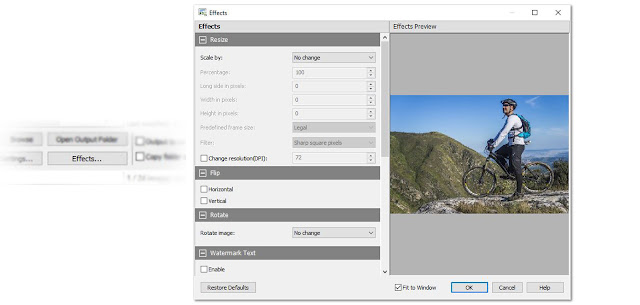
Click on the Effects button located at the bottom of the program to open the JPG conversion effects window. From here you can select from various image effects that you would like to have applied at the time of conversion when changing your JPG files to PDF. Pixillion allows you to resize your images, flip and rotate them, apply watermarks, and more. Click OK after you have set and selected your desired effects and they will be applied to all of the JPG to PDF conversions you perform.

Set Output Destination

Next, we need to choose our output folder. This is where your converted PDF files will go once you have changed them from JPG to PDF. You can use the dropdown menu to quickly select an output folder option or click on the Browse button to launch the file finder window and locate an output folder anywhere on your computer.


Set Output File Type to PDF

After you have chosen an output destination, you will need to set your output format. Because we want to change JPG to PDF, we are obviously going to set the output format to PDF. Click on the dropdown menu and select PDF from the list of output file types. From this point forward any conversions that you perform will be made to the PDF file type.


Change JPG to PDF

With our effects added, our output folder is chosen, and our output format set to PDF, we are now ready to convert our JPG images to PDF files. Click on the Select All button, located at the top of the program, to select all of the files at once and perform a batch conversion. You can also select and convert one file at a time. Hold down the Ctrl key while clicking on the files you wish to convert to select them. With your JPG files selected, click on the Convert button in the bottom left-hand corner of the program to start the conversion process. Your selected JPG files will quickly be changed to PDF and appear in your output folder as new PDF files.


Combine Multiple Images in a PDF

If you would like to combine multiple JPG images into a single PDF file, you can do so by selecting those images and then clicking on the Combine icon located in the main toolbar. This will open the Combine Images window where you can view your selected images. Click the button at the bottom of the window that says Combine images... to open the file finding window where you can choose an output folder and name your new combined PDF file. Once you click Save, a new PDF file will appear that contains all of the selected JPG images within it.


Friday, July 20, 2018

Resize a Picture Easily with Pixillion Image Resizer

Resize a Picture Easily with Pixillion Image Resizer


There are times when you may have needed to upload or email a picture you have, only to find out that the file size is too large. Many websites and email clients have restrictions on how large an image can be. Large images take up a lot of space and may not be necessary for all purposes. Learning how to resize a picture is valuable knowledge to have when you encounter a situation like this. With Pixillion Image Conversion Software, you can quickly learn how to resize images with ease.


Import Image

To resize a picture, launch your copy of Pixillion on your computer and open the image file you would like to resize. Click on the green plus sign that says Add Files and select your file or files from their location on your computer. You can resize a single image or batch resize multiple pictures at once.
759 KB image file size imported into Pixillion

Output Folder and Format

Next, select your output format and output destination folder at the bottom of the program. If you wish to change the file format of the picture you are resizing, this is where you can select a new file type. Once you have chosen the output folder where you would like your resized picture to be sent, you are ready to resize.

Resizing Options

With your image imported into Pixillion and your export format and destination folder selected, you can now click on the green Resize icon in the main toolbar. This will launch the Effects window where the resize tab will open by default. There are 5 different resizing options available to you in Pixillion.
  1. Scale by Percentage
  2. Scale by Long Side
  3. Scale by Original Aspect Ratio
  4. Scale by Predefined Frame Size
  5. Scale by Custom Frame Size 
Scale by options 

Scale by Percentage

Using the Scale by Percentage option is one of the quickest and easiest methods to resize a picture. If you have been given a specific file size you need to achieve with your resize, you can easily adjust the percentage scale to bring your file down to that size. 
Resizing an image by Percentage Scale

Pixels and Resolution

When resizing a picture, the resolution of the image will change. The lower the resolution of an image, the fewer pixels the image will be made up of. Pixillon allows you to decide how it should handle those pixels when resizing an image. You can choose to have sharp square pixels or choose for them to come out smooth and blurry. The sharp and square option will make your picture more in focus, but the pixels may be more noticeable. The smooth blurry option will smooth out the harsh edges of pixelation more.
Square Pixels (left) vs. Smooth Pixels (right)

Effects

There are several other effects that can be applied to an image while resizing it. You can flip and rotate your image as well as add text and image watermarks. Use the Effect Preview window to view the effects before applying them.
Other Pixillion effects 

Finished Product

When you are finished applying the resize scale and any effects to your picture, click the OK button at the bottom of the effects window to save the settings. With the picture, you want to resize selected, click the Convert button in the bottom right corner of the program. You will see a pop-up window informing you that your conversion is complete. You can either open it then to view your resized image, or view it in the output folder you chose. Notice that our picture that started out at 759 KB has now been resized down to 160 KB with almost no loss in quality.
Resized image file size is 160 KB


Thursday, April 18, 2013

Best Method to Easily Resize Photos with Pixillion

how to easily batch resize photos and imagesIf you have a bunch of photos from your last vacation or night out, you may want to share them all with friends and family. But, you may find that your batch of photos is too large to email. The solution is easy, you can resize or rotate all your digital photos in bulk with a Pixillion image resizer and converter. If you will be editing photos you could resize them as you go, but the more pictures you have, the more time you can save by doing a batch photo resize.

So, to resize your photos, simply add them all to the list in Pixillion. At the bottom of the window click on Effects to open the format options. Here you can use the drop-down menu under Scale to set the photo resizing options. Once that is selected click OK to save your options. You only need to set this once, the effect(s) will be applied to all of the photos being converted in a batch, so Select All—or all the photos you want to apply those changes to—and click Convert. That is all there is to it. Pixillion photo converter will process all of the selected photos and save the newly resized photos for you ready for you to email, upload, and share.

Thursday, August 9, 2012

P is for PDF

NCH Software ABCs Series

P is for PDF SoftwarePDF files are everywhere. PDF documents offer an easy way to send and share documents without having to worry about about compatibility. The very name Portable Document Format suggest so it is no wonder that they are so common. Here are some handy software programs to help you create or convert PDF files. You can convert text documents, converting to jpeg, and more—take those PDFs even farther.
<<< Previous: O is for OptimizeNext: Q is for Quick >>>

Thursday, March 8, 2012

G is for Graphics

NCH Software ABCs Series

G is for Graphics SoftwareGraphics, photos, pictures and images: we are a very visual society between the tv and media we consume, to the pictures we share online. NCH graphics, image and photo software is available to help you edit photos, convert image formats or add pictures to other projects with software like Disketch CD and DVD labeling software to add that finishing visual touch to your discs.

Also included in our graphics software are some programs that might not immediately jump to mind because they are used in a business environment. Our graphics team also works on Barillo barcode generator and CardWorks business card software. Graphics are important not only in media but also in a professional setting, and we plan to expand the graphic tools we offer in the future to include even more useful applications. For example, we are currently in the early stages of development on a program for creating flow charts and diagrams. Our current range of graphics software includes:
<<< Previous: F is for FTP
Next: H is for Hardware >>>

Friday, September 16, 2011

Convert and Compress Files

Whether you're on a Mac or a PC, these conversion applications cover nearly every file type you'll run into, making them the most complete and reliable software for converting and compressing files out there.

Switch Audio File Converter

For your music, presentations, or audio projects, Switch Audio Converter lets you put your music anywhere at any time. Convert music for your iPod, PSP or phone. Compress audio to save hard drive space. Create a ringtone on your phone by converting the format, or even extract audio from video files.

Prism Video File Converter

Your computer might only be able to open certain video file types. Use Prism Video Converter to ensure you'll always be able to watch your videos. With Prism you have complete control over video settings such as compression and encoder rates, resolution, frame rate, and size output. You can also batch convert thousands of files at once and preview videos before conversion.

Pixillion Image File Converter

Pixillion isn't just image conversion software, there are many additional settings to make adjustments to your images while converting including adding watermarks, adjust the image quality, size or resolution, or even crop and rotate photos.

Express Zip File Compression Software

Express Zip is currently the only application on this list that is only available for Windows, but it is an extremely valuable compression tool. Use Express Zip archiving software to create, manage, and extract zipped files and folders. Plus extract files from a variety of other archive formats including rar, cab, iso, tar, and 7z or convert those archives into zip files. You can also easily email zipped files from the program or simply compress files to save disk space.

Wednesday, July 20, 2011

Pixillion Mac Image Converter Software

image converter software for Mac and Windows PCOne of the things NCH is best known for is our converting software. Take virtually any audio file and make it an mp3 for your iPod with Switch MP3 Converter, and not being able to watch a video on your computer is never a problem when you have Prism Video Converter. Video files in particular used to plague me at home on my Mac because of platform compatibility issues. Now Mac users can add another converter to their arsenal with Pixillion Image Converter which recently had its first Mac release.

What makes Pixillion great is that it isn't just another conversion program, additional options allow you crop, resize, rotate and compress your digital photos during conversion. And for any photographers out there not only can you batch convert but you can add watermarks to protect your images as well. So if you have photos, and we know you do, take a look at Pixillion Image Converter to help you reformat your pictures.

Wednesday, March 23, 2011

One Click Converting

Some of the most useful software applications to have at the ready are file format converters. You never know when a file might land in your email or come across your desk in a format that you can't open. This can be exceedingly frustrating. With the right file converter you can solve this problem with a click of the mouse instead of having to go back to the source to see if they can re-save it for you.

Plus, in case having the convenience of a file converter on hand wasn't enough, for any formats that you convert to regularly, you can easily add a shortcut to your Windows Explorer right click menu for even faster conversion.

For example, if you constantly need to convert music for your mp3 player, you might want to create a shortcut for converting to mp3 with Switch audio converter. To do that, go to the "Right Click" tab in "Options," turn on one of the shortcut commands and select mp3 from the pull down menu. Once you've saved this setting, the next time you right click on a supported audio file you can "convert to mp3 using Switch" right then and there.

Our other conversion software have similar options to help save you time. Try our full range of converting software including:

Monday, January 31, 2011

File Converters Making Life Easy

Easy File Converter SoftwareAs a student in this day and age, most of my work is composed digitally. I rarely write essays with pen and paper and I even take class notes on my lap top computer. I also deal with a wide array of mixed file formats on a daily basis. From audio to document files, to videos and images, it can be difficult to manage the various file types involved in daily projects. This is especially difficult when I am transferring files back-and-forth from Mac to PC for my school labs and study groups. Not having conversion software on-hand can be the kill shot for any project or paper.

I like to be prepared with every type of conversion software I might need. Switch Audio File Converter is handy when downloading files from various places that may or may not be compatible with different types of computers.

I use Pixillion Image Converter to convert pictures, particularly when I am working with large RAW photos that are difficult to transport on USB devices or via e-mail.

Prism Video Conversion Software is excellent for converting video from PC friendly formats to ones that are more suitable for my Mac at home. It has compression tools and built-in batch conversion, so I can quickly convert multiple videos for large projects.

Converting documents is also quick and easy with Doxillion Document Converter. This is incredibly helpful when toggling between different versions of popular office applications and eliminates the wasted time spent communicating back and forth about difficulties opening and using documents.

For other time-saving software see our full range of software utilities for applications for disc burning, compressing, encryption and more.

Tuesday, November 23, 2010

After You Point and Shoot, Convert and Share

Pixillion Image Converting SoftwareWe recently teamed up with Aperture Light to provide our Pixillion Image Converting Software as a prize for their monthly photo contest. Aperture Light encourages photographers to take their photos to a new level of creative and innovative photography, and Pixillion helps you take your images anywhere by making it easy to resize, rotate and reformat images so sharing your creativity is even easier. Power features of Pixillion Image Converter include batch conversion to handle large numbers of photos at one time, watermarking, adjusting the quality of jpeg files, and more, making Pixillion a must-have utility for ever shutterbug out there. Good luck to all the contestants out there, and win or lose, we hope you will take a look at our graphics software.

Wednesday, May 19, 2010

Converting Software For All Your Needs

New Doxillion PDF Converter Software, Convert text documents with easeYou may already be familiar with some of NCH's converter software for converting files between different formats; like Switch, for converting audio files, and Prism, for video file conversion. Well those two favorites are just the beginning! We’ve recently added Doxillion document converter software into the mix. With Doxillion, you can convert your text documents to supported formats for mobile devices and web pages. Convert text to docx, doc, rtf, html, txt and pdf quickly and easily. Even batch convert documents to handle thousands of files all at once.

Check out our full range of converting software applications: