Showing posts with label keyboard shortcuts. Show all posts

Monday, April 19, 2021

Use Keyboard Macros to Prank Your Friends on April Fools Day

How to Use Keyboard Shortcuts to Prank Your Friends on April Fools Day


Are you tired of the same old April Fool's Day pranks year after year? If you are in a pinch for a prank this year, then look no further than FastFox Text Expander Software. With this simple program, you can create keyboard shortcuts to have your victim's most commonly used words and phrases changed as they type them to whatever you would like. For Fans of the US Television series The Office, you may remember the character Jim pranking his coworker, Dwight, by making it so every time Dwight typed his own name, the word "Diapers" was written instead.

Typically keyboard macros are used to make time-saving shortcuts for people who type a lot, but that doesn't mean they can't also be used for evil. This is a simple, safe and fun prank that can be set up quickly and will work on anyone. With these keyboard shortcuts, you will surely have your victim confused and bewildered while you bask in the glory of your hilarious office antics.


Download FastFox to their Computer

If you are trying to prank a coworker or classmate, you will need to execute your plan while they are away. Download a copy of FastFox Text Expander Software to the computer that your victim will be typing on and then proceed to the next step. Simply click on one of the red download buttons on this page to start downloading.

Add Shortcuts

Open FastFox on your computer and then click on the Add Shortcuts button located in the top left of the program in the main toolbar. This will launch the New Simple Text Shortcut window where you can create your first shortcut. This is when you get to decide how you want your prank to unfold. You can create just one shortcut for a word they type often or you can create a list of shortcuts to high-jack everything they type for the day. Type the word you want to have changed in the Shortcut text box and then type the word or phrase you would like it to change to in the Expansion test box. Click on the OK button when you are ready to add your first shortcut.


After Setup

You can create your shortcuts or "Macros" one at a time and they will appear as list items in the main program window. Once you have added a shortcut like in the example above, it will begin working immediately. Test it out anywhere you would like. These shortcuts will remain in effect until removed and will function in any word processor, email client, chat application, and more.


Let the Good Times Roll

With your shortcuts set up, you can now sneak back to your own workspace and watch as your victim's day spirals out of control.


Happy April Fool's Day from NCH Software!


Monday, April 25, 2016

How to Improve Technical Support Using Canned Responses

Tips and Tricks: How to Use Canned Messages for Help Desk and IT Support and When Not to Use Them


For anyone in IT/Tech Support/Help Desk work, you see the same questions and responses repeating on a regular basis whether it's in email, live chat, or even Facebook support. Without software assistance, the sheer amount of time needed to type each response would overburden even the best staffed technical support team. Thankfully, this is where text expander programs like FastFox come in.

Commonly Used Support Canned Responses

While each company's common support needs vary quite a bit, there are a common set of responses that are nearly universally useful in technical & help desk support. The following, when used in conjunction with a readily available cheat sheet of information, will make providing support efficient and effective:
  • Greetings
  • Answers from company FAQ
  • Requests for customer information
  • Links to frequently used webpages
  • Individual product pages
  • Commonly needed tools, directories, parts
  • Support phone #s and email addresses
  • Delay/Apology message
  • Refund request-response

How to Use Canned Responses Appropriately

So while text shortcuts provide much-needed relief for support members, all customer service agents need to keep in mind two things at all times when providing live support to avoid misusing canned responses:
  1. Information Flow
  2. Conversation Flow
When used appropriately, canned responses can be a helpful tool for agents to expedite the chat or to provide standard information. But agents must be sure that the information they provide actually addresses the customer’s question, and canned responses don't apply well in all situations.

Inappropriate usage of canned responses in response to questions can break information flow, which undermines consumer confidence that the agent actually understands the company products. It also puts additional responsibility on the customer to decipher the information to find the answer - any information that can be easily provided should be given without asking the customer to read through a webpage, e.g:

Customer: "What are the pricing options for [Service]?"

Bad: "You can find our pricing options here: website.com/pricing"

Good: "The basic service costs $X/mo, while our plus service costs $Y/mo. For enterprise applications, I will have to get you in contact with our sales team. To see the differences between the tiers, please read through the options here: website.com/pricing"

With the power of canned responses, both answers would take the same amount of time to type out, but the latter is significantly more informative and friendlier.

In terms of conversation flow, most help desk operators are usually trained to instantly open with a canned greeting the second they are connected in chat, e.g:

"Hello, my name is Nick, and I will be helping you today. What seems to be the problem?"

While it seems like a safe catch-all greeting, it fails to take into account potential conversation flows. Since many chat programs don't connect a user to support until they have placed the first line of text, many customers start with the problem first before getting connected.

If the customer has stated the issue already, and the first response is the one above, the "What seems to be the problem?" part indicates that the customer service representative has not read the customer's inquiry before responding.

Conclusion

Canned responses using text expanders like FastFox are a necessary and powerful tool for technical support staff, and when used properly, gain a customer's respect and confidence.

Click here for a quick lesson on how to set up shorthand text shortcuts for technical support responses.

Click on the link to download or purchase:

Tuesday, April 19, 2016

8 Most Useful Canned Response Email Templates for Business

How to Send Business Emails Faster and More Efficiently With Canned Responses in Gmail, Outlook, or Thunderbird Using Text Expander Software


Prewritten, aka, canned responses have become one of the most important software tools available for any business professional, whether you are working in sales, customer support, or management.

With the sheer number of daily emails that come in for any successful modern business, there are common situations that can be handled with a well-written email template. Below are a few common ones for business use.

Example Business Email Templates:

Greeting/Inquiry

A polite but professional email opens the doors and sets the tone for future correspondence.

Hello [Recipient],

My name is [Name] emailing you on behalf of [Company] -

We are interested in your [Product/Service], and would like to know more about availability, pricing, and any bulk discounts you may offer.

Looking forward to your response.

Sincerely,
[Name/Email Signature]

Message Received, Will Respond Soon

Sometimes you are so overloaded with messages and tasks to handle that you might have to politely ask the other party to wait for a proper response. Instead of just leaving it off for later, acknowledging that you have received a response and telling them that you will respond will buy you time to formulate a proper email when you have time.

Hello!

Wanted to let you know that I have received your email and that I will respond shortly. Please forgive the delay, and know that a proper response is on the way.

Thank you!
[Name/Email Signature]

Invoice/Payment

A well-written invoice email may help get you your hard-earned payment on time with less hassle.

Dear [Client],

We are contacting you in regard to a new invoice [Invoice #] that has been created on your account on [Date Created]. You may find the invoice attached. Please pay the balance of [Amount] by [Date Due].

You can pay by mailing a check to:
[Company Name/Address]
or using our online payment option below
[Link to Payment Portal]

We look forward to conducting future business with you.

Sincerely,
[Name/Email Signature]

Bug/Order Error

Sometimes you or your business makes a mistake. No need to fret; acknowledging the error and making a commitment to fixing it reduces frustration and might prevent a bad review!

Hello [Recipient],

We have just reviewed your email. We're so sorry about the [Issue]!

I'm going to investigate what's going on and get back to you, and we'll make sure this gets fixed ASAP.

In the meantime, let me know if there's anything I can do to make sure you have a great experience with us and not let this hamper our relationship in the future.

Sincerely,
[Name/Email Signature]

Refund

Not every issue gets resolved successfully, and when that is the case, a refund is usually in order. Taking the time to write them a short letter alongside the refund just might convince them to come back at a later date.

[Recipient],

We have received and processed your request for a refund.

I'm sorry we didn't live up to your expectations and have completely refunded your charge. It will show up as a credit in your bank statement within the next business day or so.

Let me know if I can assist you further, and we hope to regain your business at a future date.

Thank you,
[Name/Email Signature]

Cancel Service/Ask for Refund

When a service you have paid for doesn't quite live up to your needs, it's time to request a cancellation and possibly a refund.

Hello,

I am contacting you in regards to account [Account Info].

Unfortunately, I am no longer in need of your service, and I want to cancel ASAP. Please let me know when it has been canceled alongside any billing notices associated with the account.

Thank you for your assistance,
[Name/Email Signature]

Reschedule/Cancel Appointment

Life and emergencies often get in the way of business, and when it does, it's polite to notify the other party as early as possible and offer them the ability to reschedule.

[Client],

I'm very sorry - something has come up, and am going to need to reschedule our appointment.

Let me know your availability. I will try to accommodate your schedule.

Again, sorry for the change of plans.
[Name/Email Signature]

Do Not Contact/Unsubscribe

When spammers or unsolicited emails find you, a hard stance is often needed to stop them from pestering you.

Hello,

I have tried to unsubscribe from your email list on multiple occasions with no success.

Please manually remove me from this list ASAP. Remove me from any corresponding lists as well.

I will start marking as spam any emails received from you from here on out.

(Optional) If this continues, I will have no choice but to report you to my Email provider as well as the FCC.

Thank you.
[Name/Email Signature]

Save 100's of Hours by Combining Email Templates With Text Expander Software 

Now that you have the email templates to use, save even more time by binding them to text shortcuts using FastFox Shorthand Text Expander. FastFox allows users to make keyboard shortcuts trigger full paragraphs, email signatures, and images to optimize your email response times!

To learn how to use FastFox for efficient business email management, read the following: How to Use Email Shortcuts for Your Business

Click on the link to download or purchase:

Thursday, March 24, 2016

How Text Expander Software Can Save You 100's of Hours a Year

How keyboard macro programs can increase productivity through typing shortcuts

If you work as a legal/medical transcriptionist, eBay reseller, customer relations manager, data entry clerk, programmer, or web designer - a simple text expander program can help you save many hours a week by creating text typing shortcuts to fill in common phrases or code strings in your workflow. Text expansion is a bit like auto-complete on a cell phone/Google — it allows you to enter a long string of text with a shorter string. When you’re using a text expansion app, it monitors your typing, and whenever you type a specific sequence of letters, it will replace those letters with a predefined piece of text. It could be your name, your address, or a full paragraph that you’ve saved.

Think of how many things you type over and over on a regular basis and the number of seconds it takes to write each phrase - text expansion allows me to type a few letters instead of that whole string of characters. Do the math - if you are in the medical transcription field, you are often typing long words that are hard to spell (and often don't register correctly with spell check). With a short setup period with the software, you can have several common diagnoses and descriptive sentences ready to go - a paragraph that would have taken a minute or two to type up can now be written in a few seconds!

With transcription usage covered, a couple of other examples:

eBay Seller:

Have a couple of different templates or common descriptions for your items? Save each one with a different string, and halve the time needed to make each listing and get more products up and running.

Customer Relations (CRM):

If you manage support emails or a business Facebook/Twitter account, you can have frequently used responses (Thank you for the comment, please leave us a review here; Sorry to hear about your issue with our product! For technical support, please go here; etc) saved and ready to go. It will certainly make qualifying for the Facebook Page Responsiveness Badge easier for your business page!

Data Entry/Programming/Web Design:

Have a particular formula, recursive loop, file location, or coding template that is referred to multiple times in your project? Text expanders don't just store letters, you can have common code snippets saved as well to save on development time.

Give our highly rated text expander a try: FastFox Text Expander for Windows and Mac

Features:

Text Expansion and Image Insertion
  • Expand keyboard shortcuts into words or phrases
  • Create an unlimited number of text shortcuts
  • No limit on expanded text length
  • Save plain text or formatted rich text expansions
  • Create a shortcut to insert images 
Shortcut and Macro Creation
  • Define macros for actions using special keys
    (i.e., Ctrl, Alt, and Shift)
  • Create shortcuts from multiple key commands
  • Use keyboard macros within any program
  • Utilize a shared shortcut file on a network to standardize stock text across your business
  • Back up and restore shortcut data and groups 
Intuitive Autocomplete
  • FastFox learns your most commonly typed phrases and suggests them to you as you type, so you can select and insert text on the fly.
For a quick lesson on using FastFox, read this tutorial from WikiHow

Click on the link to download or purchase:

Friday, March 22, 2013

Smart Text Auto Complete Software

FastFox Smart Auto Complete Text Expander Software With FastFox instant text expander you can improve your typing speed and productivity not only with personalized keyboard shortcuts and shorthand abbreviations, but FastFox also learns what you type the most often and will make suggestions for completing phrases as you type with a popup alert in the corner of your screen. Just like the regular hotkey shortcuts, the auto complete feature will work while you type in any application, so you can select, insert and finish text phrases on the fly.

Bring the power of auto complete to all your typing with FastFox word expander software.

Friday, February 15, 2013

Everday Text Expansion

What do you type the most? your email address? your mailing address? maybe your phone number? or your web address? Are there any words you struggle to remember how to spell causing you to slow down and correct misspellings or typos? Or maybe you frequently browse to webpages just so you can copy and paste the links to make sure you get them correct.

Spring loaded text expansion for everyday use We are all constantly typing, from emails to forms online, and some of the things we are typing we have to type all of the time. FastFox text expansion software lets you save those words or phrases so you can not only enter them in faster, but also avoid typos. Think of it like auto complete that will work anywhere on your computer, or like a super powered clipboard that can save much more than just one snippet of text at a time. You pick your own shortcuts and what they are short for, then whenever you type the shortcut it will be automatically replaced. So, typing something like :em could be all you need to type to enter your email address, or you could just type :sig to add a signature to the end of an email, a comment you're making on a forum. Anywhere you type, if you enter one of your text shortcuts FastFox will automatically replace it with the expanded text.

The possibilities are endless, you don't need to be a typist or transcriptionist to find things that would make useful text shortcuts, just think, what do you type the most often? Once you've created shortcuts for those common items and phrases you will wonder what you ever did without them. Spend less time typing with this fast, everyday solution.

Tuesday, December 18, 2012

Speed Up Typing Using Keyboard Shortcut Software

FastFox text expander software used to insert your most commonly used text quickly and easily. Expand words, phrases, images, and more to avoid typing things repeatedly and improve your typing speed and productivity.

FastFox is perfect for everyone whether you are saving shortcuts for the correct spelling of complex terminology, storing email templates and answers to FAQs, or even save your address to fill in online forms more quickly. To help you get started we just put together a tutorial video to walk you through setting up your own keyboard shortcuts and introduce you to the autocomplete text suggestion tool.


Download the free trial today. Once you get started using FastFox shorthand text expander to speed up your typing, you'll wonder what you ever did without it.

Thursday, October 11, 2012

T is for Typing

NCH Software ABCs Series

typing software for typists Typing is a part of life. The written word is more frequently typed than penned these days and there is no turning back. We've gone from having scribes to copy documents, spending their days putting ink to paper, to having professions like medical or legal transcription that focus on typing words instead. Strong typing skills are required in many other professions as well. So it should come as no surprise that we provide typing software to help you learn how to touch type, testing your typing speed, speed up transcription and making typing more efficient. Check out all of these typing software solutions:
<<< Previous: S is for Sharing Next: U is for Utilities >>>

Wednesday, September 5, 2012

Q is for Quick

NCH Software ABCs Series

Q is for Quick SoftwareIf you are looking for a fast solution you have come to the right place. Just like our efforts to provide you with easy-to-use software, we are constantly striving to improve our programs so that they can get you up and running quickly. From speedy downloads, fast installations, quick start guides and wizards a lot of thought goes into getting you as close to the solution you were looking for in three minutes. For example, you can download any of our file converters and go from download to converted in minutes, if not seconds, because who has time to waste learning a program when what you really want is a file in a different format?

If you are not just looking for a fast solution but something that will speed up other day to day tasks we have a few programs that fit that bill as well. Take FastFox Text Expander Software, which allows you to set up your own shortcuts and macros to help you zip through typing or repeated tasks on your computer. Or any transcriptionist can tell you how much time they can save by using Express Scribe Transcription Playback Software when typing from an audio file, and that is just scratching the surface. For more Quick Software solutions be sure to check out the entire NCH Software collection.

<<< Previous: P is for PDFNext: R is for Recording >>>

Wednesday, July 25, 2012

O is for Optimize

NCH Software ABCs Series

O is for Optimization SoftwareWe are obsessed with speed. Today, everything is going faster than it used to, from just the general pace of life to Olympians setting new world records to internet speeds. Faster is better and optimizing your computer and tasks is about both speed and efficiency to cut away the dead weight and streamline your processes.
  • To optimize your PC when your computing speeds are lagging, use Warp Registry Cleaning Software to clear out some of the unneeded data that can be dragging it down.
  • To speed up your typing, download KeyBlaze Typing Tutor for practice, drills and games to help condition your fingers for flying across the keyboard.
  • Add some shortcuts for things you commonly type with the aid of FastFox Text Expander to cut out the repetition and make your typing even more efficient.
  • To slim down in addition to speeding up, reduce the size of files and save space on your hard drive with Express Zip Compression Software or use our media converters to compress individual audio, video and image files.
That's just a sample, but with so many easy-to-use software applications available at NCH you are sure to find more programs that will make your life and your tasks faster and easier.

<<< Previous: N is for NewNext: P is for PDF >>>

Tuesday, November 8, 2011

Productivity Increase on Ebay with FastFox

Increase Productivity on Ebay with Text Expansion SoftwareThese days it's impossible to go anywhere without running into someone who's bought or sold something on Ebay. At any given time there are over 100 million active auction listings and each one of those was added by a seller. That's a lot of hours of work if you have several items you are selling on Ebay. I have been a seller on Ebay, and the biggest annoyance and time waster for me was repeatedly typing similar Ebay listings. Or at least it was until I found FastFox.
FastFox is a text expander for Windows or Mac. A text expander, or textexpander, is a form of shorthand software that allows you to paste a chunk of text by typing in a predefined shortcut term. This is much more valuable than a normal copy and paste feature because it can hold many shortcuts each with it's own text value associated with it. How a typing expander works is you set your shortcut term, then set your expanded text in FastFox, and once you type the shortcut term in any browser or program you have instant text conversion to the expanded text.

Now you must be asking "How can this help me to be faster when listing on Ebay?" Well, if you're like me you've dealt with listing hundreds of similar products at one time. Repeatedly typing similar text into my listing software feels like a waste of time. What I like to do is create FastFox shortcuts for all of my auction elements that are the same or remain very similar, and then make small edits as needed. It has quadrupled my productivity while listing.

My example deals with selling baseball cards. I would list a couple hundred baseball cards on Ebay at one time. All of them were from the same year and all of them were similar quality of cards. An auction title read something like: "1961 Topps - Harmon Killebrew #80 - Excellent Condition." The only things that would change in each new auction was the player's name and the card number. With FastFox I could create a basic shortcut that said: "1961 Topps - # - Excellent Condition" and fill in the other information for each card. As soon as I typed in my shortcut, "TITLE," I had most of it finished.

Where this really picked things up was in the category and description of the auction. All of my auctions were in the same category, so filling that out was as simple as typing one shortcut. It really helped to not have to go through and find the correct category. It also eliminated me putting a few cards in the wrong category. Lastly and most important was the description. No more Description Builder! With FastFox I could create a description one time and simply enter the shortcut and add in the player's name and card number. This new way of listing products really sped up my Ebay auction listing process and ended in higher profits over a shorter timeframe.

Learn more about FastFox typing expander on the NCH Software website.

Friday, August 26, 2011

Transcription Foot Pedal or Hotkeys?

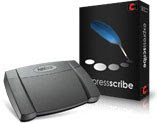
Transcribe with Express Scribe transcription software and a foot pedalOne of our programs popular with transcriptionists worldwide is Express Scribe Free Transcription Software. Express Scribe, an invaluable tool to transcriptionists, helps control the playback of audio or video files during transcription with extremely helpful features, including variable speed playback, and can be controlled either with a transcription foot pedal or with assigned 'hotkeys' on the keyboard. Most transcriptionists rave about foot pedals, but have you ever wondered if they really make transcription more efficient or if their use is really just a matter of preference?

Well here's your answer. Chris Beamish at HoT Virtual Assistant Resources recently crunched the numbers on if you should use hot keys or a foot pedal for transcription and, based on his estimates, you could potentially save yourself over 11 hours-worth of typing in a week by using a foot pedal instead of hotkeys where he has found the potential for hitting the wrong command to be much more likely.

What do you think? Do you use a foot pedal or hotkeys with Express Scribe? And if you invested in a foot pedal did you see an increase in your productivity once you got into the swing of things?

Monday, August 8, 2011

Be Fast as a Fox with FastFox Text Expander Software

FastFox Text Expander SoftwareHello! I'm Audrey. I just started working in the sales department at NCH Software about a month ago, and I already found my new best friend; it's FastFox Text Expander Software! You see, I send out a lot of emails answering sales inquiries, so instead of typing the same information over and over again, I assigned my email letter to a unique word in Fast Fox such as "salesinquiry". All I have to do is type my unique word/shortcut and BANG it expands to the five-paragraph email like magic. How brilliant is that? I wish I had known about this wonderful software earlier in my career. My tasks would have been a whole heck of a lot easier!

So take my advice and start using FastFox to be more efficient, like me! Simply download the free trial of FastFox Text Expander Software and you can immediately start creating your own shortcuts that will expand to a word, phrase, paragraph or more. Use your new shortcuts in emails, word documents web browsers and more to speed up all your typing tasks. Once you get started you won't want to ever type without it again.

Wednesday, February 2, 2011

Break Free From The Groundhog Day Typing Tedium

Stop Tedious Typing Tasks Most people are familiar with the movie Groundhog Day where Bill Murray gets trapped living the same day over and over again. While it is a funny film, I can't help but sympathize with his frustration and how hard he tries to break out of the routine and tedium of living the same thing over and over again. One thing I like about my job is that every day is different. It is nice to have different things to do to help keep things fresh, but even more dynamic jobs can have a hint of a repetitive undercurrent. On the bright side, using FastFox text expansion software helps reduce some of the monotony by helping you get through some of those tasks faster. By saving frequently used text such as answers to common questions, descriptions of the company or various products, or even phrases that you are bound to misspell or waste time correcting, you’ll get on to the next challenge quicker. And since Punxsutawney Phil forecast an early spring, using FastFox shorthand software also means you’ll get to enjoy spring sooner.

Friday, September 24, 2010

Stop Typing the Same Things Over and Over Again

Have you ever noticed that there are some things that you type all of the time? Some of the most common things that I find myself typing all of the time include the company description of NCH Software, a signature for when I leave comments on blogs or forums, and even a couple of answers to FAQs that seem to be constantly popping up in my email inbox, just to name a few. Being able to store these pieces of text with FastFox Text Expander is a huge help. Instead of looking up the information from the last time I answered a question, or wasting the time to write the whole thing I've typed a million times before all over again, I just need to type a couple characters and FastFox automatically expands that keyboard shortcut I chose into the complete answer/description/signature that I stored. Then I can quickly move on, or make minor edits to the text for the specific situation, and still be done in a fraction of the time.

Text Expansion Software is often sold to transcriptionists because of the boost it provides in typing efficiency. It really is an invaluable tool for helping medical and legal transcriptionists transcribe faster and reduce errors with long or complex terms and jargon, but truth be told, almost anyone can find things that they themselves type repeatedly and can benefit from having an application like FastFox to reduce this constant repetition in typing.

Thursday, August 13, 2009

FastFox Word Expander - Complete Medical Transcription Quickly & Easily

One of our oldest and most popular applications is Express Scribe transcription playback software. This is a popular transcription software utility for typists but it is only of the applications we have that a transcriptionists should consider for their arsenal. Anyone who does large volumes of typing for anything from a legal office to medical transcription or customer support where you need to type out the same thing repeatedly will also find the FastFox Typing Expander a priceless typing utility.


 FastFox word expander software


If you are looking for a faster way to type out complex phrases or more efficiently download FastFox Typing Expander then create your own shortcut hot key commands for all the common phrases, words or responses you want to store. Add complex legal or medical terminology to reduce misspelling and mistakes for added efficiency.

  1. Open FastFox and click on the green '+' icon, or press CTR+N (CMD+N on Mac) to create a new shortcut.
  2. Enter the shorthand abbreviation for the shortcut in the "Keyword" field
  3. If you need complex formatting such as color, font and weight (e.g. bold or italics) select "Rich Text" from the drop down menu.
  4. Place your complex medical term or other text in the "Expansion" field
  5. Save and repeat for all the terminology you want shorthand expanders for
  6. Then with FastFox running in the background you can use your new shortcut in any word processor, your shorthand will automatically expand for you.

Tip: Avoid using common words for your shortcuts since every time you type one of your shortcuts FastFox will expand it with your linked text.