Showing posts with label sound effect library. Show all posts

Thursday, July 11, 2013

Royalty-Free Music Library

Royalty-Free SFX and Music Library When you purchase products like MixPad audio mixer, WavePad audio editor or VideoPad video editor from NCH Software, you get more than just high-quality audio and video software. You also get hundreds of dollars worth of royalty-free music and sound effects that you can use in your productions.

Your purchase entitles you to download, at no additional cost, a wide array of music clips in genres such as blues, dance, and rock. You can also download lots of sound effects including animals, alarms, office sounds, sports and many others.

Music and sound effects libraries can cost you hundreds or even thousands of dollars to purchase and use in your audio and video productions. But with products like VideoPad, WavePad and MixPad you won't spend an extra cent for all those music clips and sound effects.

The term royalty-free, if you're not familiar with it, means that you can use this copyrighted material without paying royalties or license fees for each use. The reason you don't have to pay is that NCH Software purchased this library of music and sound effects and negotiated to allow our customers' free use of the library. Even if you are creating a project for which you're getting paid you can use the music and sound effects library for your production.

If you have wondered if the sound effects in the sound library can be used for your projects. The answer is that the library can be used in a wide range of productions:

You have the right to synchronize the audio content with audio and/or visual productions or applications such as:
  • film, video, DVD & TV productions
  • training, marketing and trade show presentations
  • corporate videos & educational applications
  • on hold messages & advertising
  • radio presentations & commercials
  • television presentations & commercials
  • live performances
  • speech & audio book products
  • Web pages & multimedia presentations
  • PowerPoint & Flash productions
  • interactive programs & computer games
  • AV & computer generated displays, podcasts
    (all such applications hereinafter referred to as "the Production")
You may create copies of the Production. If you sell, lease, give away or otherwise distribute copies of the Production, the rights and limitations to synchronized audio content as outlined are in effect for the life of the Production and pass automatically to the End User of the Production. All rights not expressly granted herein are reserved.

So, the next time you create an audio or video project, be sure to take advantage of the bonus royalty-free music and sound effects library included with your editing software.

Monday, April 8, 2013

WavePad Audio Editing Tips & Tricks

WavePad Audio Editing Software Tips and Tricks
Below you will find a compilation of some of the audio effects and sound editing basics for the WavePad audio editor that you will want to know and test out for yourself as you delve into the world of audio editing. Another great way for those new to audio editing to get started is by watching the WavePad sound editor intro video tutorials so you can see the audio editor in action.

Split and Cut Audio Files
You can split a file at any point you choose by simply clicking the Split button on the Edit tab. This will create two audio files split at the point you had the cursor. Be careful when you use this function, the action cannot be undone. Additional audio splitting options include splitting at bookmarks, splitting at silences and similar Trim options that delete sections instead of creating new audio files.

Amplify Audio Volume
To make the audio sound louder, instead of simply turning the volume control up you want to amplify the file. You will find Amplify on the Effects tab, which will open a window where you can either adjust the amplification using the slider or by selecting a preset level from the drop-down menu. Selecting 200% will double the volume, 50% will cut the volume in half.

Equalize Audio
Amplifying affects the full spectrum of the audio in a file, but if you want to increase or decrease certain frequencies, for example, boosting all of the lower bass frequencies, then you want to use the Equalizer. The Equalizer is also on the Effects tab and opens a graph of the frequencies going from low to high frequencies as you move left to right. This gives you very finite control of the frequency ranges you want to control. Moving a point up will make the frequency stronger and moving a point down will make it weaker.

Normalize Audio
Normalizing an audio file is similar to amplifying, except that normalizing increases the sound of the loudest peak to the maximum level without causing clipping in digital audio. This is frequently used as the last step before saving a final version of an edited song or recording. To normalize an audio file, you will find Normalize on the Effects tab.

Fade In and Out of Audio
Fading in and out of an audio file will help acclimate the ear to the background noise of a file. To fade in, select a region at the beginning of your file, then select "Fade in" under Fade on the Effects tab. Similarly, you can select "Fade out" with a region at the end of your file selected. A good tip is to fade in quicker than you fade out because the ear expects to hear the initial audio quickly, but abrupt transitions to silence at the end can be jilting.

Remove Background Noise
Since not every audio recording is made in a sound studio environment, you often get unwanted background noise in recordings. To remove background noise you want to take advantage of the Cleanup options on the Effects tab. Specifically, under Noise Reduction try using Audio Spectral Subtraction and then Multi-band noise gating. If the presets don't give the results you want, try using lower levels on these reductions until you find a combination that leaves only audio you want to keep.

Remove Vocals
You will find an option to Reduce Vocals under the Voice button on the Effects tab. This will open a dialog box that allows you to change the pan position and width, the vocal level, and preserve the bass. Generally, the default settings will work the best, but different songs may require different settings to effectively reduce or eliminate the vocal frequencies, so if you don't get the results you want, try adjust these settings until you are satisfied with the result.

Layer Audio & Voiceovers
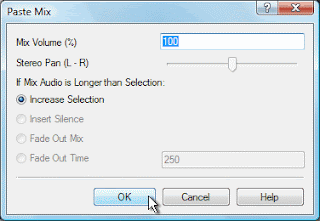
WavePad won't allow you to record directly over another file; highlighting a file and clicking record will replace the selection. Depending on how much mixing you want to do, you may want to consider moving to MixPad audio mixing software, but for some basic audio mixing within WavePad, you want to use the Paste Mix feature. Copy the audio you want to add to your file to the clipboard, then select all in the file you want to add it to, then select Paste Mix on the Edit tab. This will open a window with options on what to do if your files are not the same length. When you click OK the two pieces of audio will be combined.

Sound Effect Library
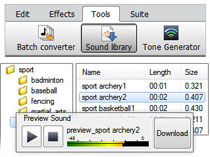
Find audio clips and sound effects to add to your audio projects in the NCH Sound Effect Library. Open the Sound Library from the Tools tab. This opens a new window where you can preview and download sound effects and royalty-free music clips.

Audio Effect Plugins
In the Windows version of WavePad, you can add DirectX and VST plugin effects to further expand your audio editing capabilities. Find the options to add and use VST and DirectX plugins on the Effects Tab. VST Plugins will open their own interface where you can adjust the settings, while you will need to go into the settings when selecting a DirectX plugin for the effect to be applied when you click OK. Get started with this list of free VST plugins you can download and use with WavePad.

FFT Sound Analysis
All of the audio editing features outlined above are all easy to put into action, but don't let that fool you into thinking that WavePad doesn't have a lot of power under the hood. One of the more advanced areas you can explore is the powerful audio analysis tools for examining the spectral content of the audio. Learn about the FFT and TFFT audio analysis graphs and what they represent to start to get your feet wet. These tools can be used in many fields, including linguistics and mathematics, in addition to sound engineering.


If you have any other tips, favorite features, or advice of your own, please comment and share them below.

Friday, July 15, 2011

VideoPad Video Editing Tips & Tricks

VideoPad Video Editing Software Tips and TricksSome of our most popular blog entries have been the posts about speed changing feature to VideoPad and how to stabilize video. Not surprising since changing video speed was such a long-awaited video editing feature for the popular video editing software. To expand on the topic of helpful video editing effects and features here are several Tips and Tricks for how to edit video with VideoPad. If you have any tips of your own please comment and add them to our list. You can also get started with video editing by watching the the VideoPad video tutorials.

Title Screen and Ending Credits
Add a blank slide to the beginning or end of the timeline. Add text to the slideslide by clicking the green plus button on the Overlay Track, and a fade transition to create a dramatic opening or closing effect to your movie. For ending credits, select the vertical scrolling option and adjust the clip duration to control the scrolling speed.

Text Overlays
Adding captions, title screens and credits is a cinch. See our post on Adding text to your videos for some tips to help you get started using the Overlay Track to add text to video clips.

Video Subtitles
Subtitles are another way of adding text to your video projects. See our post on adding subtitles to your video for a quick overview on importing or creating an .ssa subtitle file in VideoPad, or for more detailed instructions go to our video subtitles tutorial.

Image Overlays
To create a watermark effect or add images to your video for presentations, use image overlays. Click the green plus button on the Overlay Track, select the Image or Video radio button, browse for a file and apply it to the sequence. Once it’s on the sequence, you can select it and edit its size, opacity, positioning and more.

Control Effect Duration
To apply an effect to only part of a clip, try slicing the clip in two. Apply an effect to only one slice, and place a cross-fade between the slices for a seamless transition.

Change Video Speed
Speed up or slow down video clips by selecting a clip and selecting the Speed effect from the Effects tab, then use the slider to select the new speed for the video clip, (i.e. 50% for half speed, 200% for double). You can also choose to play the clip backward.

Video Stabilization
One possible problem you may have with videos you have recorded on your camcorder is video clips that are shaky or unsteady. This is a common problem when you film without a tripod to keep the camcorder still no matter how steady you think your hands are. The video stabilization feature is an easy solution to eliminating camera jitter in your videos, giving you a final video that won't make you seasick to watch.

Upload Videos to YouTube
VideoPad has a wide range of output options for saving your final video, and if you are creating your video for YouTube you can even skip a step and upload to YouTube from VideoPad by entering your YouTube account information and other details, which is just one of the many choices available when saving your finished movie. VideoPad also has automated upload options for Facebook and Flickr.

Sound Effects
VideoPad comes with a Sound Effect Library. You can preview and download sounds from the Sound Effects Library by going to Edit -> Sound -> NCH Sound Effect Library. And since VideoPad has unlimited audio tracks, you have plenty of room to add and mix in the sound effect to your movie soundtrack.

Greenscreen Video Editing
For shooting those scenes you can’t do on location, use the chroma-key feature to transport yourself to another locale. To use chroma-key, click the green plus button on the Overlay Track, select the Image or Video radio button, click the Record button, click the Remove Background button, and follow the onscreen instructions. Also see out post on Easy Chroma Key Overlays.

VirtualDub Video Plugins
For even more effects, VideoPad supports VirtualDub plugins. You can add new plugins by selecting Load/Unload Plugins on the Effects Tab, and loading your saved .vdf format VirtaulDub plugin filter.

And for improving the audio or working on a soundtrack for your movie you may want to start by checking out the WavePad audio editing tips and tricks to help get you started with audio editing.

Tuesday, January 11, 2011

Looking Back at 2010

The New Year is always a time of reflection. What went well the last year? What could have been better? This is where many New Year’s resolutions come from. Not only is the New Year starting you off with a clean slate but it’s a good reason to find things you can do improve on years past. In the spirit of reflection I took a little time to look at what our most popular blog posts from the last year in hopes of finding a little bit of insight into what we should work on or write about in the year to come.
  1. Change the speed of video clips in VideoPad
  2. Practice audio transcription files now available
  3. NCH Software iPhone Software Update, see all the NCH Software iPhone apps
  4. Make a Glee Music Mash Up with MixPad
  5. Record audio playing through your computer
  6. WavePad recognized as top mac audio editing software
  7. Zulu virtual DJ Software now avaialable for Mac
  8. The Secret Life of Tone Generator Software
  9. Complete transcription quickly and easily with FastFox word expansion software
  10. Radio World User report on BroadWave streaming Audio server software
  11. PitchPerfect Guitar Tuning Software Now an iPhone App
  12. WavePad Audio Editor Software Now available as an iPhone App
  13. FTC Bans Unsolicited robocalls
  14. MixPad Multitrack audio recording and mixing software now available for Mac
  15. New Sound Effect Library Added to WavePad Sound Editor
  16. Create unique sounds with MixPad and WavePad Audio Software
  17. TempoPerfect metronome software is now also an iPhone App
  18. Internet Use in the Office and Cyberslacking is costing employers millions
  19. A movie maker solution for Windows 7—Videopad
  20. CardWorks new free business card designer software
What I take from this is that not only are our big announcements such as the addition of the sound effect library and adding speed control into VideoPad important, but that our readers like to see more about how software is being used by other people in interesting and creative ways. There also seem to be a fair amount of Mac users looking for software solutions who will be pleased to hear that we are going to continue to bring more of our popular software over to the Mac platform. We are also going to continue to try to write about a breadth of different software topics. If there is anything in particular you would like to hear about, let us know.

Monday, October 25, 2010

Scary Halloween Tutorial: Make a Howling and Haunting Halloween Soundtrack

5 easy steps for making your own Halloween soundtrack

Last week we showed you how to spookify your screen saver in 3 easy steps using VideoPad. This week we'll help you prepare for that Halloween party you have planned, or for setting a spooky atmosphere for your trick-or-treaters with a haunting halloween soundtrack.

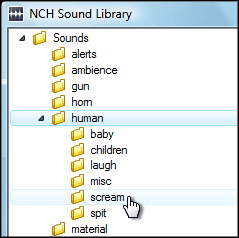
NCH Software Sound Effect Library1. Using WavePad audio editor, download three sounds from the sound effect library, found under the Tools menu. We recommend Ambience SciFi 1 for the background, and Nature Weather Lightning 3 and Human Scream 1 as accent sounds. Save them in a location you can remember. To download more than three sounds, upgrade to the WavePad Master's edition, or record more sounds of your own.

2. Open your downloaded sounds in WavePad. For the basics of using WavePad, view the WavePad tutorial series.

3. Copy your background sound and paste at the end of the file one or two times, so the length of your soundtrack becomes a few minutes long.

WavePad Audio Paste Mix 4. In this step, you are going to add your accent sounds to your background sound. Copy the entirety of one of your accent sounds, then go back to the window with your background sound. Place your cursor in a random location, then select Paste Mix from the Edit menu and click OK on the dialog that appears. The accent sound will be pasted over the background sound. Repeat this process as many times as you want for each accent sound throughout the duration of the background sound file.

5. Save your finished background file with the added accents to a format suitable for your CD player or portable device. When you play the soundtrack, make sure you loop it so the sounds play continually throughout your Halloween night.

With Christmas around the corner, you can get a head start on personalizing Christmas songs with reindeer noises, elves cheering, and bells ringing using the same steps given here. Feel free to share your creations, and we'll feature you on our blog!

Friday, February 19, 2010

New Sound Effect Library Added to WavePad

New WavePad Sound Effect Library WavePad audio editing software is an NCH Software favorite, making us all the more excited to announce the addition of a sound effect library, and giving WavePad fans another reason to love this audio editor. Starting with the release of version 4.40, WavePad now includes access to an extensive sound effect library.

The new Sound Effect Library contains one thousand high quality wav fx files comprised of 800 SFX files and 200 music files. Audio enthusiasts can browse and preview all of the audio clips by opening the Sound Library window found under Tools from the WavePad main window.

The Sound Effect Library includes:
  • Alerts
  • Cartoon sound effects
  • Gunshots and Explosions
  • Human sound effects like screaming
  • Animals and Nature
  • Whoosh effects
  • and Many Many More
I encourage you to Download WavePad today and checkout this wonderful new sound effect library. During the free 14-day trial period you will be limited to downloading three of the sound effect files, but you can preview them all, and you will have unlimited access to the entire sound library after purchasing this popular and powerful sound editor.

We hope that you find having these sound effects on hand is useful while you are working on your audio editing projects, and we'd love to know what you think about this great new addition to WavePad and how you are using the new sound effects.