Showing posts with label video stabilization. Show all posts

Wednesday, May 8, 2013

Video Competition Tips & Advice

VideoPad Video Editing for Video Competitions Ready to take your videos beyond home movies? For VideoPad users who are ready to showcase their creativity and videographer skills, we've put together some advice and resources for getting your videos ready to compete.

There is a wide range of video contests out there, put on by all kinds of companies and products, in a variety of themes. The smaller contests will have smaller prizes, but they will also have less competition, so they are still worth considering. To find a contest that appeals to you here are a few sites to explore: Once you have a contest picked out the real work starts. Be sure to take your time and do your due diligence instead of jumping straight into filming.

Do Your Homework
Make sure that you read the rules and judging criteria carefully. Knowing how a winner will be chosen will help you make a video that will fit the bill.

Scripting and Story Line
Having a good story is key, so take the time to brainstorm until you have a story you are confident in. You want a moving story that fits in with the contest theme and connects with the viewer. Humor is often one way to draw people in, but it isn't always easy to pull off and certainly isn't the only option. You can tug at the heartstrings or appeal to people's sense of justice, etc. The goal is always to create a story people will want to watch through to the end.

Practice and Timing
Since you will almost always have a time limit, you need to make sure you can take your story from beginning to end in the time allowed. With a limited amount of time, subplots and tangents should be scrapped, and you need to grab your audience in the beginning. You want to start with a strong hook, and keep things moving through the conclusion. When reading through your script and practicing, you should not only make sure you are familiar with the dialogue, working on making it sound natural and animated, you should also be testing how long it takes to read through. Does it fit within the video time limitations? As you go through this process you should think about if there are any awkward phrases you should remove, or other edits to either cut down the length or help with the rhythm of your story and keep things moving forward.

Sponsors
Depending on who is sponsoring the contest you may want to try to work them into your video. Maybe use one of their products as a prop or have it in the background. If they are doing the judging this could earn you some brownie points, but don't force it if it really doesn't make sense with your story.

Dialogue and Audio
Audio quality in your video matters. It is an important part of a film as a whole, and poor audio can detract from a film and cause people to lose interest, so don't forget about the audio. Dialogue should sound natural and animated, which can be a challenge both in writing and performing, as well as in the recording. You should strongly consider using an external microphone for recording high-quality audio. You want the dialogue to be easy to hear and understand and have a consistent volume between shots.

If you do use the built-in microphone on your camcorder remember you can still separate the audio from the video so you clean the audio, remove background noise, normalize and make other adjustments. For a closer look at some important audio editing features, you may want to use, see our list of WavePad audio editing tips and tricks.

Adding Music
Adding music to your soundtrack can help draw the audience in, but be sure to balance the volume with any dialogue. And make sure that you either get permission before using copyrighted music from the publisher or steer clear of copy-protected music altogether and use royalty-free music and original works. You may be required to provide proof of copyright/permission for the audio in your video with your submission; using copyrighted music without permission can not only get your video disqualified, but it can also cause legal problems, so getting and sending proof of permission for a piece of music is in your best interests.

Filming and Editing
Important things to remember are that you want to maintain sharp focus and limit the amount of zooming and camera movement. Consider using a tripod during filming. Shaking can be removed from video using video stabilization, and if you are using handheld camcorders or cell phones this will be a necessary step, but using a tripod will eliminate the need for stabilization in editing.

For a closer look at some more VideoPad editing features you may want to use, see our post on video editing tips and tricks, but remember you want to entertain the audience, not to make them nauseous. Excessive camera movement or overdoing the effects can be distracting, and like everything else you want the transitions and movement to support the story, not draw attention to itself.

Double Check Everything
Before you send in your video be sure to double-check everything. Did you follow all of the guidelines? Is the movie saved in the correct format and does it meet the time requirements? After all of the work you put in it, you don't want to have your video thrown out because you forgot something. If you will be submitting your video on a DVD, do not include menus unless they were asked for. The judges will be watching hundreds of entries, so this is another case where time matters and they will want the video to start playing automatically.

Submit Your Video
When you're sure you have dotted all your i's and crossed all your t's send in your submission. If it is being judged by the community be sure to let your friends, family, and colleagues know to check it out and vote for you, otherwise it will now be out of your hands. But win or lose, you should have a video you are proud of.

If you have any more advice to share please comment, and Good Luck with your videos!

Wednesday, January 4, 2012

2011 Top Software Posts Roundup

Like so many others, I find the new year a time of reflection both personally and professionally. Last year at this time I took a look at the posts that were getting the most attention on our blog to try to learn more about what our customers and readers are most interested in. With 2012 upon us, here I am again looking at the top posts of 2011:
top software articles
  1. VideoPad Video Editing Tips and Tricks
  2. Changing Video Speed with VideoPad
  3. Adding Text to Your Videos
  4. Video Stabilization
  5. WavePad Audio Editor New for the iPad
  6. Practice Transcription Audio Files
  7. Best Slideshow Software: PhotoStage
  8. Record Audio Playing Through Your Speakers
  9. The WavePad iPhone Audio Editor App
  10. Make Your Music Mash Ups with MixPad
  11. Add Subtitles to Your Videos
  12. NCH Mobile Applications Updates
  13. Transitions and Upgrades to VideoPad
  14. Best Mac Audio Editing Software
  15. New Mac Point of Sales Software
  16. Record Your Own Audio Book
  17. Mac Inventory Management Software
  18. Why Web Designers Don't Need Dreamweaver
  19. VoIP Phone Systems for the Home Office
  20. Express Scribe Transcription Using Voice Recognition
So what can I glean from this list? Not only is there still interest in Mac versions of our applications, of which we have added several additions to this year (and more already in the works), there is a large interest in how to take advantage of the more advanced features in our VideoPad video editor. as well as other how-to instructions. I'm pleased to report that we are expecting a significant new release of VideoPad this year that will have a new interface designed to add more advanced features to our easy to use video editing software. That is just one of the big plans already on the horizon to keep your eyes open for, but as always, be sure to let us know what you think and what you want to see in future releases that will help you do more with software.

Tuesday, August 30, 2011

Editing Video from a Cell Phone

Edit video recorded from a cell phoneWith the majority of cell phones today coming with not only a built-in camera but also video recording capabilities, the amount of video the average home user takes is skyrocketing. It's just one of the many reasons there are so many videos being posted to YouTube every day. But not every video you record is going to be ready for the big time right away, so if you need to do a little bit of editing here are two extremely useful tools you should using try to clean up your cell phone videos.

Rotate Video
With the variety of flip phones, slide phones, and other shapes of phones, keeping track of which way is up while filming could be a challenge. You may quickly find out all your video needs to be rotated so that you don't have to watch it with your head tilted to the side. Prism Video Converter offers an easy solution. Not only can you convert your video from 3gp, a common video format recorded on phones, to something more computer friendly like avi you can also choose to rotate the video by going into "Effects" before hitting Convert.

Stabilize Video
Another common problem you might have—that you might not have even known you can fix—is with video clips that are shaky from an unsteady hand. If your video reminds you a little too much of The Blair Witch Project, you can stabilize your video with the stabilization feature in VideoPad Video Editor to eliminate jitter. See an example of video stabilization in action in our post A Quick Fix for Shaky Video Clips.

If you are really feeling your inner movie director come to life there are a lot more video editing transitions and effects available in VideoPad, but I think you will be surprised how big a difference even just a few adjustments like these can make to your videos.

Friday, July 15, 2011

VideoPad Video Editing Tips & Tricks

VideoPad Video Editing Software Tips and TricksSome of our most popular blog entries have been the posts about speed changing feature to VideoPad and how to stabilize video. Not surprising since changing video speed was such a long-awaited video editing feature for the popular video editing software. To expand on the topic of helpful video editing effects and features here are several Tips and Tricks for how to edit video with VideoPad. If you have any tips of your own please comment and add them to our list. You can also get started with video editing by watching the the VideoPad video tutorials.

Title Screen and Ending Credits
Add a blank slide to the beginning or end of the timeline. Add text to the slideslide by clicking the green plus button on the Overlay Track, and a fade transition to create a dramatic opening or closing effect to your movie. For ending credits, select the vertical scrolling option and adjust the clip duration to control the scrolling speed.

Text Overlays
Adding captions, title screens and credits is a cinch. See our post on Adding text to your videos for some tips to help you get started using the Overlay Track to add text to video clips.

Video Subtitles
Subtitles are another way of adding text to your video projects. See our post on adding subtitles to your video for a quick overview on importing or creating an .ssa subtitle file in VideoPad, or for more detailed instructions go to our video subtitles tutorial.

Image Overlays
To create a watermark effect or add images to your video for presentations, use image overlays. Click the green plus button on the Overlay Track, select the Image or Video radio button, browse for a file and apply it to the sequence. Once it’s on the sequence, you can select it and edit its size, opacity, positioning and more.

Control Effect Duration
To apply an effect to only part of a clip, try slicing the clip in two. Apply an effect to only one slice, and place a cross-fade between the slices for a seamless transition.

Change Video Speed
Speed up or slow down video clips by selecting a clip and selecting the Speed effect from the Effects tab, then use the slider to select the new speed for the video clip, (i.e. 50% for half speed, 200% for double). You can also choose to play the clip backward.

Video Stabilization
One possible problem you may have with videos you have recorded on your camcorder is video clips that are shaky or unsteady. This is a common problem when you film without a tripod to keep the camcorder still no matter how steady you think your hands are. The video stabilization feature is an easy solution to eliminating camera jitter in your videos, giving you a final video that won't make you seasick to watch.

Upload Videos to YouTube
VideoPad has a wide range of output options for saving your final video, and if you are creating your video for YouTube you can even skip a step and upload to YouTube from VideoPad by entering your YouTube account information and other details, which is just one of the many choices available when saving your finished movie. VideoPad also has automated upload options for Facebook and Flickr.

Sound Effects
VideoPad comes with a Sound Effect Library. You can preview and download sounds from the Sound Effects Library by going to Edit -> Sound -> NCH Sound Effect Library. And since VideoPad has unlimited audio tracks, you have plenty of room to add and mix in the sound effect to your movie soundtrack.

Greenscreen Video Editing
For shooting those scenes you can’t do on location, use the chroma-key feature to transport yourself to another locale. To use chroma-key, click the green plus button on the Overlay Track, select the Image or Video radio button, click the Record button, click the Remove Background button, and follow the onscreen instructions. Also see out post on Easy Chroma Key Overlays.

VirtualDub Video Plugins
For even more effects, VideoPad supports VirtualDub plugins. You can add new plugins by selecting Load/Unload Plugins on the Effects Tab, and loading your saved .vdf format VirtaulDub plugin filter.

And for improving the audio or working on a soundtrack for your movie you may want to start by checking out the WavePad audio editing tips and tricks to help get you started with audio editing.

Monday, January 24, 2011

Video Stabilization – A Quick Fix for Shaky Video Clips

One extremely cool feature in VideoPad Video Editor is video stabilization. If you've done much hand-held video recording without a tripod, then you have undoubtedly had videos turn out "shaky" because, despite your best efforts, it is near impossible to keep your hand steady. So if you aren't going for that Blair Witch Project feeling, you should give the video stabilization feature a try. This feature uses a deshaker filter to eliminate camera shakiness and makes panning, rotation and zooming smoother.

To show you the video stabilization feature in action, we put together the video below which is a split screen of a video clip showing the before and after results of the video stabilization filter:


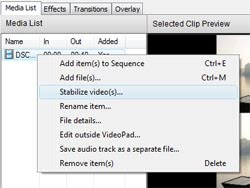
Video stabilization with VideoPad video editing softwareTo apply video stabilization, right click on your video clip in the Media List and select "Stabilize video(s)...". This will allow you to select a location to save the new stabalized video clip, and once it has finish running the filter, VideoPad will give you the option to replace the original video clip in your project with the new stabilized version. You can adjust the advanced settings of video stabilizer by clicking "Configure Deshaker" button on the Plugin Filters tab of the Options dialog.

Video Stabilization is just one more thing that makes VideoPad such a wonderful video editor. So the next time you record a home movie that is a little shaky, remember that you can use VideoPad to help stabilize the final result, whether you are going to be doing more editing or just to polish the original video.