Showing posts with label Prism. Show all posts

Wednesday, September 2, 2020

Prism Voted Best Video Converter by Digital Trends


It's time to celebrate! Leading tech review site Digital Trends has listed Prism Video Converter as one of the best free video converters for 2020. Here are some of our favorite quotes from the review.


"The best video converters, like Prism Video Converter, make the conversion process seamless and quick for users"


"Easy to pick up quickly"


"Works with all common video formats"


"Extra capabilities include adjusting filters, brightness, contrast, rotation, and other important features that you might need"


Available on Windows and Mac, Prism is a powerful video converter that is very easy to use and converts most video formats within minutes. Download Prism today and see for yourself why it has been voted the best video converter. 


Friday, May 3, 2019

How to Change AVI to MP4 with Prism AVI Video Converter

How to Change AVI to MP4 with Switch Audio File Converter


MP4 files and AVI files are two of the most popular video file formats used today. They are both common multimedia container file types and they both have their various advantages. AVI files are most often used for playback on your PC via Windows Media Player, while MP4 files are more commonly used for video playback everywhere else. If you have a video player that does not support AVI files, then you are going to want to know how to change AVI to MP4. Converting AVI to MP4 is a very simple process for anyone and can be done by using Prism AVI to MP4 Converter Software in just a few clicks.


Download & Install Prism

Download and install Prism Video File Converter on your computer. Prism can be used to convert a variety of video file formats, compress video file sizes, add effects, and make other adjustments while performing video file conversions. You can download Prism by clicking on the download button below and following the installation steps.

Import Files

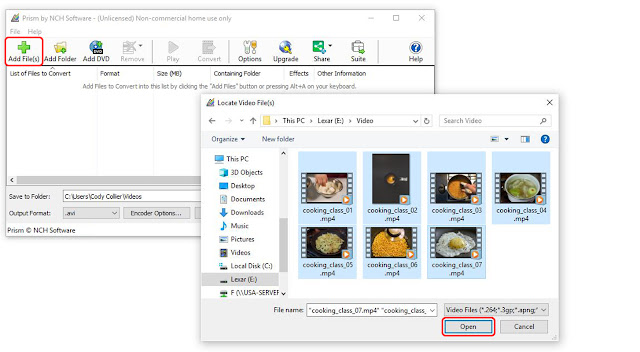
The first step to change AVI to MP4 is to import your AVI video files into the program. You can do this by dragging and dropping your video files directly into the program or by clicking on the green Add File(s) icon to launch the Locate Video File(s) window and selecting and importing your AVI video files this way.


Video Conversion Options

Click on the Options tab, located at the top of the program to view the various video file conversion options available in Prism. This is where you can adjust the overwrite settings as well as add metadata to your converted video file properties. This is also where you can add or remove Prism to/from the Windows Explorer right-click menu so that you can perform conversions without even opening the program.


Output Settings

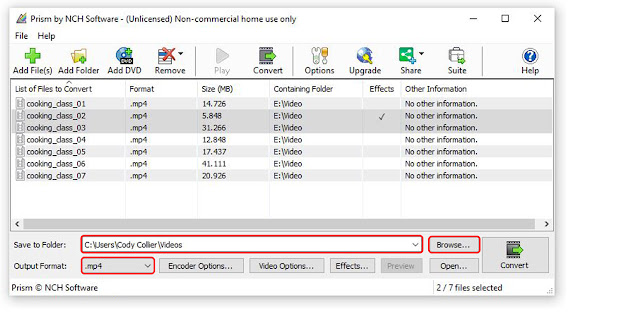
Click on the Output Format dropdown menu to set the output file format to MP4. This will make all of the file conversions performed be to the MP4 video file format. Use the Save to Folder dropdown menu to select the output destination for your newly converted MP4 files. You may also click on the Browse button to launch the file finder window and select a more specific output destination folder on your computer or external device.


Encoder & Video Options

Click the Encoder Options button to adjust the encoding settings of your video files before you convert them. You can adjust the video quality/bitrate as well as adjust the compression settings and sound format. Click on the Video Options button to adjust the frame rate of your converted video files as well as resize them when they are converted.


Video Effects

Click on the Effects button to open the Video Effects window. Here you can add text captions to your converted video files, rotate and flip your videos, adjust color/brightness, & add watermarks. The Edit Video tab in the Video Effects window will allow you to trim down your videos as well.


Preview

Click on the Preview button to watch a preview of your video file in the format you will be converting it to. This is useful to keep an eye on the quality of the video if you are compressing it and also just to double check that you are working on the correct files if your file names aren't very descriptive.


Change AVI to MP4

Once you have chosen your output destination and set the output file type to MP4, you are ready to change your AVI files to MP4. Select the files that you would like to convert and click on the Convert icon in the bottom right-hand corner of the program or in the main toolbar. You can convert your files individually or hold down shift to click and select multiple files to convert all at once. The conversion process is extremely fast and your new MP4 files can then be found in your chosen output destination.


For more on articles on video and video editing, check out these posts:


Friday, March 1, 2019

Best Method to Rotate Videos with Prism Video Converter Software
Best Method to Rotate Videos with Prism Video Converter Software


In a world where more and more videos are taken on mobile devices, the struggle is real when it comes to making sure that all of your videos are oriented correctly for your video projects. Knowing how to rotate videos is a great skill to have and it will help you make sure that your videos are viewed at their best. With a simple video converter software, such as Prism Video Converter, you can quickly and easily rotate your video for your viewing pleasure.


Import Video Files

Download Prism Video Converter by clicking on one of the red download buttons on this page. Follow the installation instructions and open the application on your computer. Import the video files that you would like to rotate by clicking the "Add Files" button or by pressing Alt+A on your keyboard. Locate and select the video files on your computer and click "Open" to bring them into the program. 

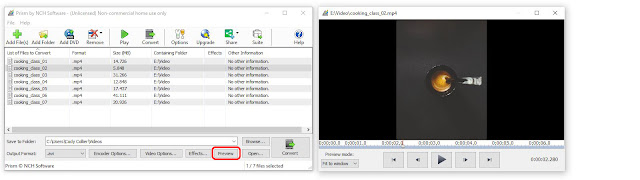
Preview Videos

To preview a video before rotating it or converting it to another format, simply double click on the file name in the program to launch the preview window. You can also select a file and then click on the "Preview" button, located at the bottom of the program.


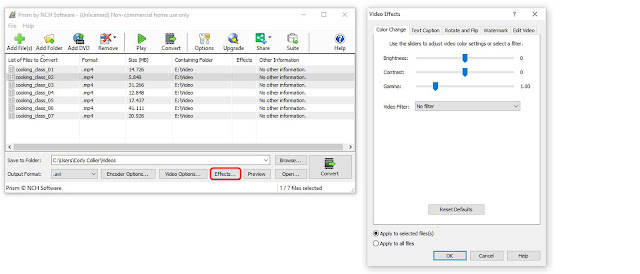
Video Effects

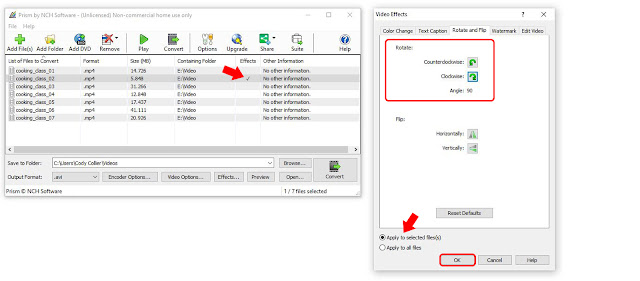
Click on the "Effects..." button at the bottom of the program to launch the video effects window. Here you can choose from a variety of video effects that you would like to have applied to your videos at the time of the conversion. Prism allows you to adjust the lighting in your videos, add text captions, watermarks and you guessed it, rotate and flip your videos. You can also get to any of these options by simply right-clicking on a file and choosing one from the cursor menu. 
Rotate Videos

To rotate a video, click on the video file you wish to rotate to select it. Then click on the "Effects..." button shown in the previous step. Click on the tab in the Video Effects window that says "Rotate and Flip" to view the options for rotating videos. You can also right-click on a file and select the same option from the right-click menu. Click the green arrow buttons to determine how many times you want to turn your video, either clockwise or counterclockwise. You can also choose to flip or mirror your video from this same menu. At the bottom of the window, you can choose to apply the rotation to only the selected files or to all of the files in the program. A small checkmark will appear in the effects column next to the file that the rotation effect will be applied. 
Output Settings

Before converting your files and rotating your videos, choose where you want your newly rotated video files to appear after the conversion process. At the bottom of the program, use the "Save to folder" dropdown menu or click on the "Browse" button to select a location on your computer where you would like Prism to output your new video files. Prism Video Converter can convert video files to a variety of formats. If you wish to change file types while rotating your videos, you can do so by selecting a new format from the list in the dropdown menu next to the words "Output Format."

Convert Video File(s)

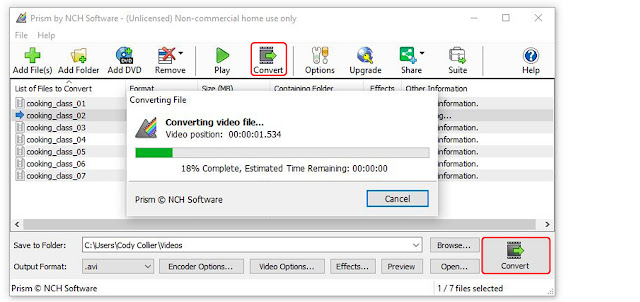
Once you have chosen your output settings and applied the rotation effect to the video files you wish to rotate, you can simply click the "Convert" button, located in the main toolbar or in the bottom right-hand corner of the program. The rotation effect, as well as any other effects or changes in formats you chose, will be applied to your selected video files and appear in your chosen output folder/location.
How to Rotate Videos

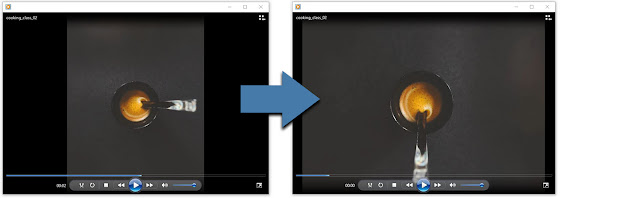
You have now learned how to successfully rotate videos using Prism Video Converter Software. You can open and view your rotated videos from your output folder and if you want you can go even back and rotate them again. You can rotate your videos until you are dizzy. You can also take your rotated video files and create your next movie masterpiece with VideoPad Video Editing Software.


For more on video editing, check out these posts:

Friday, July 15, 2016

Convert Videos of Family Moments from Phone or Tablet Device


Tablets and mobile devices have made it incredibly easy to capture videos and pictures of daily life. Precious moments can now be easily recorded without the hassle of developing; but what about transferring or sending these videos to others? With the addition of Prism, all will have the ability to easily convert media into physical or digital copies.

Follow These Easy Steps

Step 1: Transfer the videos from the mobile device to a local computer. This can be done with either a USB Connection, Email, or File Sharing Service.

Step 2: Download the free version of NCH Prism for non-commercial use. After the download is complete, click "Add Files," this will bring up the files of the computer. Select each video that is to be converted; Prism can convert multiple videos at once.


Step 3: With all the videos uploaded, select which format is most suitable. Prism provides conversions for avi, mpg, vob, asf, wmv, and mp4 video formats from digital and physical platforms. The videos can be matched to several mobile devices, tablets, gaming systems and mp4 players.


Step 4: Before finishing the conversion process, feel free to add any video effects and previewing before finalizing. Adjust colors, screen size, resolution, add captions or watermarks, bring more creativity to the videos with these easy edits.
Step 5: After choosing the videos, making the appropriate edits, selecting the output format and previewing the video for assurance. Finalize the conversion process to either a digital file or DVD. This ability to transfer and compress digital files makes it easier to send media to others through emails, phone messages or post on social media. There is even an option through Prism to directly share these new converted files directly onto social media.

Want to create a home movie? Place a blank disk into the computer, select it before the conversion by clicking, "Browse." Then select the blank disc for the targeted conversion.


Prism is available online and the Apple Store.


Friday, February 19, 2016

Converting Multiple Video Files Quickly and Easily Using Prism Video Converter

Converting Multiple Video Files Quickly and Easily Using Prism Video Converter


There are times when one needs to convert many video files at once - transferring them into your phone or handheld gaming device, or turning them into WMV format to include them in a PowerPoint presentation.

There are many video converters out there, but Prism Video Converter is designed for this purpose with:
  • Support for most major video formats
  • Ability to take in different formats in the same batch
  • Output video/audio quality options
  • Ability to resize video and add effects
  • Command line mode for batch conversion automation (advanced users only

  • Source: Wikipedia

How to Batch Convert Videos Using Prism

Note: This is a feature available in the premium version - the free regular version allows for one conversion at a time.

Converting multiple files in Prism is a simple process:
  1. In Prism, click 'Add Files' to select the video files you want formatted. It is okay to have differing file types in the same batch.
    • To make the process faster, it is recommended to move/copy the files ahead of time to a single folder on your computer so you can easily add all the files at once by clicking 'Add Folder'.
  2. At the bottom of the screen, set your destination folder - if the folder specified does not exist, Prism will prompt you to create it.
  3. Specify the output format you would like. The dropdown menu will have all of the formats available as well as formats ready for specific devices (phones, iPads, Xbox, etc)
  4. Set 'Encoder Settings', which determines video and audio quality. The Prism manual has more information on what each setting does.
  5. Set 'Video Options' to resize the videos or set them to a particular aspect ratio and to limit framerates if necessary.
  6. Add desired effects - color settings, filters, adding a caption or watermark, and rotate/flip.
  7. Hit 'Convert' and watch as the converted files are placed in your specified output folder!

Click on the link to download or purchase:
Prism Video Converter by NCH Software


Saturday, June 15, 2013

Happy Birthday to the GIF

Example animated gif
I saw on Mashable this morning while doing a little web surfing and having my coffee, that today the GIF format turns 26. As a company that has several popular file format converters, how could I not also pay homage to this infamous format too?

For those of you who are interested, you can read the article on Mashable about the life and history of the GIF format,—lovingly nicknamed "Great Internet Fun" by the contributor in place of the more proper "Graphics Interchange Format"—and its early life of controversy. But, for many, it is probably enough to think of a few of your favorite, and often humorous, animated clips brought to you by the GIF to put a smile on your face, and what better commemoration could there be? Of course, you could also share some of those favorites today to continue the birthday celebration.

And if you are looking to make your own animated gifs, you may want to check out our post on converting video clips into animated gifs with a little help from Prism video converter.

Thursday, March 14, 2013

Best Video Converter Software

Award for Prism Video Converter Best Video Conversion Software Software Review Boffin has put Prism Video Converting Software at the top of the list when it comes to video converting. The reviewer put Prism to the test over several days noting that it worked flawlessly, and that the software is "so proficient that support will seldom be necessary."

"Prism Video Converter Software will within minutes perform, its as quick as a speeding bullet the review team at Software Review Boffin thought. Time is money and this product will not weigh you down!"
  – Software Review Boffin

Read the complete review of Prism Video Converter from Software Review Boffin, or simply download today for flawless video conversion whenever you need it.

Saturday, December 15, 2012

Y is for YouTube

NCH Software ABCs Series

YouTube has a wealth of videos, from information to humor you can find videos about just about everything, a whole world of endless amusement is just a click away. But watching videos isn't the only side. There are millions of aspiring YouTube stars out there who would do well to note some of the useful and easy YouTube software programs below that can help you download, record, edit and upload videos directly to YouTube. Who knows, yours could be the next big viral video. And, for video tutorials on many NCH products, stop by the NCH Software YouTube channel.

<<< Previous: X if for eXpressNext: Z is for Zip >>>

Monday, November 12, 2012

V is for Video

NCH Software ABCs Series

V is for video software Video is all around us. From the big blockbuster movies to YouTube, from video surveillance cameras in retail stores, to parents recording their kids first steps, and that is just the beginning, so it should come as no surprise we chose Video for 'V.' Plus like all of our software programs they our Video software is designed to be easy to use, so if want to record your screen or edit together a highlights reel of the tee-ball season, we have the video software you need to get the job done:
<<< Previous: U is for UtilitiesNext: W is for Web Access >>>

Friday, September 7, 2012

Top Video Converter Software

5 Star CNet review for Prism Video ConverterThe editors at CNET recently took the time to review our Prism Video Converter. As they mention, digital videos are great until you run into one that you can't use or watch, which is when video converting software comes to the rescue. And what more could you look for in a converter than "a straightforward, efficient tool for video conversion," as the editors at CNET described Prism in their 5 star review, going on to say:

"Prism Video File Converter has an attractive, intuitive interface that we had no trouble figuring out ... Converting a video -- or batch of videos -- is as simple as navigating to the desired files, adding them to the list of files to convert, and selecting the desired output format."
CNET

You can read the complete review of Prism Video Converter on download.com, or simply download Prism now so you are armed and ready for any video files that might come your way, no matter what format they are in.

Wednesday, June 13, 2012

Amazing Tools for Transcription

Guest post by EQ Trans UK

Amazing Transcription Software ToolsAs a transcription services provider which caters to clients all across the UK, we believe in the importance of using technology that enables our transcriptionists to perform at their optimum, while simultaneously benefiting our clients as well. Using the appropriate software while working on a transcript can help a transcriptionist do a better thorough job of transcribing and, of course, help in meeting deadlines faster, too.

We have been using various NCH software for a while and they are now form basics of what we do. If you are new in the transcription industry, here is what minimum you need to have to get going:

Express Scribe – This audio player which can be used on both PCs and Macs comes loaded with many features, such as support for foot pedals, variable speed playback, as well as speech-to-text integration. This software does a great job of supporting all the popular file formats. It also gives a transcriptionist better control over the audio playback through the use of a foot pedal and even keyboard shortcuts. Express Scribe does not take up too much screen space, unlike other software, and runs quietly in the background while a transcriptionist is at work.

Switch Sound File Converter - Although there are plenty of file converters available, this software wins hands down for its simplicity. Our clients often send us digital audio files in other formats and we use this software to convert them into an mp3 format using 128 bit mono encoding. This makes it easier for uploading files on our secured server so that our transcriptionists can get to work. Switch also gives users an additional option of configuring up to 3 right-click options which make the conversion process faster, too.

Prism Video Converter - This video file converter converts files from any format to the most commonly used formats, either in singles or in batches, and can even convert files directly from DVDs and other multimedia devices. We use this software mainly for converting large video files into mp3 file format so that they can be uploaded on our server easily. Prism also has another option of resizing a video file format and customising it in terms of the frame rate, brightness, and contrast, as well as text and caption addition.

WavePad Editing Software - One factor which can be detrimental to the process of transcribing itself is the presence of background noise in an audio file. The WavePad Audio Editing Software works on both PCs and Macs, allowing the user to cut and paste specific sections of the recording, besides adding features like noise reduction. This software supports a large number of file formats and has a remarkably easy-to-use interface as well.


EQ Trans UK is a transcription agency based in the UK. We have a well-trained and certified team of transcriptionists to address any client requirement.

Tuesday, April 3, 2012

2 Easy Ways to Rotate Video

how to rotate a videoNeed to rotate a video? Whether you recorded video on your phone in the wrong orientation or are you want to rotate a video solely for effect, NCH Software has two easy ways for you to rotate your video clips.

If rotating is the only thing you want to do to your video, or if you want to rotate a bunch of videos all at once, then Prism Video Converter is the way to go. Not only can Prism convert video formats, it can also be used to rotate videos. To rotate a video you have loaded into Prism, click the Effects button at the bottom of the window, and set the rotation from the Rotate tab. To Rotate multiple videos the same direction just select them all before opening the Effects effects to save the time of setting the rotation to each clip individually.

If you will be doing more video editing with your rotated video clip, then you might want to rotate your video directly in VideoPad Video Editor instead of using Prism. To rotate in VideoPad, select the video clip on the timeline then choose Rotate on the Effects tab, where you can once again use the arrows to rotate the video clip to the right or left, and notice that the preview will change to display the new orientation of your video clip. Tip: You may need to combine the rotate effect with the crop effect to maintain the aspect ratio of your video without the addition of black bands to the sides of your now rotated video clip.

Monday, November 14, 2011

Make Animated GIFs from Video Files


Did you know that Prism Video Converter can be used to convert video clips into animated gifs? In addition to sharing video files, animated gifs are also a popular way to share short or funny video clips on websites without needing to embed and wait on larger video files to download/buffer.

To create an animated gif simply add the video clip in Prism and select .gif as the Output Format. You should also consider resizing the video in the Video Options, to make an animated gif at a smaller resolution that will be better suited for posting on the web.

Friday, September 16, 2011

Convert and Compress Files

Whether you're on a Mac or a PC, these conversion applications cover nearly every file type you'll run into, making them the most complete and reliable software for converting and compressing files out there.

Switch Audio File Converter

For your music, presentations, or audio projects, Switch Audio Converter lets you put your music anywhere at any time. Convert music for your iPod, PSP or phone. Compress audio to save hard drive space. Create a ringtone on your phone by converting the format, or even extract audio from video files.

Prism Video File Converter

Your computer might only be able to open certain video file types. Use Prism Video Converter to ensure you'll always be able to watch your videos. With Prism you have complete control over video settings such as compression and encoder rates, resolution, frame rate, and size output. You can also batch convert thousands of files at once and preview videos before conversion.

Pixillion Image File Converter

Pixillion isn't just image conversion software, there are many additional settings to make adjustments to your images while converting including adding watermarks, adjust the image quality, size or resolution, or even crop and rotate photos.

Express Zip File Compression Software

Express Zip is currently the only application on this list that is only available for Windows, but it is an extremely valuable compression tool. Use Express Zip archiving software to create, manage, and extract zipped files and folders. Plus extract files from a variety of other archive formats including rar, cab, iso, tar, and 7z or convert those archives into zip files. You can also easily email zipped files from the program or simply compress files to save disk space.

Tuesday, August 30, 2011

Editing Video from a Cell Phone

Edit video recorded from a cell phoneWith the majority of cell phones today coming with not only a built-in camera but also video recording capabilities, the amount of video the average home user takes is skyrocketing. It's just one of the many reasons there are so many videos being posted to YouTube every day. But not every video you record is going to be ready for the big time right away, so if you need to do a little bit of editing here are two extremely useful tools you should using try to clean up your cell phone videos.

Rotate Video
With the variety of flip phones, slide phones, and other shapes of phones, keeping track of which way is up while filming could be a challenge. You may quickly find out all your video needs to be rotated so that you don't have to watch it with your head tilted to the side. Prism Video Converter offers an easy solution. Not only can you convert your video from 3gp, a common video format recorded on phones, to something more computer friendly like avi you can also choose to rotate the video by going into "Effects" before hitting Convert.

Stabilize Video
Another common problem you might have—that you might not have even known you can fix—is with video clips that are shaky from an unsteady hand. If your video reminds you a little too much of The Blair Witch Project, you can stabilize your video with the stabilization feature in VideoPad Video Editor to eliminate jitter. See an example of video stabilization in action in our post A Quick Fix for Shaky Video Clips.

If you are really feeling your inner movie director come to life there are a lot more video editing transitions and effects available in VideoPad, but I think you will be surprised how big a difference even just a few adjustments like these can make to your videos.

Friday, July 8, 2011

Localization Efforts Pay Off in NCH International Offerings

It has been about a year and a half since NCH Software put in place a localization initiative in order to offer our most popular software applications in French, German, Japanese and Spanish. The challenges have been many but we now provide numerous applications, including WavePad Sound Editor, VideoPad Video Editor, Prism Video Converter, and several more, in the 4 languages mentioned.

Working in cooperation with NCH developers, the localization specialists at NCH translate the general user interface (GUI), test functionality for country-specific appropriateness, suggest changes to implement to better adapt NCH applications to non-English speaking markets. They also translate a significant number of web-based material to make sure that French, German, Japanese or Spanish-speaking Internet users can find relevant information, download and purchase products securely in their own languages.
Logiciels en Français
Deutsche Programme
日本のソフトウェア
Software en Español

Bucking the current trend of outsourcing translation and localization and relying instead on "in-house" linguists allows NCH to leverage a valuable internal product knowledge and capitalize on direct interdepartmental relationships to produce more accurate translations, faster.

Please click on the language of your choice to find out more about NCH Software's localized software applications.

Friday, June 3, 2011

Making A Music Video

Making A Music Video Over on Review Explorer Chris McGivern posted a detailed interview with Singer-songwriter Andy Fosberry of Ironlight River about making a music video. Fosberry took a do-it-yourself attitude and made a great video without sacrificing his creativity or breaking the bank. And we were particularly thrilled that Fosberry turned to NCH Software using Switch Audio Converter, Prism Video Converter and VideoPad Video Editor to help him along the way.

"As a musician, I use a piece of software call Switch by NCH Software which converts audio formats. And it’s brilliant. To convert these video files I used their A/V equivalent which is called Prism. When it was downloading, I had the option on loads of other things and saw something called VideoPad, which was billed as editing software. I figured it would be like WavePad and, therefore, just for clips etc, but it’s a fully working, kind of mid-level piece of editing software ... Its just so beautifully usable. So much so that I had a working edit in about 8 hours. All the effects, are nicely editable in themselves. So you can really make significant changes to what you are working on."

– Andy Fosberry

If you're interested in making your own music video(s) we would encourage you to go over to Review Explorer and read How To Make A Music Video – For Free for more details on what Fosberry did for his video, and to see the results.

Wednesday, May 4, 2011

Convert your Favorite Movie Line to a Ringtone

WavePad Ringtone Creator Audio SoftwareDo you ever hear famous lines from movies as ringtones and get secretly jealous? Or even obviously jealous? Lucky for you, any line can become a ringtone in just a few short minutes...and you can do it yourself.

What you'll need:
Switch Audio File Converter
WavePad Audio Editor

Nope, that is not a typo—using Switch audio file converter, you can extract the audio from any video file and convert it into a workable audio file format. However, if you think you'll get more use out of video file conversion software, Prism Video File Converter also allows you to extract audio from video files and convert to mp3 or wav files.

Step One:
Extract the audio. Load the video file into Switch, select the format you want to convert to (wav will work fine for now), and click the Convert button. Whew! That was too easy.
Tip: If you don't want to convert such a long audio file, you can trim the video file to a smaller size, isolating the clip you want using VideoPad Video Editor first.

Step Two:
Edit the audio. Now that you have an audio file, load it into WavePad using the Open File icon in the toolbar, browse to your new audio file and open it. Now, isolate the movie line by clicking and dragging to highlight the audio you want to keep in the file. You can make adjustments to the edges of the selected portion by clicking and dragging the edges of the selection. Don't be afraid to preview how the line sounds by pressing the spacebar to play the selection. When everything is just as you want it, press Ctrl+T to trim away everything but your selection. Now save the file in a format appropriate for your phone, load it on your phone and set it as your ringtone.

Voilà! Now who's jealous of your movie ringtone?

Wednesday, March 23, 2011

One Click Converting

Some of the most useful software applications to have at the ready are file format converters. You never know when a file might land in your email or come across your desk in a format that you can't open. This can be exceedingly frustrating. With the right file converter you can solve this problem with a click of the mouse instead of having to go back to the source to see if they can re-save it for you.

Plus, in case having the convenience of a file converter on hand wasn't enough, for any formats that you convert to regularly, you can easily add a shortcut to your Windows Explorer right click menu for even faster conversion.

For example, if you constantly need to convert music for your mp3 player, you might want to create a shortcut for converting to mp3 with Switch audio converter. To do that, go to the "Right Click" tab in "Options," turn on one of the shortcut commands and select mp3 from the pull down menu. Once you've saved this setting, the next time you right click on a supported audio file you can "convert to mp3 using Switch" right then and there.

Our other conversion software have similar options to help save you time. Try our full range of converting software including:

Monday, January 31, 2011

File Converters Making Life Easy

Easy File Converter SoftwareAs a student in this day and age, most of my work is composed digitally. I rarely write essays with pen and paper and I even take class notes on my lap top computer. I also deal with a wide array of mixed file formats on a daily basis. From audio to document files, to videos and images, it can be difficult to manage the various file types involved in daily projects. This is especially difficult when I am transferring files back-and-forth from Mac to PC for my school labs and study groups. Not having conversion software on-hand can be the kill shot for any project or paper.

I like to be prepared with every type of conversion software I might need. Switch Audio File Converter is handy when downloading files from various places that may or may not be compatible with different types of computers.

I use Pixillion Image Converter to convert pictures, particularly when I am working with large RAW photos that are difficult to transport on USB devices or via e-mail.

Prism Video Conversion Software is excellent for converting video from PC friendly formats to ones that are more suitable for my Mac at home. It has compression tools and built-in batch conversion, so I can quickly convert multiple videos for large projects.

Converting documents is also quick and easy with Doxillion Document Converter. This is incredibly helpful when toggling between different versions of popular office applications and eliminates the wasted time spent communicating back and forth about difficulties opening and using documents.

For other time-saving software see our full range of software utilities for applications for disc burning, compressing, encryption and more.